
Let people open an item that's already on the board, see its current answers, change them and save them back to the same item. For example: customers update their booking, suppliers confirm delivery dates, or your field team completes an inspection. In Form settings → Editing → Updating existing items, turn on any of these three ways.
| Way | Best for |
|---|---|
| Let people find their answers | Customers who know two details, like their email and order number. |
| Send a private link for each item | Sending each person a link to their own item, by email or automation. |
| Open this form inside the item card | Your own team, changing items from inside monday. |
1. Let people find their answers
- Turn it on and choose the First question and Second question, for example Contact email and Order number. Both must be short-answer questions on the form.
- Publish. The form now starts with two buttons: New response and Update existing answers.
- People find their item: They choose Update existing answers, enter the two answers and press Find my answers. When both match one item, it opens filled in.
Tip: Choose two answers that are hard to guess together, like an email and an order number. A miss never says which answer was wrong, and too many tries are blocked for a few minutes. Capitals, spaces and phone punctuation don't matter.
2. Send a private link for each item
Each item gets its own link that opens it filled in. Nobody needs to know anything to use it, so send it only to the right person.
- Links stop working after: the number of days (1 to 365) after a link was last sent. Leave empty to keep links working.
- Each link works once: the link closes after one save. Sending the item again makes a new link.
- Get a link for one item: choose an item and press Copy link. It shows whether the item's link is active, used, expired or turned off. Turn off this link stops it at once.
- Turning the whole setting off stops every link handed out so far. Turning it on again doesn't bring old links back.
To send links automatically, use the put an update link in a Link column automation. See Automations.
If a link can't be used, people see why: "This link has already been used.", "This link has expired. Ask the person who sent it for a new one." or "Updates through links are turned off for this form."
Collect from everyone on the board
When each item on the board is someone you're collecting from, like a supplier, a client or a member of staff, MasterForms can put each one's private link on their item and show who has answered. It's under Send a private link for each item, once that's on.
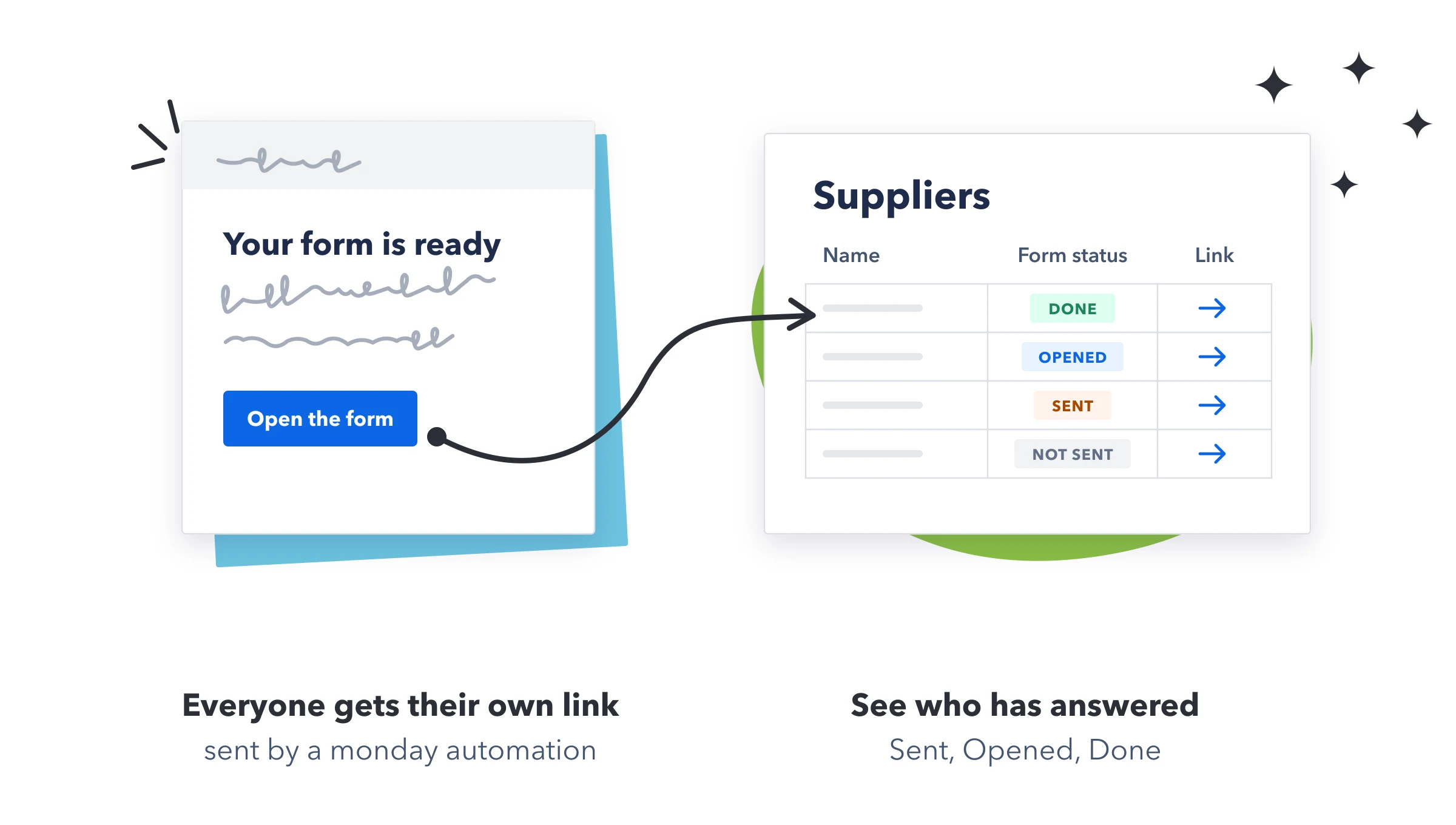
- Turn on Send a private link for each item.
- Choose a Form status column, or press Create a Form status column. A new one has the labels Not sent, Sent, Opened and Done.
- Choose a Link column, or press Create a Link column (it's named "Form link"). Each item's private link goes here, and reads "Open the form".
- Publish. The counts and the links come from the published form.
- Put the links on: Choose Every item on the board or one group, leave Only items not sent yet on, and press Put links on N items. They go on in batches, and the panel says "Putting links on 25 of 60 items…" until it's done.
- Send them: Add a monday automation, for example "When Form status changes to Sent, send an email with the Form link".
| Form status | When |
|---|---|
| Not sent | No link has been put on the item yet. An empty status, or a label of your own, counts as Not sent. |
| Sent | A link was put on the item: by Put links on N items, by Copy link under Get a link for one item, or by the put an update link in a Link column automation. |
| Opened | The person opened their link before ever saving through it. |
| Done | They saved through their link, or found their item with Let people find their answers and saved. |
- The panel counts the items at each stage, and Waiting for: names the people who haven't finished. Press the refresh button to update it.
- Reminders are monday automations on the Form status column, for example "Every Monday, notify the owner of items whose Form status is Sent or Opened".
- The links follow your settings: Links stop working after and Each link works once apply.
- Archived and deleted items aren't counted.
3. Open this form inside the item card
- Turn on Open this form inside the item card, and publish.
- Add the view: Open any item on the board, choose + Add view in the item card, then Apps → MasterForms.
- Open Team forms: The view has two tabs, Response and Team forms. Choose Team forms.
- Change the item: The form opens filled in with that item. Change the answers and press Save changes.
- Only members of the account can use it, not guests or viewers.
- It keeps working while the form is paused for everyone else.
- If more than one form opens in the item card, a Form list at the top lets you choose. Each says whether it's For your team or Also has a public link.
- A form only your team should fill in doesn't need a public link at all. See Forms for your team.
Note: All three ways use the form's rules and limits, and save only the questions on the form. Other columns on the item are left alone.