
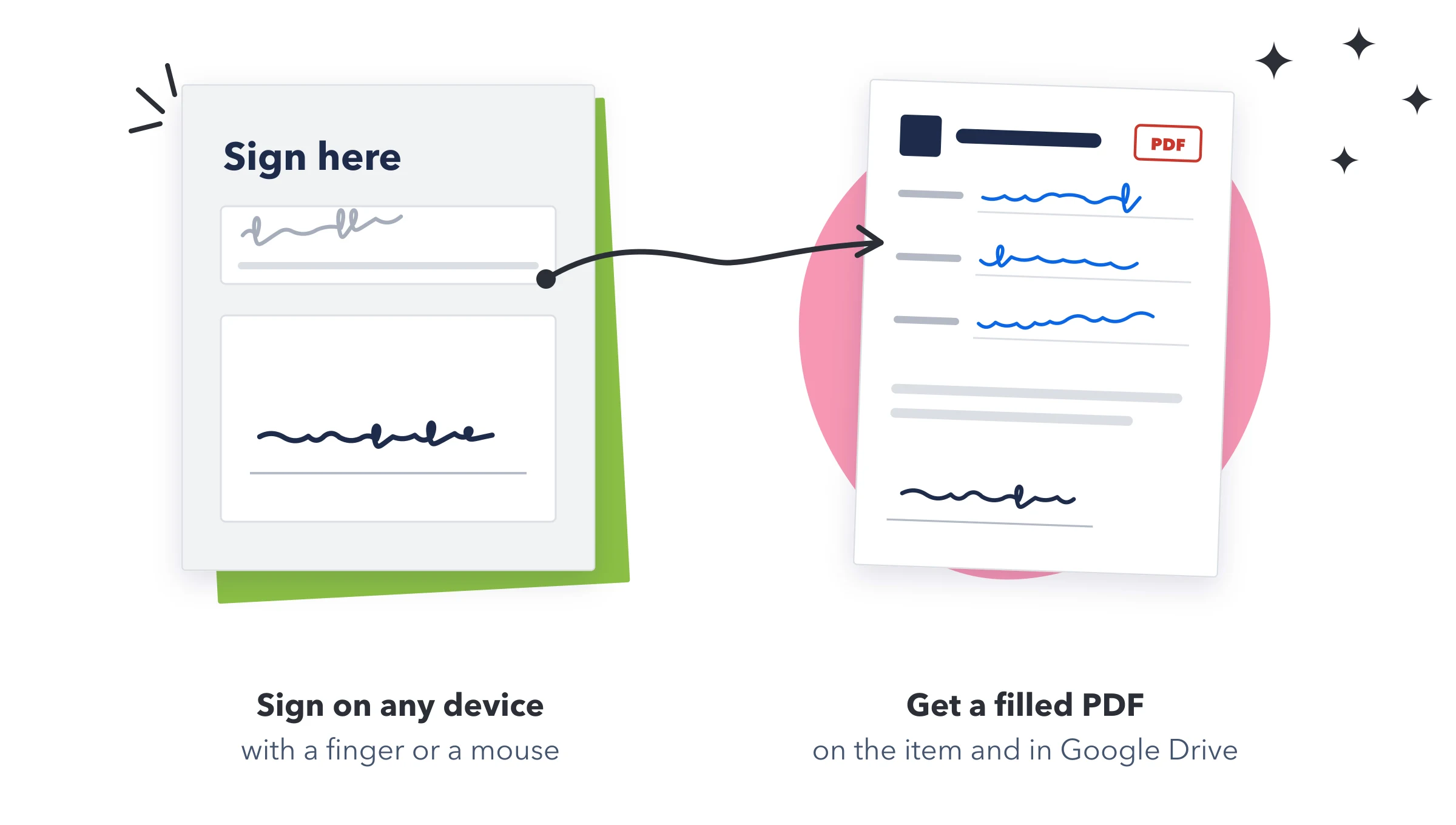
- Upload your PDF: Open PDF template and drop in your PDF.
- Place the answers: Drag a question from the list onto the page, where its answer should be printed. A signature question is placed as a dashed box: drag it to where the person should sign. Use the page arrows for longer PDFs.
- Adjust them: Click a placed answer to make the text smaller or larger, or a signature narrower or wider (Smaller signature and Larger signature, shown as "150pt wide"), or Remove from the PDF. Drag it to move it. A number on each question shows how often it's placed.
- Attach it to the item: Under Attach it to the item, choose the file column the PDF goes into.
- Save it to Google Drive (optional): Under File it in Google Drive, press Connect Google Drive and sign in, then paste the folder link or ID. Leave it empty to save to the top of the Drive.
- Save: Press Save template. It applies to new responses straight away, without publishing.
- A PDF is made for every new response, and again when a response is edited. It's named after the item.
- Answers in Latin, Greek, Cyrillic, Hebrew and Arabic print correctly, including right-to-left text.
- A signature prints as the respondent drew it, at the width you set (60 to 400 points). When someone edits their response without signing again, the PDF uses the newest signature already in that column on the item.
- File uploads, updates and line items can't be placed on the PDF. Files are saved in their own file columns.
- Use Replace PDF to change the document.
- Google Drive is connected once for the whole account. Don't use Drive stops this form saving to Drive.
Important: Nothing on this tab saves by itself. After connecting Drive or changing the file column, press Save template. The list shows published questions only, so publish new questions before placing them.