How to copy subitems in monday.com
By Arnav Ghatage, founder of Fortimus · Updated
Short answer
Duplicating an item duplicates its subitems with it. Getting subitems onto a different item is another matter: monday.com can move a subitem to another parent, but moving takes it off the first item, and there is no native copy. If two teams need to work on the same subitems, copying is the wrong tool altogether and they should be synced instead.
People land here wanting four different things, and monday.com treats each one differently. Sort out which one you are after and the rest of the page is short.
Which one do you want?
| What you want | Use | What you get |
|---|---|---|
| One more copy of a checklist you reuse | Duplicate | A separate set of subitems. Edits on one side never reach the other. |
| The subitems belong under a different parent | Move to | The subitems leave the first item. Nothing stays behind. |
| A subitem should be a top-level item | Convert | The subitem becomes an item. Column values with no match are lost. |
| Two teams working on the same subitems | Sync | One set of subitems, visible and editable on every board, always current. |
Duplicate an item with its subitems
This one is built in and it works the way you would hope: duplicate an item, a group or a whole board, and the subitems are duplicated too.
- Click the three-dot menu on the item, or tick the item and use the bar at the bottom of the board.
- Choose Duplicate, and pick whether the updates come along.
- The new item appears below the original with its own copy of every subitem.
Use it for a checklist you run again and again: a launch, an onboarding, a site visit. The two sets are independent from the moment they exist, so ticking off a subitem on one has no effect on the other. That is exactly what you want for a template, and exactly what you do not want for shared work.
Put subitems onto another item
There is no native copy here. monday.com gives you Move to, which relocates a subitem under a different parent item. The subitem is not copied: it leaves the first item and nothing stays behind.
- Open the parent item and expand its subitems.
- Click the three-dot menu on the subitem you want to relocate.
- Choose Move to, then pick the item it should sit under.
If what you actually wanted was the subitem in both places, the two native workarounds are both awkward: duplicate the whole parent and delete the subitems you do not need, which leaves you maintaining two lists, or rebuild the subitems by hand on the second item. Either way you end up with two sets that drift apart. Syncing them is the way around that.
Put subitems onto another board
Subitems travel with their parent. Move an item to another board and monday.com transfers its subitems automatically.
- Tick the item, or open its three-dot menu, and choose Move to board.
- Pick the destination board and group.
- Map the columns, for the subitems as well as the parent.
Two things to know before you do it on real work. Moving is not copying, so the item leaves the original board. And any subitem value whose column does not exist on the destination board is dropped in the move, so set up the matching columns first.
Turn a subitem into an item, or an item into a subitem
A subitem can be converted into a top-level item, and an item can be converted into a subitem under a parent you choose. It is a one-way trip for the data: column values with nowhere to land in the new position are deleted, so check the columns on both sides first.
Worth knowing: copying a column value between a parent and its subitem is a one-time copy. Change the parent afterwards and the subitem does not follow, and the other way round too.
When a copy is the wrong tool
Every native option above produces a snapshot. That is fine for templates and reorganising. It falls apart when two teams need the same subitems: delivery ticks off a task, the client board still shows it open, and within a week nobody trusts either board. The give-away is that you find yourself updating the same subitem twice.
What you want then is one set of subitems that appears on both boards. That is what Mirror Item Multiple Boards does: the subitem is not copied to the second board, it lives there, and an edit in either place is the same edit.
Step 1: Install the app and match your columns
Install Mirror Item Multiple Boards from the monday.com marketplace. There is a free plan. Subitem columns sync by matching name and type, so there is no field mapping: give both boards subitem columns with the same names and types, and anything named differently stays private to its board.
Step 2: Open the item and turn on Add Subitems
Open the parent item, click the Mirror Item Multiple Boards tab, choose the target board and group, and switch on Add Subitems before you add it.
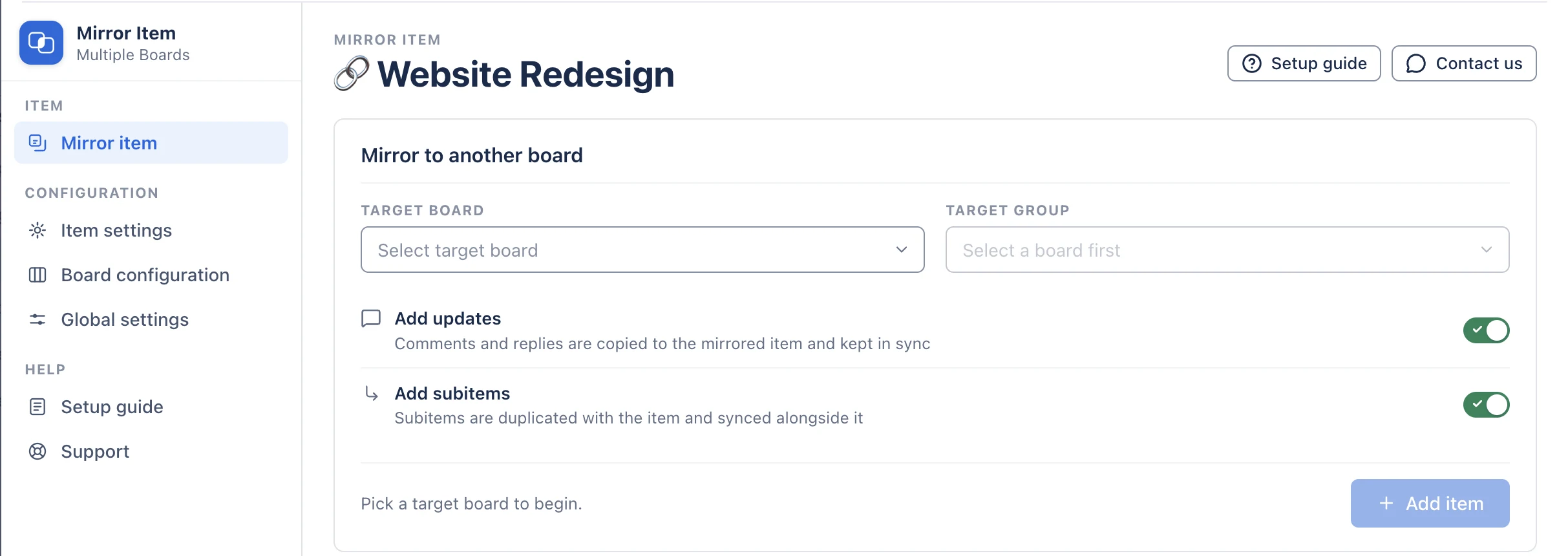
Step 3: Click Add Item
The item and its subitems appear on the second board with their structure intact. Edit a subitem on either board and both show the change. New subitems added later sync too.
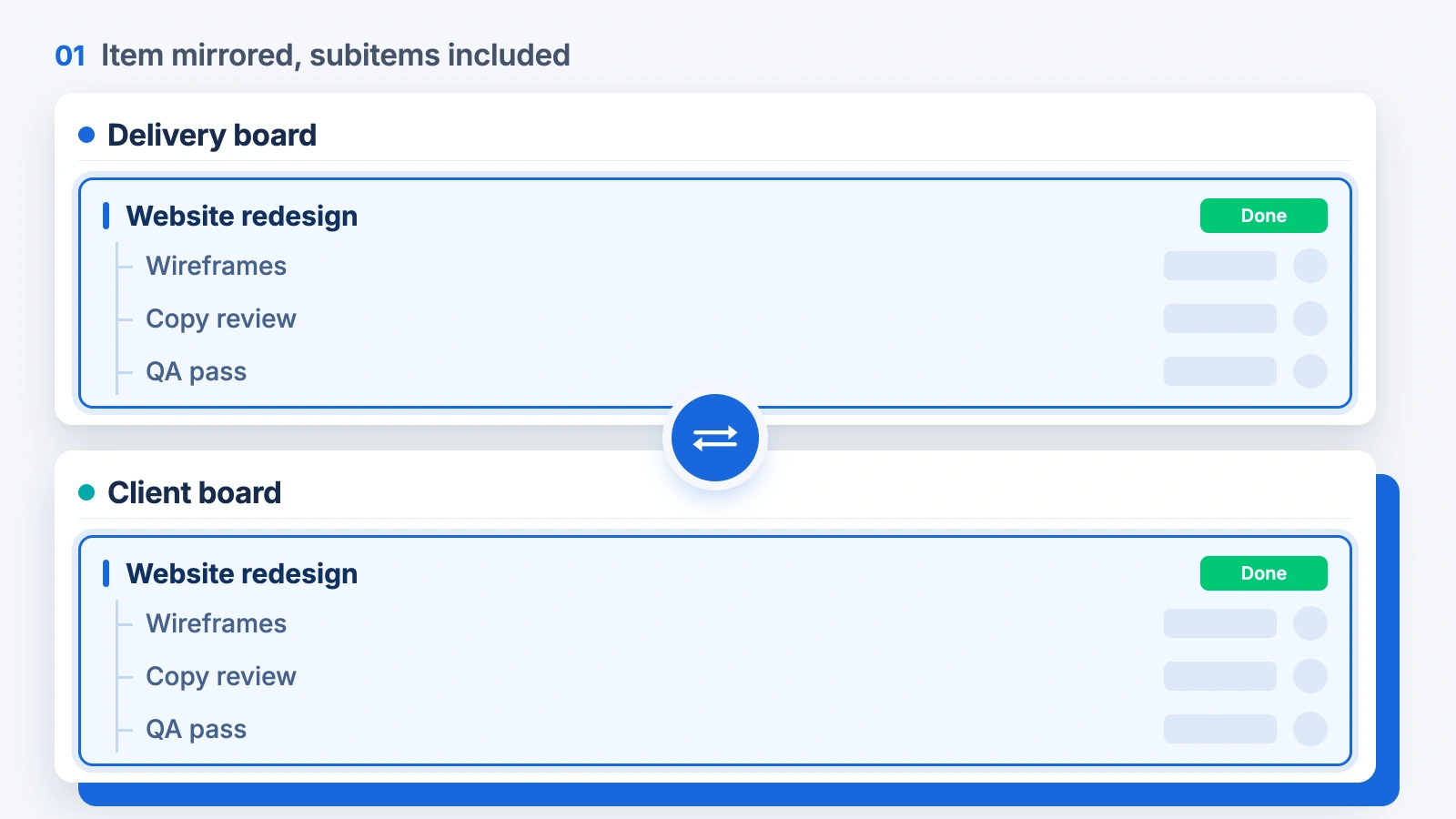
Subitems do not count towards your item limit: a parent item and all its subitems count as one.
Put a single subitem on another board as a full item
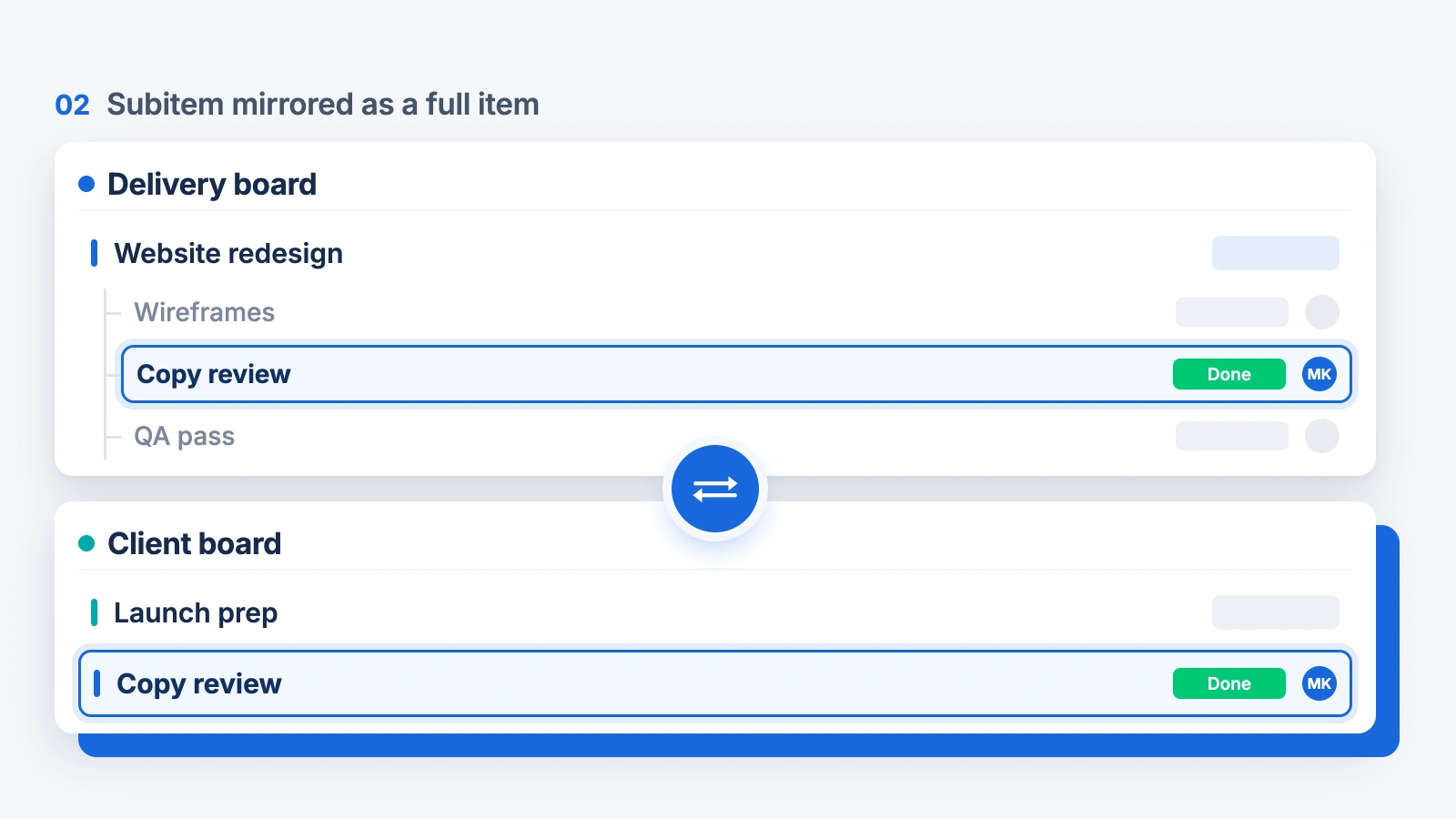
A subitem does not have to stay a subitem. Open the subitem itself, click the Mirror Item Multiple Boards tab and add it to another board, where it appears as a top-level item. Managers get each task as its own row on a leadership board instead of buried under a parent, and it stays in sync with the original subitem both ways. The same subitem can also sit under two different parent items at once.
Do it automatically
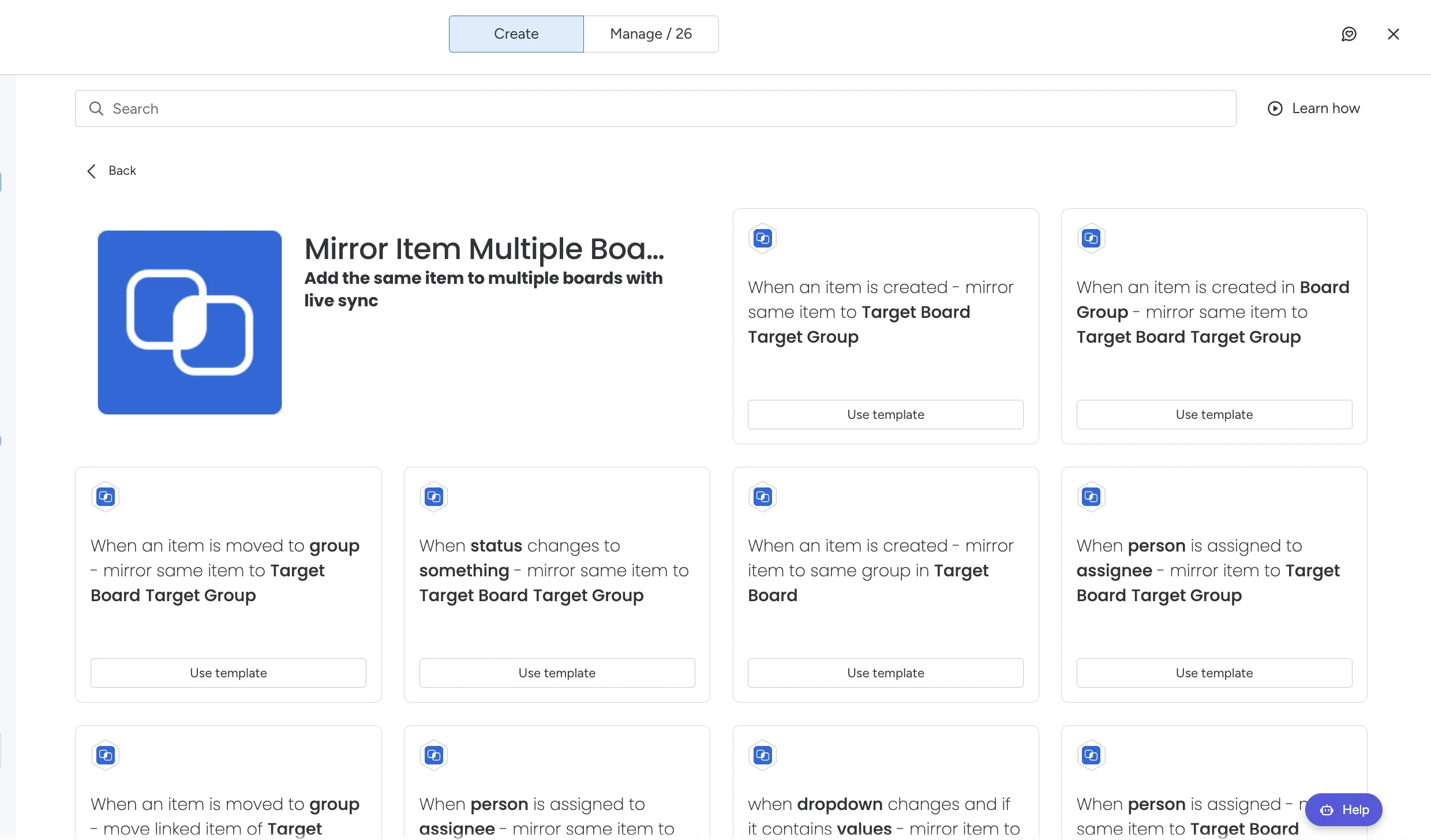
To stop doing this by hand, open the Automation Center on the board, search for "mirror item" and pick a subitem recipe, such as mirroring every new subitem to another board as an item. New subitems then land on the other board on their own.
Frequently asked questions
How do I copy subitems in monday.com?
Duplicate the parent item and its subitems are duplicated with it. There is no native way to copy a subitem from one item onto another: you can move it to a different parent, which takes it away from the first item, or duplicate the parent and delete what you do not need.
Does duplicating an item in monday.com duplicate its subitems?
Yes. When you duplicate an item, a group or a whole board, the subitems are duplicated as well.
Can I copy subitems to another item?
Not as a copy. monday.com lets you move a subitem to another parent item, which removes it from the first one. If you want the same subitems under two parents at once, they have to be synced rather than copied, which is what Mirror Item Multiple Boards does.
Can I copy subitems to another board?
Move the parent item to the other board and its subitems travel with it. You have to map the columns, and subitem values with no matching column on the destination board are dropped.
What is the difference between copying and syncing subitems?
A copy is a snapshot: two sets of subitems that start identical and drift apart as people edit them. Synced subitems are one set shown on several boards, so a change made anywhere is the change everyone sees.
Do synced subitems count towards my item limit?
No. Subitems do not count towards the item limit on Mirror Item plans. A parent item and all its subitems count as one.
Can the same subitem sit under two different parent items?
Yes, with Mirror Item Multiple Boards. The subitem stays one subitem under both parents and stays in sync in both places.
Why can a mirror column not show my subitems?
A mirror column carries values from a connected item, not a structure of subitems, and subitems live on their own hidden board. That is why mirror columns can show a rolled-up subitem value but cannot put the subitems themselves on another board.