
Start from a template
A new, empty form offers Start from a template. Each template is a ready-made form that uses your board's columns where it can.
| Template | What it asks |
|---|---|
| Service or maintenance request | Request type, priority, site and photos. The address is only asked for repairs. |
| Customer feedback (NPS) | Stars, a 0 to 10 recommend score and a follow-up for unhappy customers. One question at a time. |
| Job application | Contact details, role, CV and cover letter, with save and finish later. |
| Event registration | Attendee details, ticket type and dietary needs. Close it when seats run out. |
| Client onboarding | Company and contact details, billing, start date and a signed agreement. |
| IT help request | For your team: what's wrong, how urgent, which device. Shows a tip for password issues. |
| Expense claim | Amount, date, category and a receipt, with a signature. |
| Contact us | A short website contact form: name, email, topic and message. |
- Pick a template: On the empty form, press Start from a template and choose one.
- Review it: You see every question and where it's saved, as when you import a form. Questions use the board's columns with the same name; the rest get new columns. Change a label, leave a question out, or choose another column. Back to templates goes back to the list.
- Build it: Press Create N columns and build form (or Build form). The missing columns are added to the board, then the template's rules, scales and settings are added to your draft.
- Check and publish: Change anything you like, then publish.
Note: Some templates also turn on settings: Customer feedback shows one question at a time and adds repeat answers to the first response, Job application lets people save and finish later, and Event registration lets a second registration replace the first. Their one-response setting uses the form's Email question. Rules and scales are only added to questions you keep with their template name.
Build from your board's columns
The list on the left is your board's columns. Tick one and it becomes a question on the form. Every answer is saved straight into that column.
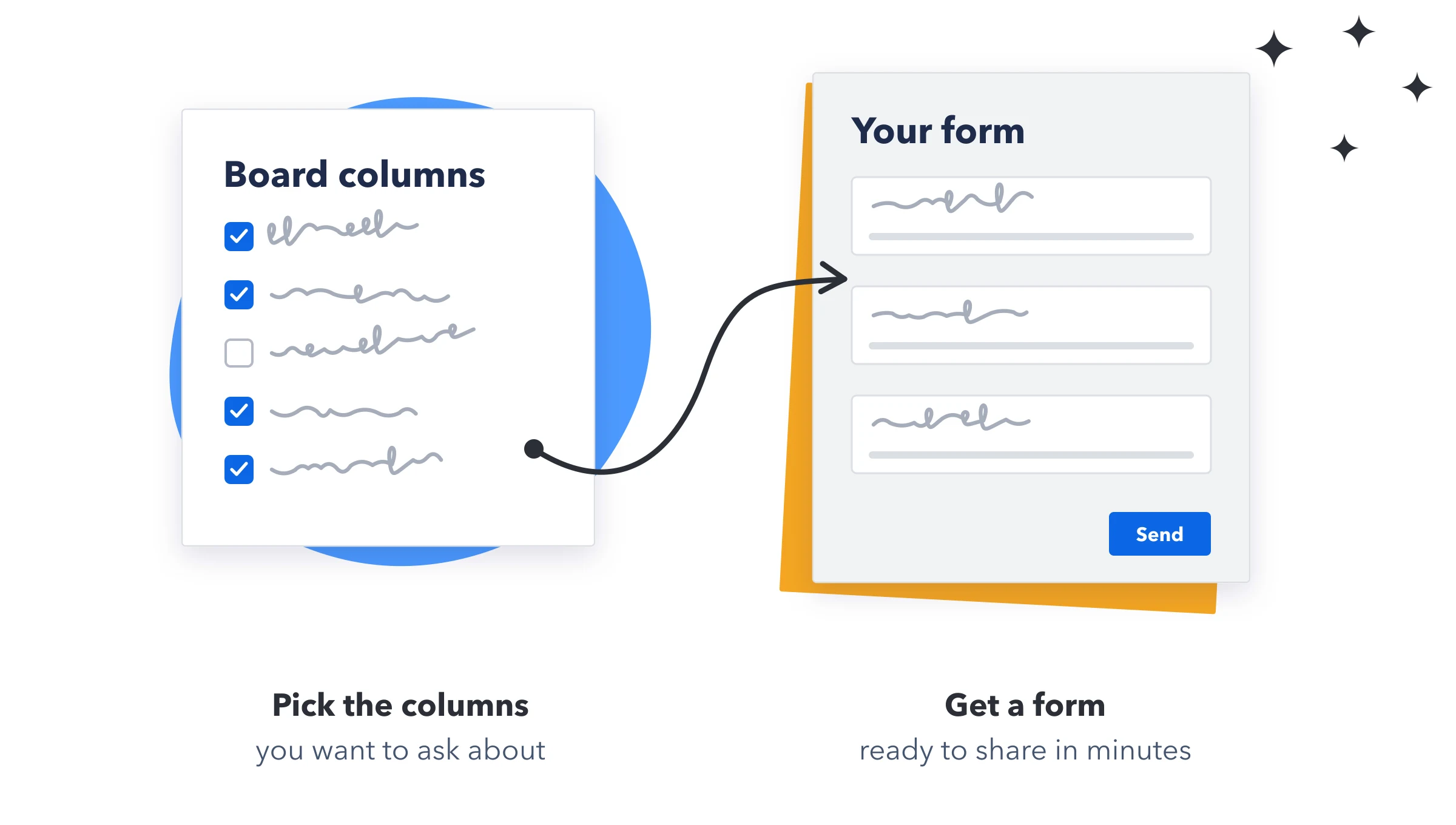
- Tick columns: Tick each column you want to ask about. Select all adds every column at once. While you search, it adds only the columns that match.
- Add a column you don't have yet: Press + New column at the bottom of the list. Give it a name and a type (Text, Long text, Number, Status, Dropdown, Date, Checkbox, Email, Phone, Link, File upload, Signature or People). It's added to the board and to the form.
- Write the questions: Click a question's label to change it. Add help text under it, and change the grey placeholder inside the box. Click the title and description at the top of the form to change them too.
- Make answers required: Click the asterisk (*) on a question. Respondents must answer it before they can continue.
- Arrange them: Drag a question by its handle to move it. Drop it on another question to put the two side by side. A row holds two questions; press Stack to put them on separate rows again.
- Split into pages: Press Add page. On a question, use ⇄ Move to another page to send it to another page.
- Add text, images and dividers: Under the form, Add to this page has Text, Image, Divider and Signature. Text, images and dividers show between questions and collect nothing. Use Text for headings and instructions. Signature adds a box to sign: see Signatures.
Tip: A ticked column is added to the last page, and pages can't be renamed or reordered. Build the pages in the order people will fill them in.
Important: Unticking a column removes its question straight away, with its help text, conditions and default answer. Deleting a page (the × on its tab) moves its questions to the first remaining page. Neither asks first. Your published form keeps them until you publish.
Text and image blocks
- Text: a heading and a paragraph, for example "Before you start: have the site address and any photos to hand."
- Image: paste a link to an image anyone can open, and add a Description for screen readers.
- Divider: a line between sections.
- Blocks can have rules too, under Show this block only when. Use this to show a warning or instructions only to some people.