
Preview, publish and share
Everything you change saves by itself as a draft, a couple of seconds after you stop. People filling in the form only see your changes once you press Publish. This means you can work on the form while it's live.
- Preview: Press Preview to open your draft in a new tab and try it like a respondent. Nothing you send from a preview reaches the board. The preview works for 30 minutes; press Preview again for a new one.
- Publish: Press Publish (after the first time, Publish changes). Visitors see the new version within 30 seconds.
- Share: Press Share to copy the link, download a QR code, or copy the code that puts the form on your website. See Share the form. A team form has no link, so Share says how to open it in the item card instead.
| Next to the buttons it says | What it means |
|---|---|
| Saving… | Your latest change is being saved. |
| Not published yet | The form has never been published, so its link shows "Form not found". |
| Unpublished changes | Your draft is saved. People still see the published version. |
| Published | What people see is what you see. |
| Couldn't save. Trying again… | A save failed and is being tried again. Press Try again to retry now. |
- Discard throws away your unpublished changes and goes back to the published version. It can't be undone.
- The link under Share always opens the published form. If you have unpublished changes, it says so.
- If you press Share before the first publish, you're asked to Publish the form first, with Publish and share.
- If a teammate changes the same form while you're editing, you're asked which version to keep: Load their version or Keep my version.
Tip: Publish, Preview and Share are at the top of Form builder and of every tab of Form settings. After changing emails or anything else, come back to one of these to publish.
Checks before publishing
MasterForms checks the form when you publish. A problem that would break it stops the publish, and the form people see stays as it was:
- Require a password is on, but no password is set.
- The link under Send them to another page doesn't start with http:// or https://.
- One response per person or Let people find their answers is on, but its questions aren't chosen.
- Send each response for approval is on, but there's no Approval column, no step, or a step has nobody to approve it (or, for someone outside your account, no Link column).
- A question has more than 20 conditions.
Things that may not work as intended only show a warning, and you can press Publish anyway: rules the Logic view flags, a translation that isn't finished, a "Recognise people by" question that isn't required, or Replace their first answers on a form without a password.
Share the form
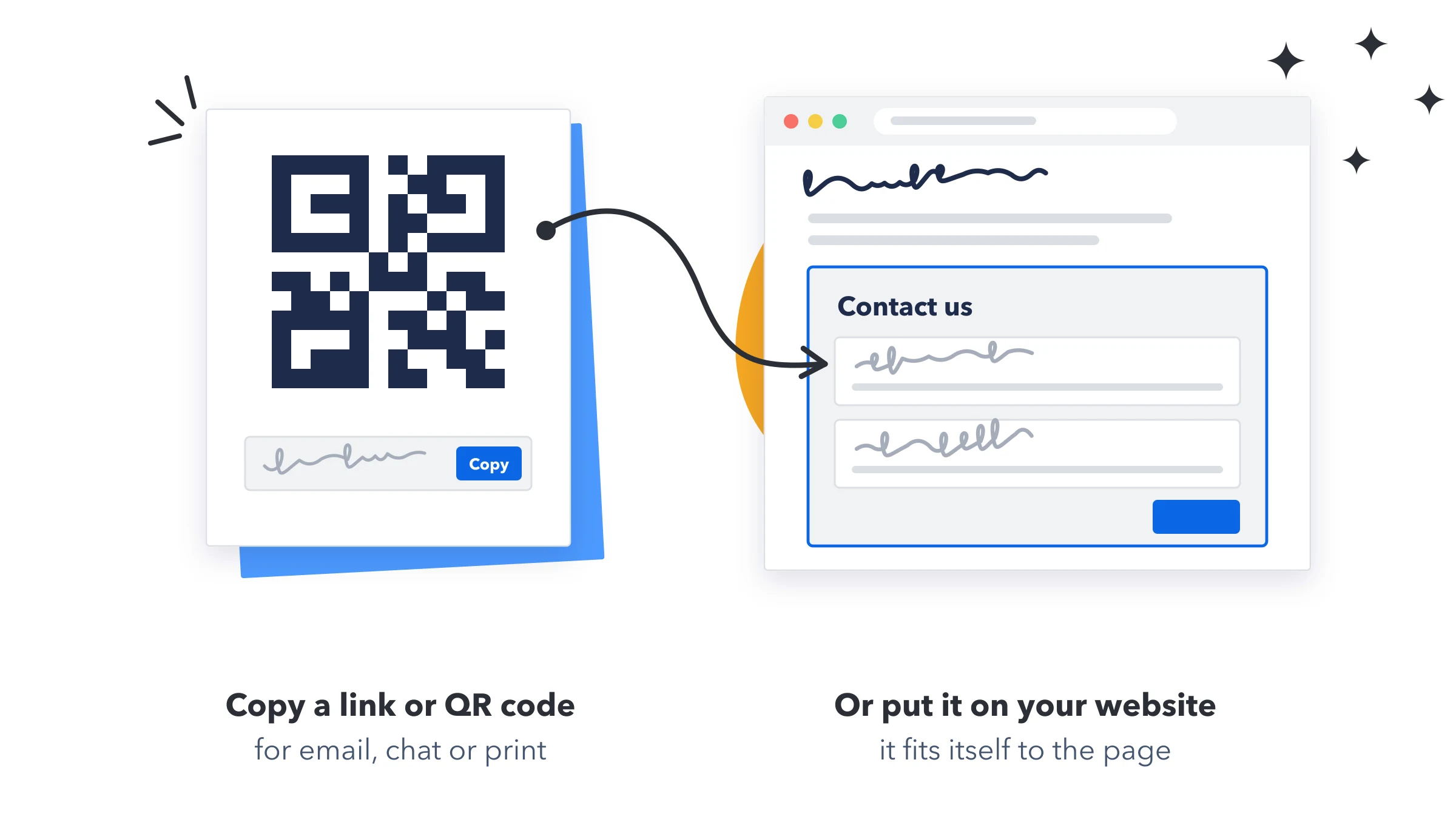
Press Share above the form. Share the form has three tabs. Anyone with the link can fill in the form, without a monday.com account.
| Tab | What you get |
|---|---|
| Link | The form's link, with Copy. Send it by email or chat, or add it to a button on your website. |
| QR code | A QR code for a poster, a flyer or a counter sign. Phones open the form when they scan it. Download it as a PNG, or as an SVG for print, which stays sharp at any size. |
| Embed | Code to paste into your website's HTML where the form should appear. Press Copy code. |
Put the form on your website
- Copy the code: In Share, open Embed and press Copy code.
- Paste it: In your website editor, add an HTML or custom code block where the form should appear, and paste the code.
- Publish your page. The form shows there, and every response becomes an item as usual.
- The form fits the width of the space you give it and grows as people answer, so there's no scroll bar inside it. It shows your website's background instead of its own.
- When people move to another page of the form, the website scrolls up to the top of the form if it's out of view.
- The code has two parts: the frame, and a short script that keeps the frame as tall as the form. If your website builder removes scripts, the frame stays 640 pixels tall and scrolls inside.
- With Send them to another page on, people aren't moved on automatically inside a website. They see a Continue now link, which opens your page in the whole window.
- To see on the Dashboard which responses came from your website, add
&ref=websiteto the end of the link inside the code. See Where responses come from.