How to add the same item to multiple boards in monday.com
By Arnav Ghatage, founder of Fortimus · Updated
Short answer: to keep the same item on multiple monday.com boards with editable rows and shared columns, install Mirror Item by Fortimus, open the item, choose the target board and group, and click Add Item. Enable Add Updates and Add Subitems if you want those to follow too.
monday.com on its own cannot put one item on two boards: moving takes it off the first board, duplicating creates a copy that drifts, and Connect Boards with mirror columns only shows a few values while the item itself stays where it was. Mirror Item puts the real item on every board that needs it. It is built and supported by Fortimus, with its own marketplace listing, pricing and support, and is not affiliated with any other item sync app.
Three ways to show the same item on multiple boards
| Approach | Best for | What to expect |
|---|---|---|
| Duplicate or create an item | Separate work that should evolve independently | Not the same item. The copy is independent and drifts as soon as someone edits either one. |
| Connect Boards + Mirror columns | See selected fields and open connected work | Not the same item. Selected values are displayed on the other board, but the item, its updates and subitems stay on the first board, and mirror columns cannot trigger automations. |
| Mirror Item by Fortimus | Working rows on each team's board, with shared columns, updates and subitems | The app links editable items across boards and synchronizes matching columns. Each actively mirrored item counts once on your app plan. |
Only the last option gives every board the same, editable item. Here is how to set it up in five steps.
Step 1: Install Mirror Item by Fortimus
Install Mirror Item by Fortimus from the monday.com marketplace, where it is listed as Mirror Item Multiple Boards (free plan available). When monday asks which workspaces it can use, choose All Workspaces if your boards live in more than one workspace, otherwise the second board will not show up in step 4.
Step 2: Match the columns on both boards
Columns sync by matching name and type, so there is no field mapping. Make sure every column you want shared exists on the second board with the exact same name and type. Anything named differently stays private to that board.
For example, keep a Status, Due date and Owner column on both boards so they sync, and give the client board its own Client notes column that never syncs back.
Prefer to watch? Steps 3 to 5 in about two minutes.
Step 3: Open the item and the Mirror Item tab
Open the item you want on more than one board. Next to Updates, Files and Activity Log, click the Mirror Item Multiple Boards tab. If you do not see it, click + and add it from your installed apps.
Step 4: Choose the target board and group
In Target Board, pick the board where the same item should also appear, then choose the Target Group. Turn on Add Updates to bring the conversation along, and Add Subitems to bring its subitems.
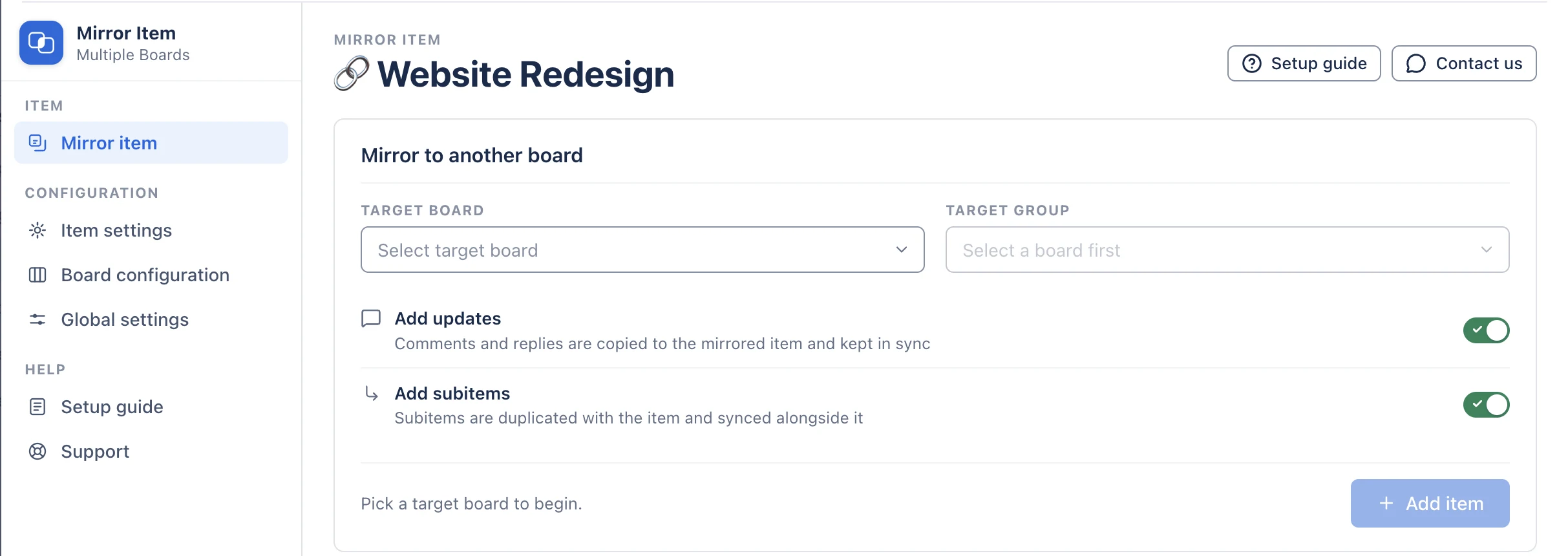
Step 5: Click Add Item
Click Add Item. The item is created on the target board as a real item, and the Where this item lives table shows every board it lives on and the columns kept in sync.
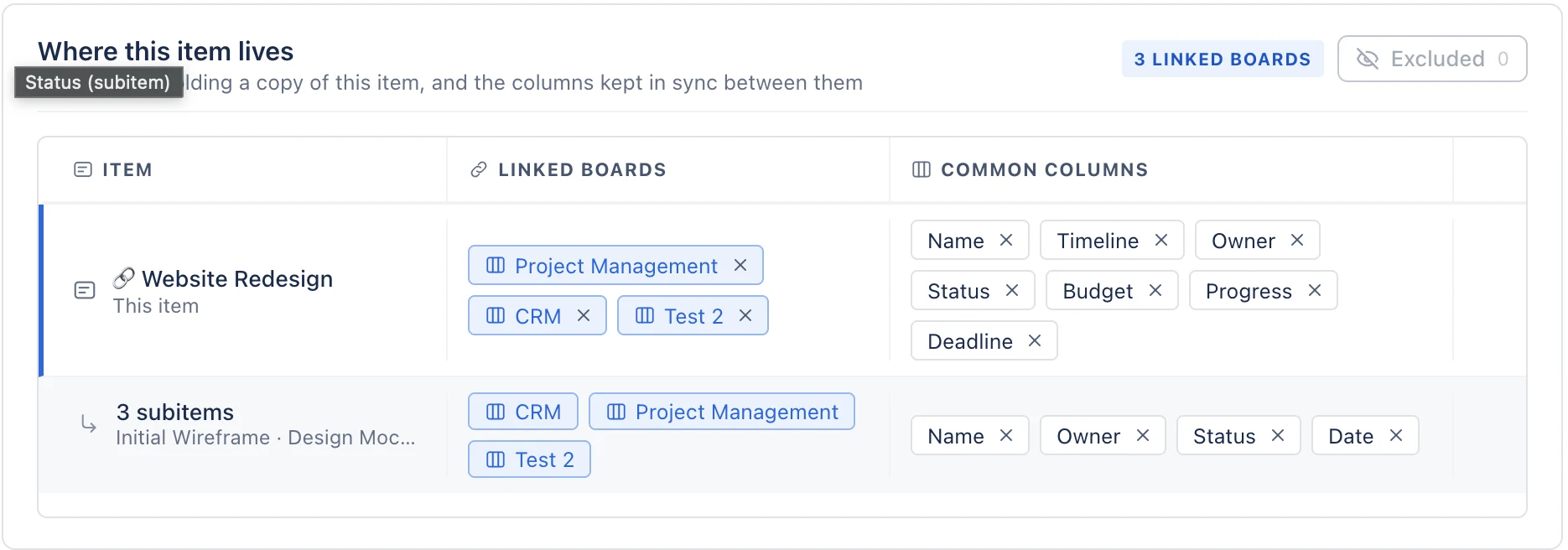
Edit a shared column on either board and check the linked item on the other board. Repeat step 4 for each additional destination. See the verification checklist below before adding your whole team.
Keep subitems in sync across boards
Subitems work the same way as items. With Add Subitems switched on, an item's subitems come along to the other board and stay in sync. You can also put a single subitem on another board, either as a subitem under a parent there or as a full item on a master board, and even keep one subitem under two different parent items.
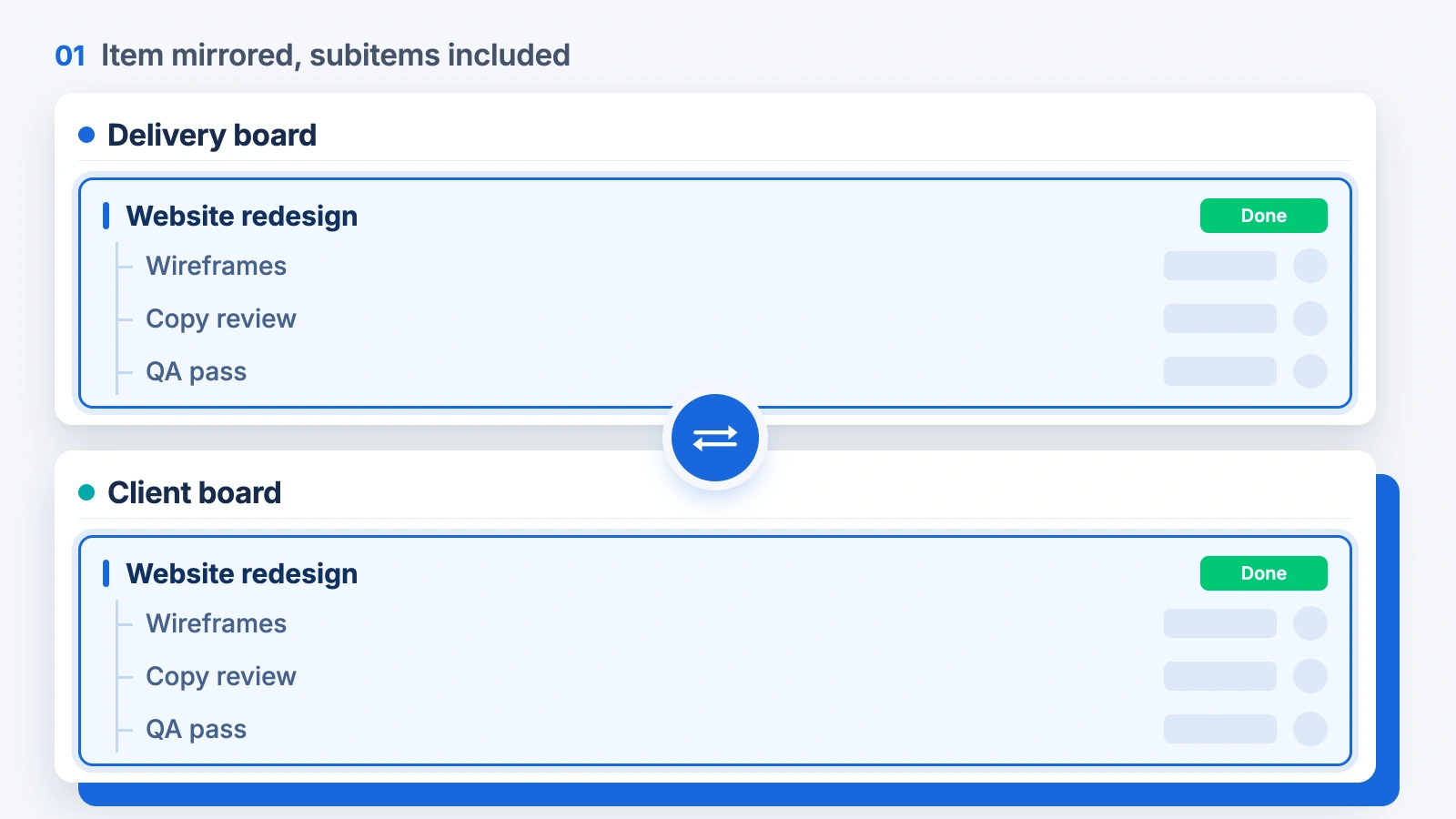
Add a subitem as an item on another board
A subitem doesn't have to stay a subitem. You can put it on another board as a full, top-level item, which is handy for a master or leadership board where managers want each task as its own row rather than buried under a parent. Open the subitem, click the Mirror Item Multiple Boards tab, pick the target board and group, and add it. It stays in sync with the original subitem both ways.
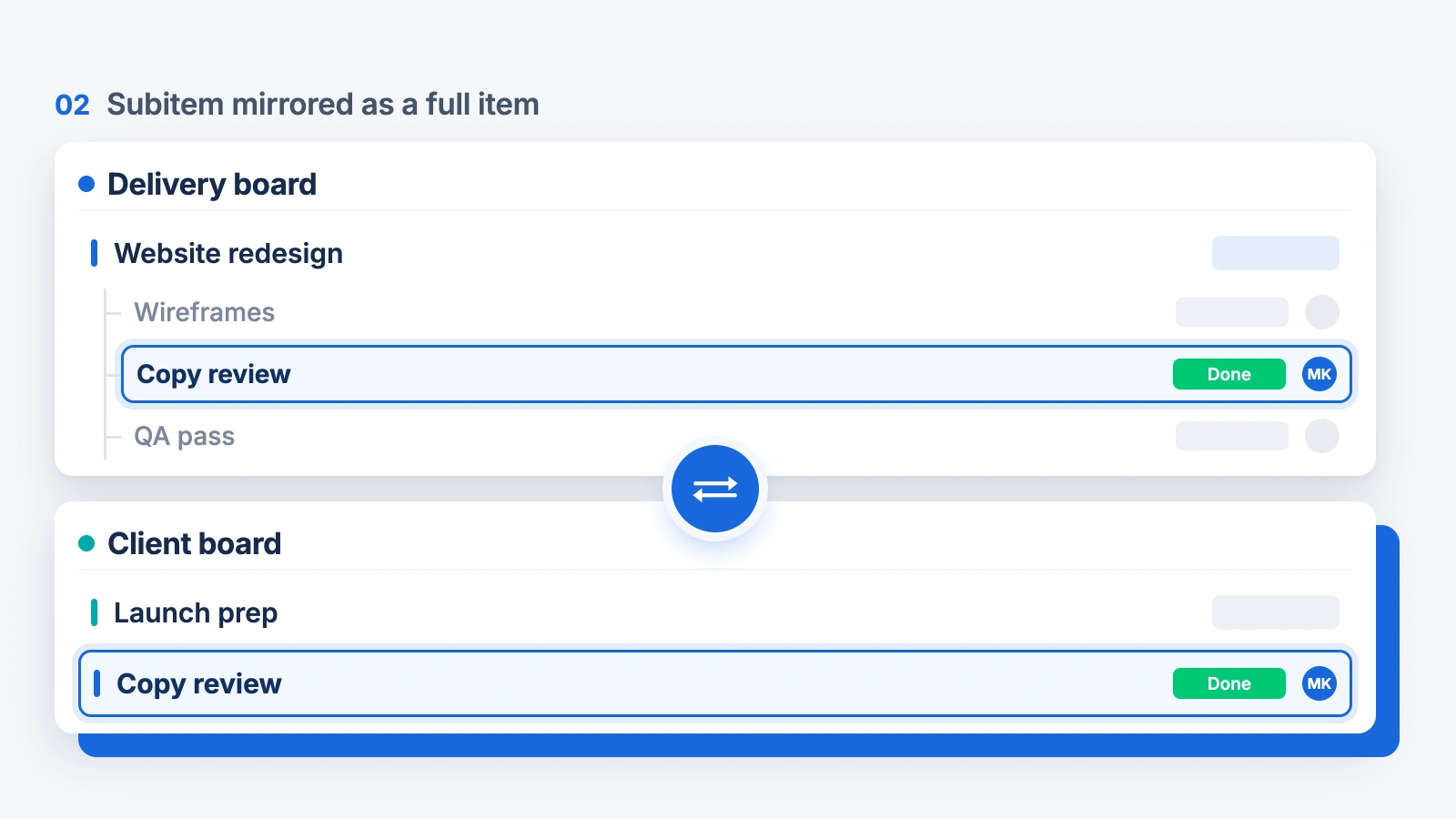
You can also do this automatically. In the Automation Center, search for "mirror item" and pick one of the subitem recipes that mirror a subitem to another board as an item, so every new subitem shows up on your master board without anyone lifting a finger.
For every subitem scenario, see how to mirror subitems in monday.com.
Put many items on another board at once
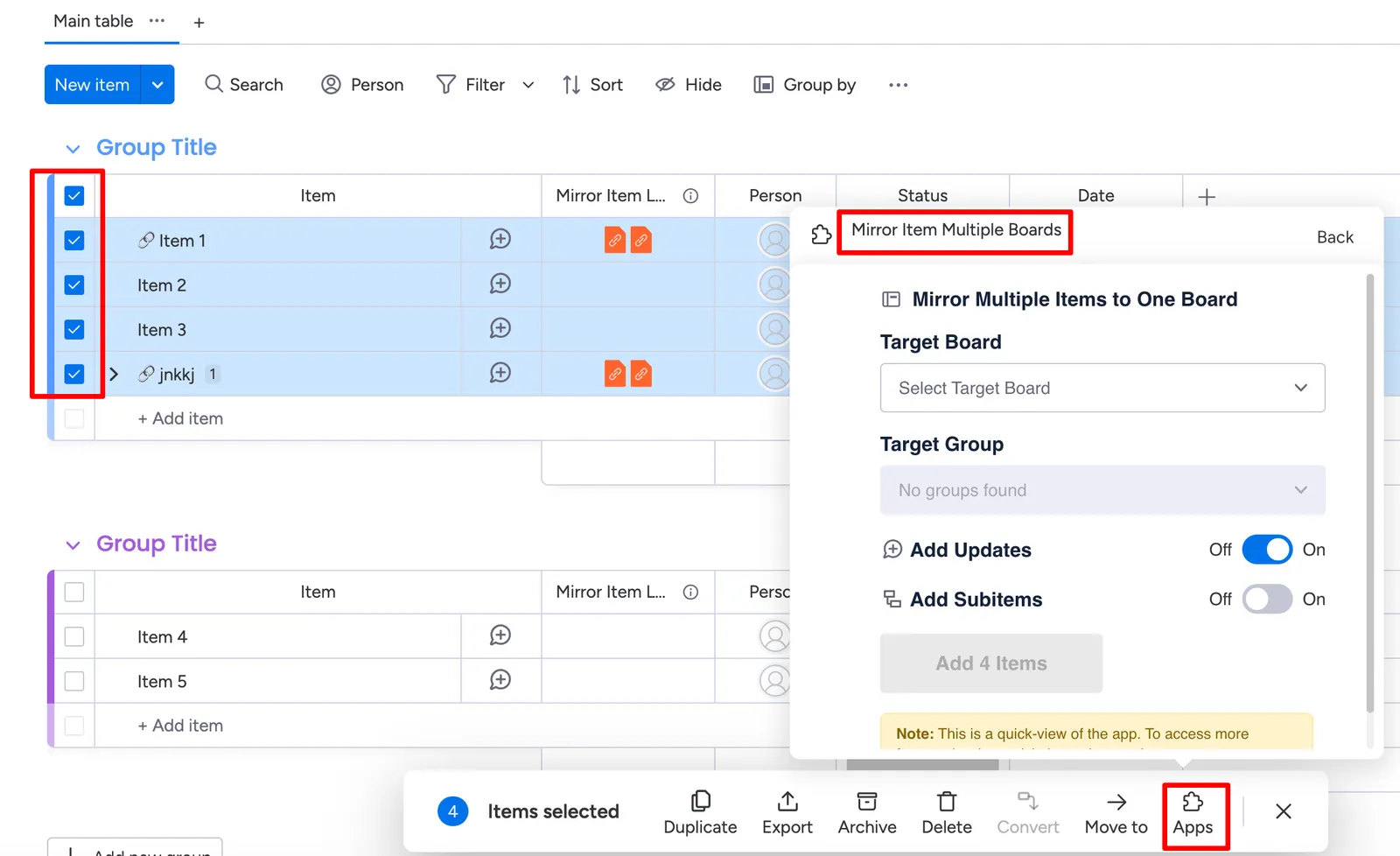
Setting up an existing board? Tick the items you want, click Apps in the bar at the bottom of the board and choose Mirror Item Multiple Boards. Pick the target board and group, and all the selected items are added in one go.
Put new items on multiple boards automatically
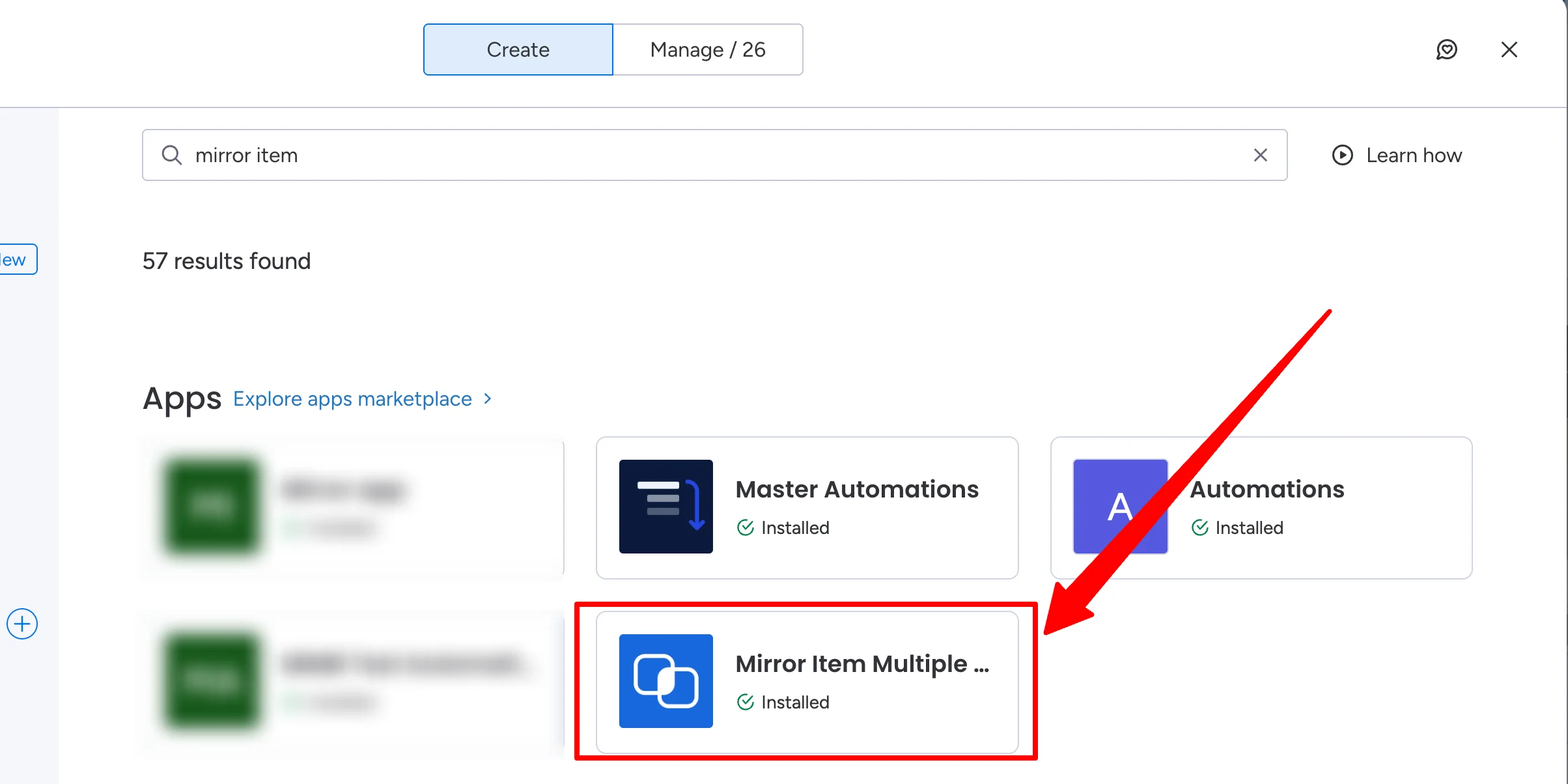
Open the Automation Center on your board, search for "mirror item" and click the Mirror Item Multiple Boards app.
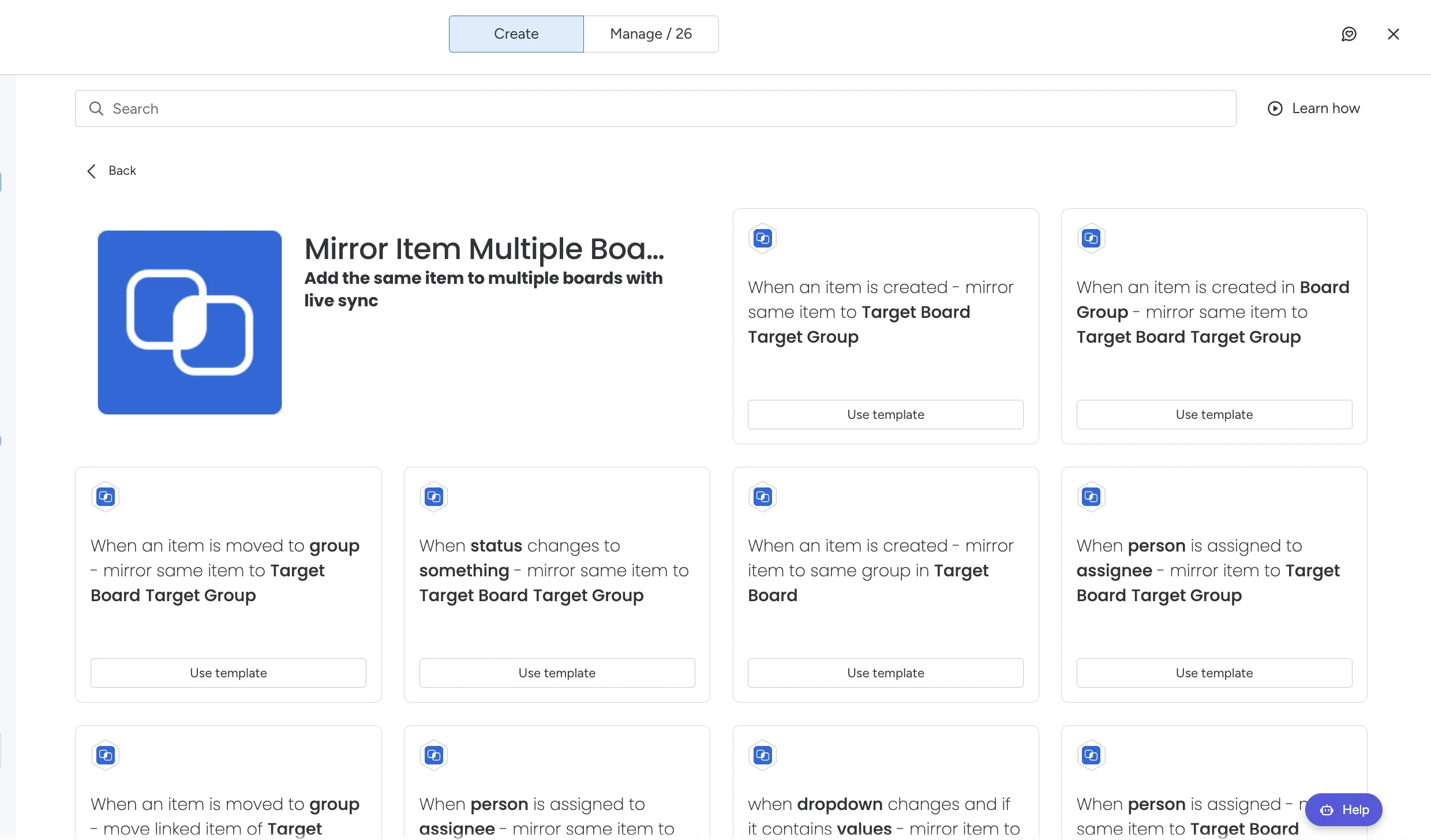
Pick a recipe and click Use template. The most popular ones:
- When an item is created, mirror the same item to a target board and group.
- When an item is moved to a group, mirror the same item to a target board and group.
- When a status changes to something, mirror the same item to a target board and group.
- When a person is assigned, mirror the item to a target board and group.
Control what syncs
- Exclude a column: in the sync table, click the x on a column to stop syncing it for that item.
- One-way sync: sync is two-way by default. Disable webhooks on a target board and changes only flow from the source to it.
- Private columns: give a column a different name on one board and it never syncs.
Check that edits sync in both directions
Try this with one test item before mirroring a whole board. This is a checklist you can run in your own account.
- On the source board, change the shared Status column. Open the linked item on the destination and confirm that value arrives.
- On the destination, change the shared due date. Confirm it reaches the source board when two-way sync is enabled.
- If Add Updates is enabled, post a test update and check the linked conversation. Each author may need to authorize the app.
- If Add Subitems is enabled, change a shared subitem column and check the corresponding subitem on the other board.
- Change a column deliberately named differently on one board. It should remain independent. Review the sync table before sharing client-facing information.
If a check fails, start with column matching, update authorization and item limits and connections.
Add the same item to boards in different workspaces
The destination can be in another workspace within the same monday.com account. Both you and the app need access. In Administration, open Apps, find Mirror Item Multiple Boards and check its workspace scope. Choose All Workspaces when you need destinations across your account.
A private board still requires membership or appropriate access. This setting does not grant access to another company's monday.com account. See how to fix a missing target board.
Why the built-in options fall short
monday.com has no built-in way to keep the same item on more than one board. These are the two workarounds people try first, and where each one stops.
Duplicate the item into each board
Duplicate the item and move the copy to another board. You now have two separate items: a status change, a date change or a new update on one never reaches the other, and reports count the work twice. See copy an item to multiple boards for the synced way to do this.
Connect Boards and Mirror columns
Connect Boards links an item to an item on another board, and a mirror column displays some of its values. The item itself never appears on the second board: there is no row the team can work on, its updates and subitems stay on the original board, and mirror columns cannot trigger automations or be sorted like regular columns.
If each team needs the item as a real row on its own board, with columns, updates and subitems in sync, use the Mirror Item setup above. For more detail, see what you can edit in a Mirror column.
Troubleshooting
The second board is not in the Target Board list
You, and the app, both need access to that board. Check the board permissions, then open your installed apps and make sure Mirror Item Multiple Boards is set to All Workspaces.
A column is not syncing
Check the name and type match exactly on both boards ("Due date" and "Due Date" are different). Formula and mirror columns never sync because monday.com calculates them. The column may also have been excluded in the sync table.
Comments are not syncing for some people
Syncing updates on behalf of a user needs that user to authorise the app once. You can prompt them from the app settings.
I want to stop syncing but keep the item
In the sync table, use Unlink on that board. The item stays where it is and stops syncing. Delete removes it from the target board instead.
Still stuck? The full Mirror Item docs cover every setting, or message us and we'll look at your boards with you.
Frequently asked questions
Can you have the same item in multiple boards in monday.com?
Not with native features alone. monday.com can show fields from another board with Connect Boards and mirror columns, but the item itself stays on one board. With Mirror Item by Fortimus, the same item lives on each board as a real, editable item and stays in sync.
How do I show the same item on multiple boards at once?
Put the item on each board with Mirror Item by Fortimus, or select many items and use the Apps bar to add them all to another board in one go. The linked items stay in sync: an edit to a shared column on any board reaches the others.
How do I show the same item on two boards?
Open the item, open the Mirror Item Multiple Boards tab, choose the second board and group, and click Add Item. Repeat to add it to more boards.
Is it a duplicate or a synced item?
Each destination board has a real, editable item linked by Mirror Item. Unlike an independent duplicate, shared columns stay in sync. Enable Add Updates and Add Subitems to synchronize those too. One mirrored item counts once against your Mirror Item plan.
Can I put the same subitem in multiple boards?
Yes. A subitem can be mirrored on its own to another board, as a subitem under a parent there or as a full item. The same subitem can even sit under two different parent items and stay in sync.
Can the same item be on boards in different workspaces?
Yes, within the same monday.com account, as long as the app is enabled for the relevant workspaces and you have access to the target board. This does not grant access to another company’s account.
Does one item on several boards count as several items on my plan?
No. A shared item counts once against your plan, no matter how many boards it lives on.
What happens if I delete the item on one board?
By default the item on the other board is kept and the link is removed. You can turn on deletion sync per board if you want deletes to carry across.
Who makes Mirror Item?
Fortimus builds, sells and supports Mirror Item. It is listed on the monday.com marketplace as Mirror Item Multiple Boards under the developer name Fortimus, and it is not affiliated with any other item sync app. An item counts once on your Mirror Item plan, no matter how many boards it is on.
Related guides
- Share an item to other boards in monday.com
- Move an item to another board and keep it on both
- Copy an item to multiple boards
- Sync updates between boards
- Same task on multiple boards
- Share an item across workspaces
- Mirror subitems in monday.com
- Build a master board in monday.com
- Sync items across monday.com boards
- A better alternative to mirror columns
- Mirror Item vs Same Item Multiple Boards
- Send form submissions to multiple boards
- AI assistants and the same item on multiple boards