
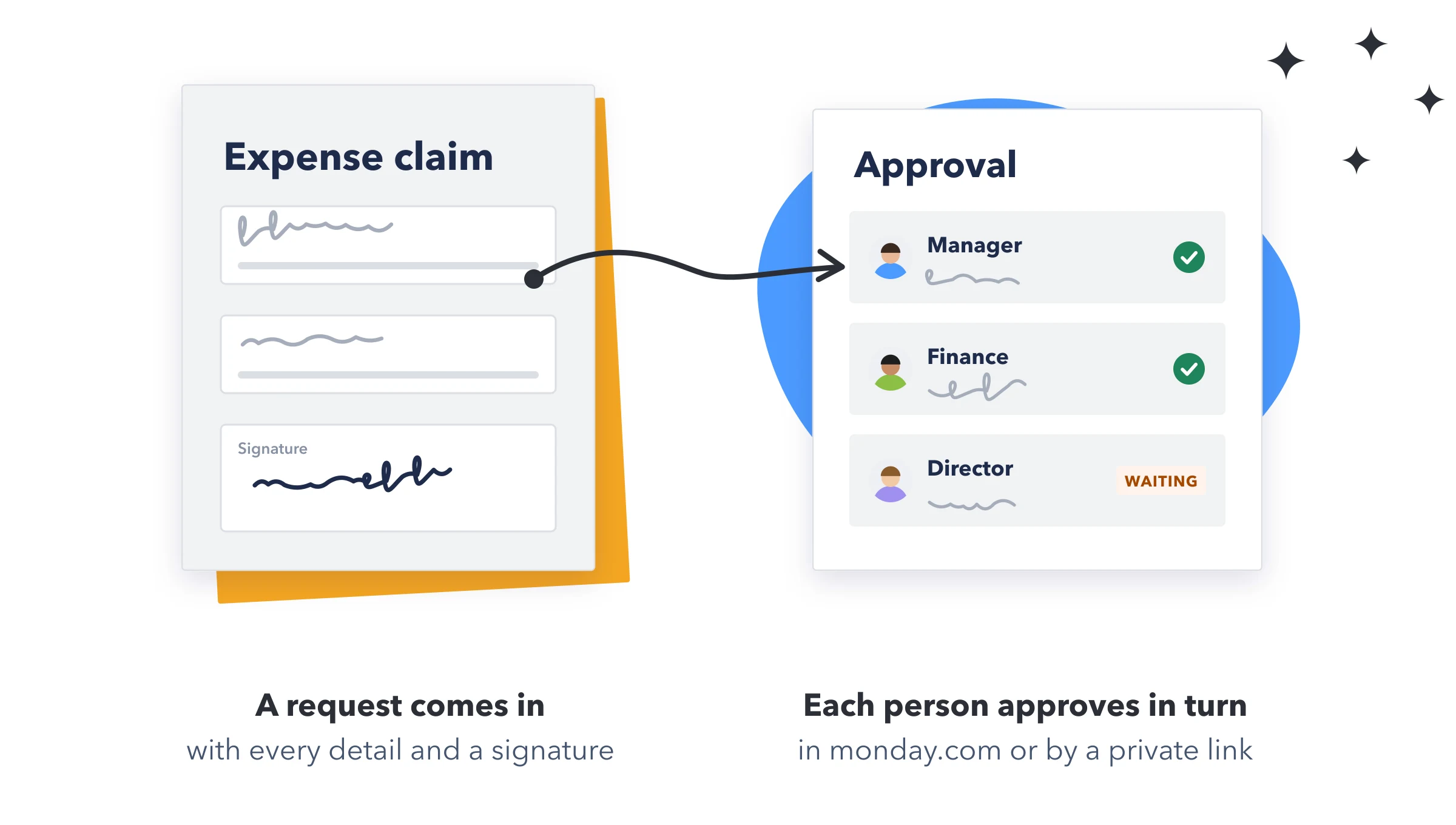
- Turn it on: In Form settings → Approvals, turn on Send each response for approval.
- Choose the Approval column: A Status column that shows where each response is, or press Create an Approval column. It shows "Waiting:" and the step's name, like "Waiting: Manager", then "Approved" or "Rejected".
- Set up each step: Give it a name, like Manager or Finance, and choose Who approves. Press Add a step for a second and third step.
- Publish. Responses sent from then on go for approval. Responses already on the board don't.
| Who approves | How it works |
|---|---|
| Chosen people | Choose up to 10 people in your account. Any one of them can decide the step. They approve in monday, from the item card. |
| The person in a People column | Whoever is in that column on the item, such as its Manager or Owner. They approve in monday, from the item card. |
| Someone outside your account | When the step starts, a private link reading "Approve or reject" goes into the Link column you choose (or press Create a Link column). Send it with a monday automation. |
Approving in monday
- Open the item and choose MasterForms in the item card. The first time, add it with + Add view → Apps → MasterForms.
- Read it: The Response tab opens with the approval at the top: its steps, who it's waiting for, The answers and any earlier decisions. Every answer is listed under it.
- Decide: Press Approve, or write why and press Reject. A comment is needed to reject.
- The approval is on the Response tab, so it doesn't need Open this form inside the item card. See In the item card.
- Only the people the current step is waiting for can approve or reject it. They must be members of the account, not guests or viewers.
Approving through a link
Someone outside your account opens the link and sees the item's name, the form, the answers and any earlier decisions. They enter their name, add a comment (needed to reject), and press Approve or Reject.
- The link works for one decision. After that, or when the response was decided another way, it says "This approval link is not valid any more."
- A step with someone outside your account gets a new link each time it starts.
Let people know
Every decision is posted on the item as an update, with who decided and their comment. To tell people when a response is waiting or decided, add monday automations on the Approval column, for example:
- When Approval changes to "Waiting: Finance", notify the finance team.
- When Approval changes to "Waiting: Client", send an email with the Approval link.
- When Approval changes to "Rejected", notify the person who sent the form.
- When Approval changes to "Approved", move the item to another group.
Note: Edits, and repeats added to a first response, aren't sent for approval again. If you turn approvals off and publish, the item card stops showing them.