How to move an item to another board in monday.com (and keep it on both)
By Arnav Ghatage, founder of Fortimus · Updated
Short answer
To move an item, select it, click Move to in the bottom bar, choose Move to board and pick the board and group. The item, its updates and subitems leave the original board. If the original board should keep the item too, do not move it: with Mirror Item Multiple Boards by Fortimus you add a linked, editable item on the new board from the Mirror Item tab, and the two stay in sync both ways.
A move is the right tool when work truly changes owner and the old board no longer needs it, for example an archived project going to an archive board. Most "move" searches come from a different situation: a handoff. Sales closes a deal and delivery takes over, but sales still wants to see when it goes live. Support escalates a ticket to engineering, but support still owns the reply to the customer.
This guide covers the native move, what it breaks, and the handoff pattern that keeps both boards current. For the general setup, see the same item on multiple boards guide.
Move, or keep it on both boards?
| Situation | Use | What happens to the first board |
|---|---|---|
| Work is finished or belongs to another team for good | Move to board | The item is gone from it |
| A handoff where the first team still tracks progress | Mirror Item | It keeps a linked item that updates as the second team works |
| The item should sit on three or more boards | Mirror Item | Add a linked item on each board; it counts once on your Mirror Item plan |
How to move an item with Move to board
- 1Tick the checkbox on the item (or several items).
- 2In the bar at the bottom of the board, click Move to and choose Move to board.
- 3Pick the destination board and group.
- 4Match the columns when monday asks. Columns you do not match are not carried over.
The item keeps its updates and subitems, but it leaves the original board completely. Dashboards, filters and Connect Boards links that pointed at it there no longer find it on that board, and automations on the original board stop running for it.
Note: Moving between workspaces needs access to both boards. If a board is missing from the list, check your permissions on it first.
Hand off an item and keep it on the original board
For a handoff, the receiving board gets a linked item and the original board keeps its own. Edits on either board reach the other.
- 1On the receiving board, add the columns both teams care about (for example Status and Owner) with exactly the same names and types as on the original board.
- 2Open the item on the original board and click the Mirror Item Multiple Boards tab.
- 3Choose the receiving board and the group the item should land in, such as "Incoming".
- 4Switch on Add Updates so the receiving team sees the history, then click Add Item.
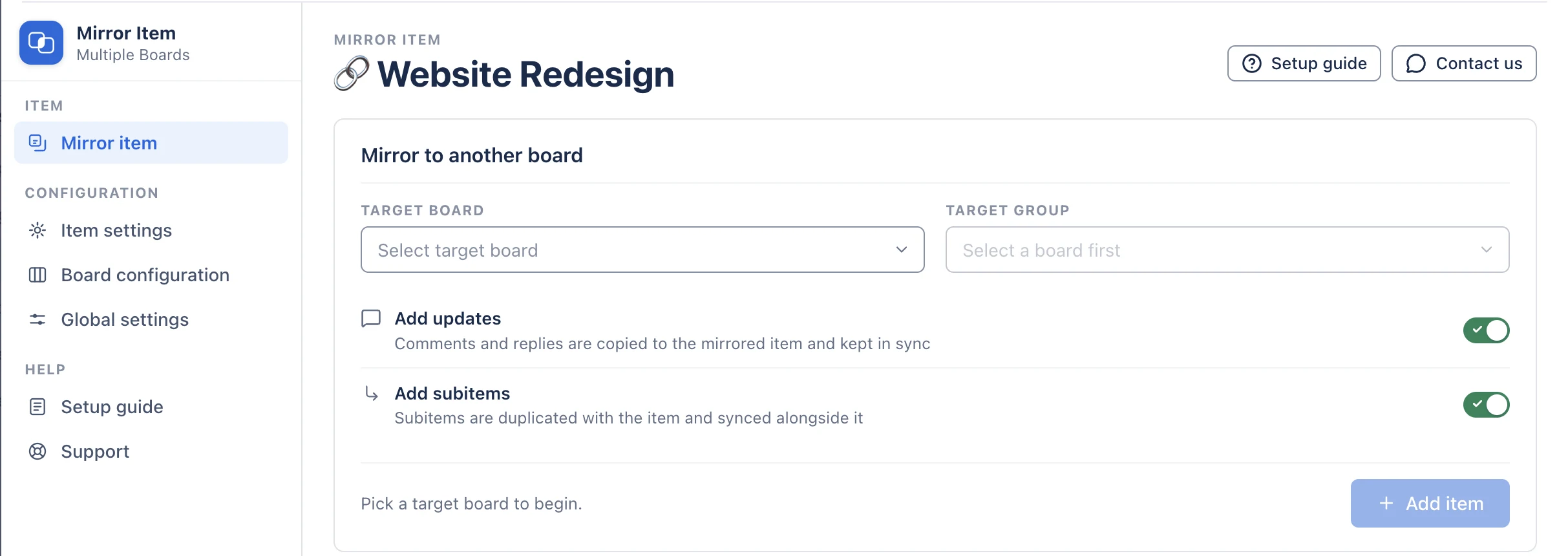
New to Mirror Item? The full setup in five steps covers installing, matching columns and the item panel, and the Mirror Item app page covers plans and features.
Changing the group on one board also moves the linked item to the group with the same name on the other board, when that group exists. If you want each team to group the item its own way, give the groups different names on each board.
Hand off automatically when a status changes
A native "move item to board" automation takes the item away from the team that created it. Use a Mirror Item recipe instead, such as When status changes to something, mirror the item to Target Board Target Group. When the status hits Won or Ready for delivery, the next team gets a linked item and the original board keeps tracking it.
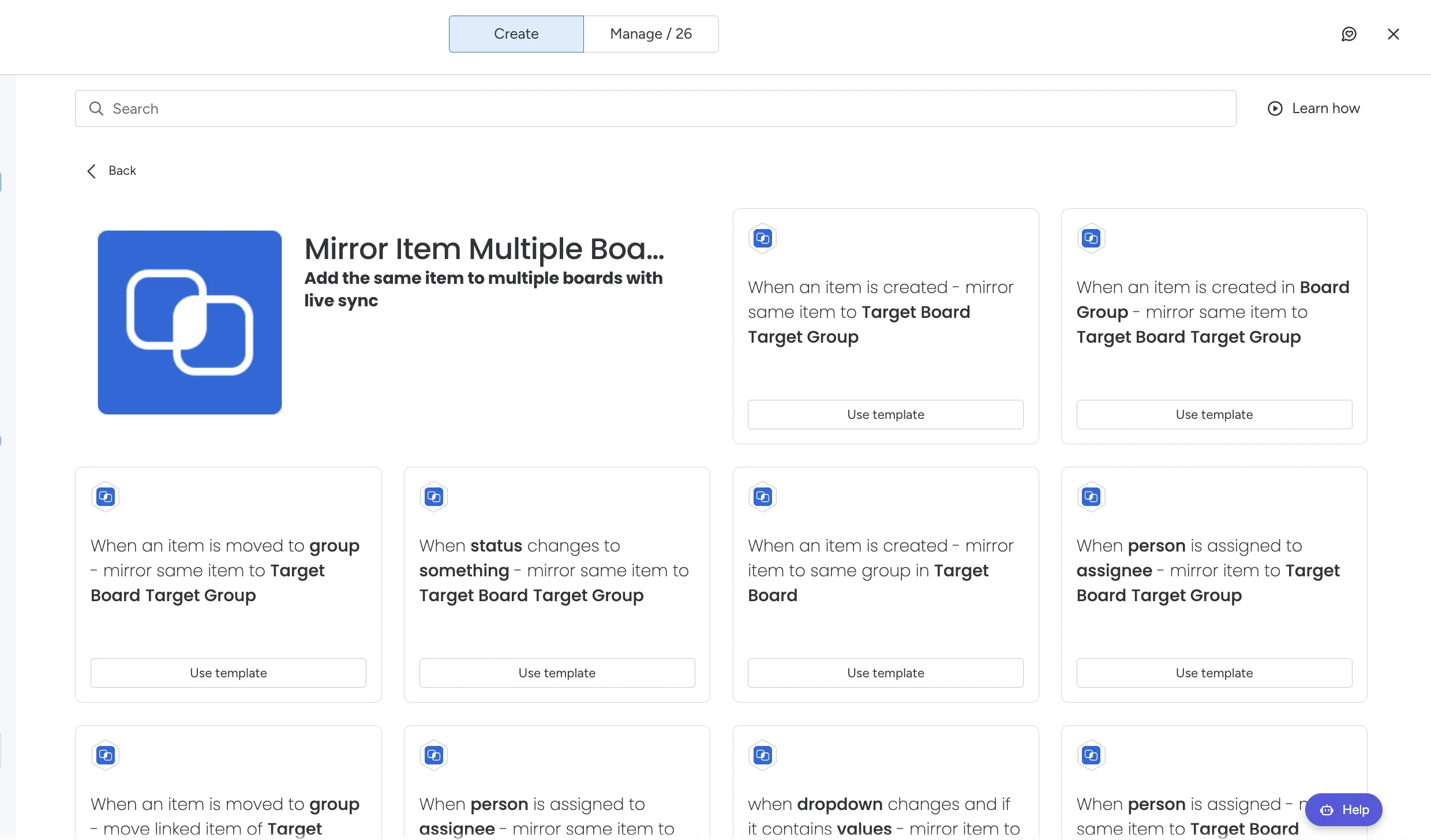
Hand work to the next team without losing sight of it. Free plan, no credit card.
Get Mirror Item freeChanged your mind?
If the handoff is complete and the original board no longer needs the item, open the Mirror Item tab and use Unlink or Delete for that board in the Where this item lives table. Unlink keeps both items but stops syncing; Delete removes the linked item from that board.
Frequently asked questions
Does moving an item to another board remove it from the original board?
Yes. Move to board relocates the item, its updates and its subitems, so it is no longer on the original board.
How do I move an item to another board without removing it?
Do not move it. With Mirror Item Multiple Boards by Fortimus, open the item, choose the target board and group in the Mirror Item tab and click Add Item. The original stays where it is and the new board gets a linked, editable item kept in sync.
Can I undo a move to another board?
Yes. Select the item on the new board and move it back with Move to board. Columns that were not matched on the way over may need re-filling.
Can an automation move items to another board?
Yes, monday.com has native recipes that move an item to another board when a status changes. If the first board should keep the item, use a Mirror Item recipe instead so both boards have it.