How to use your own Word template
PDF Docs, Invoices + eSignatures · Updated
Short answer
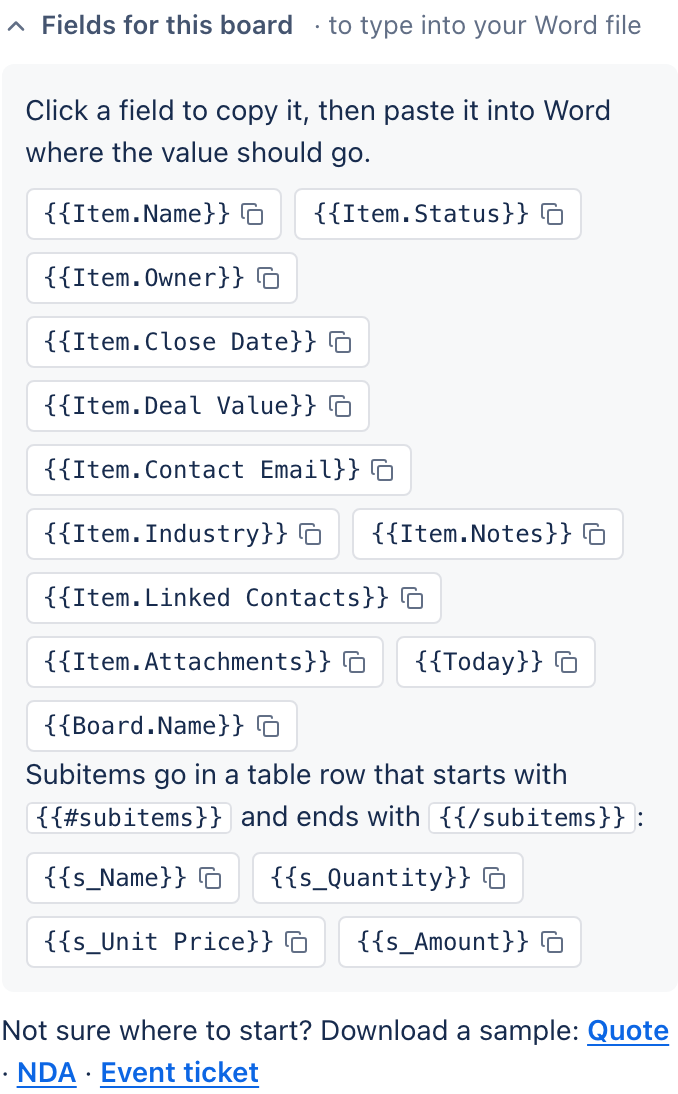
In Make a document, choose My own Word file, press Fields for this board and copy the fields you need into your Word document, such as {{Item.Client}}. Then press Upload the file, name the template and press Save Template. It is available on every board for everyone on your account.
Steps
- 1Get the fields: choose My own Word file and press Fields for this board. Click a field to copy it.
- 2Write it: in Word, paste a field wherever a detail should appear.
- 3Upload it: press Upload the file, drop in the .docx, give it a short name and press Save Template.
- 4Use it: it is selected in Make a document, and listed under Your templates everywhere.
Proposal for {{Item.Name}}
Prepared for {{Item.Client}} ({{Item.Client Email}})
Date: {{Today}}{{…}} is replaced by the item's value.Tip: Name templates "Proposal", not "Proposal.docx". Automations name saved files after the template.
To change it later, open My templates and press Change. Full field reference: Word template fields.
Related articles
Still stuck? Email support@fortimus.co or book a 15-minute call. Don’t have the app yet? Add PDF Docs to monday.com.