Docs•Last updated Mar 25, 2025
Sprout Social Integration
Schedule posts, manage social media accounts, and view metrics directly from monday.com.
Overview#
Embed your Sprout Social environment directly into a monday.com board view to centralize planning, scheduling, and performance review.
You will temporarily authenticate in a separate Sprout Social browser tab, then mirror that authenticated session inside the board view.
Step 1: Add the App & Open It#
- 1Open the monday.com board where social content or campaign tasks are tracked.
- 2Add a new View → Select the Sprout Social Integration app.
- 3Wait for the app frame to load (a placeholder or login prompt may appear).
Step 2: Connect Your Account#

- 1Inside the view, click the Login to Sprout Social button; a new browser tab opens.
- 2Complete the standard Sprout Social authentication flow in that tab.
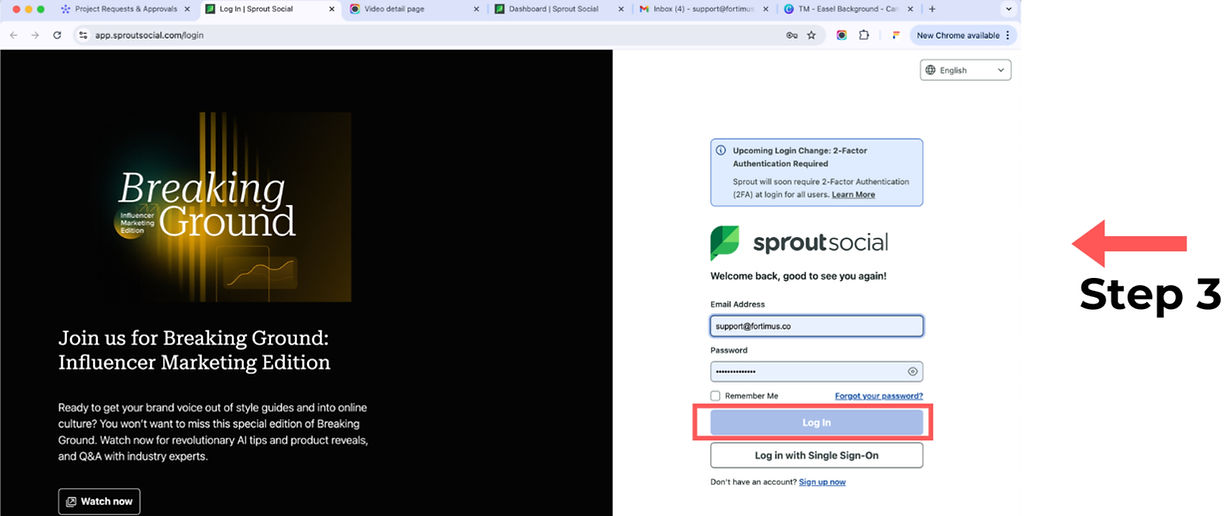
Step 3: Complete Login in New Tab#
Finish signing into Sprout Social. Once the dashboard loads you are authenticated for the active browser session.
Step 4: Copy Sprout Social Browser URL#
- 1With the authenticated Sprout Social tab active, copy the full browser URL.
- 2You can now close the Sprout Social tab (session persists in the browser).
Step 5: Paste URL in monday.com App View#

Tip: Use 90% width on narrow boards to keep key monday columns visible in split view.
- 1Return to the Sprout Social Integration view in your monday.com board.
- 2Paste the copied URL into the URL field (gear icon reveals settings if hidden).
- 3Adjust Width and Height (%) fields as needed (0–100, defaults are 100 for max space).
- 4Confirm your Sprout Social interface renders properly.
Important Notes#
- An active Sprout Social browser session must exist in the same browser profile (tab itself can be closed).
- Avoid attempting to authenticate inside the embedded frame if a login screen appears; always use a separate tab.
- If the embedded view shows a logout or blank state, re-open Sprout Social in a new tab, log back in, then refresh the board view.
- Limit very large embedded widths for performance when many users load the same board simultaneously.
Need More Help?#
Still stuck? Book a quick screenshare or email support@fortimus.co with a screenshot and board URL.
Was this guide helpful?
Tell us what’s missing — doc fixes usually ship within a day.