How to email a PDF from monday.com automatically
By Arnav Ghatage, founder of Fortimus · Updated
Short answer
In PDF Docs, connect your Gmail once, write an email template with fields like {{Item.Name}}, then use the recipe Create a PDF and email it to the Email column. When the trigger fires, the app makes the document and emails it as an attachment from your Gmail. To send one by hand, press Email it under any finished document.
Sending documents is the step that usually leaves monday.com: download the PDF, open your mail, attach, retype the greeting. It is also the step that is easiest to automate.
Step 1: Connect your Gmail
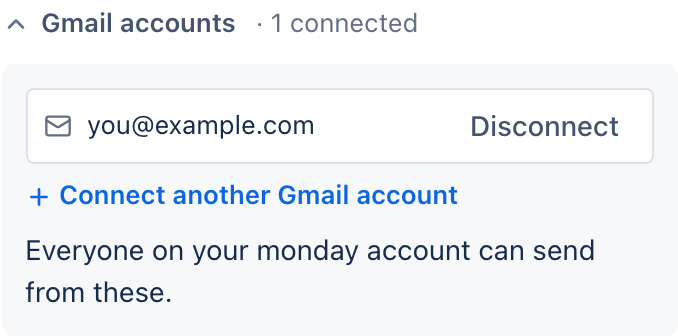
On Send an email, press Connect Gmail and choose the account to send from. It is connected for your whole monday.com account, and you can connect more than one and choose the sender under Send from.
Step 2: Write the email template
Press Write a new one, give it a name and subject, and write it. The AI assistant can draft it for you. For an email with images and buttons, use Designed email in My templates.
Emails use {{Item.…}} fields with one difference from Word: every space or symbol in the column name becomes an underscore, and capitals must match.
| Column | In an email, type |
|---|---|
| Status | {{Item.Status}} |
| Due Date | {{Item.Due_Date}} |
| Client E-mail | {{Item.Client_E_mail}} |
| The item's name | {{Item.Name}} |
Send one by hand
- 1In Make a document, make the PDF.
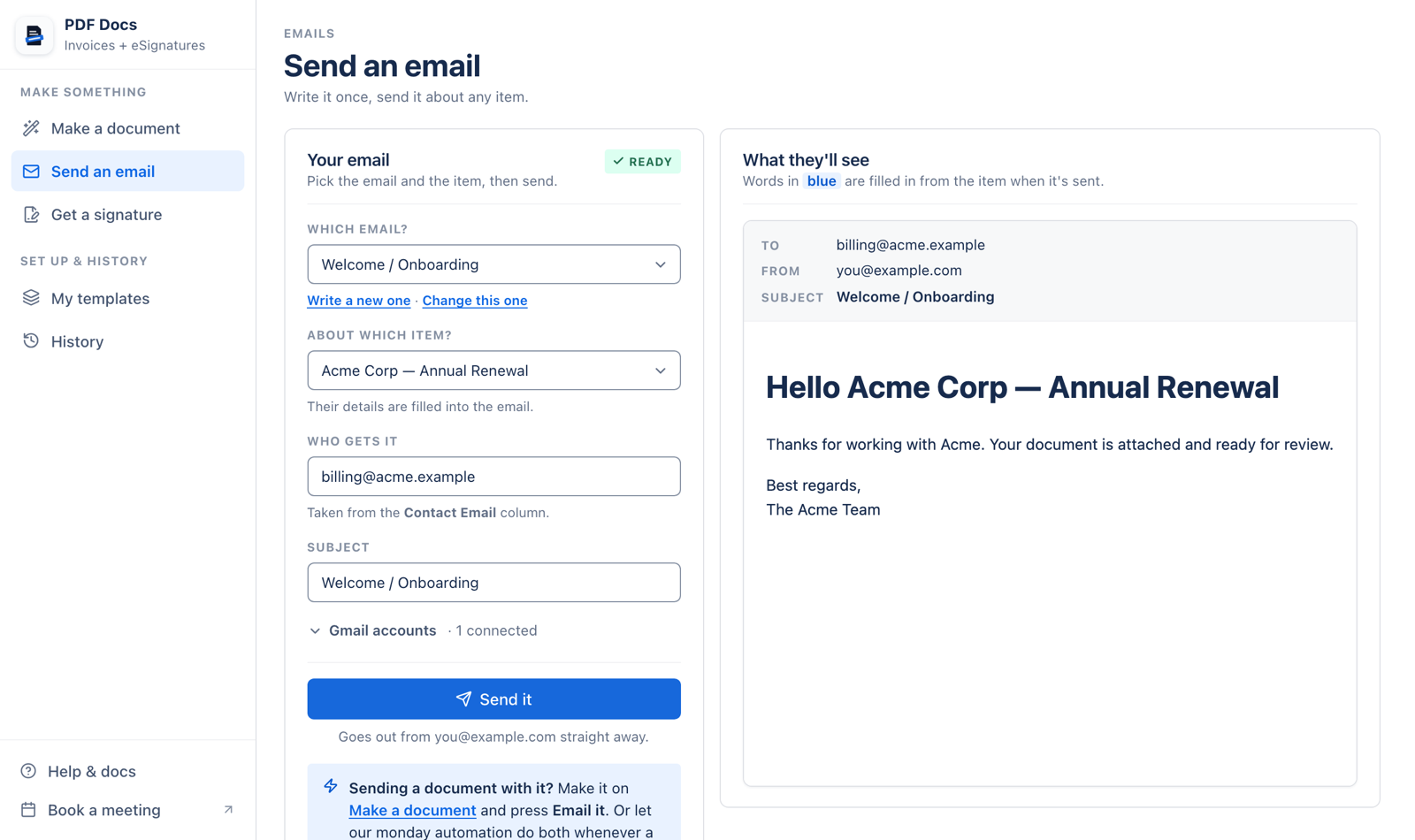
- 2Press Email it. Send an email opens with the PDF attached (up to 20 MB).
- 3Pick the email template, check the address from the item's Email column, and press Send it.
Send it automatically
- 1On your board, open Automate and search for PDF Docs.
- 2Choose Create a PDF and email it to the Email column.
- 3Set the trigger, for example when Status changes to Sent.
- 4Pick the document template, the email template and the Email column, and connect Gmail inside the recipe.
- 5Test on one item, then let it run.
Note: Gmail and Google Drive are connected inside the recipe the first time you use it. This is separate from the Gmail you connect in the app.
Save a copy in Google Drive too
The recipes Create a PDF and save it in Google Drive and Create a PDF and save it in the folder from a Link column file each document in Drive, in one folder or a folder per item. Pair it with Google Drive Integration to create that folder for every item automatically.
Tip: Saved files are named after the template, so name templates "Quote", not "Quote.docx", to avoid files called "Quote.docx.pdf".
Let your board send its own documents.
Add PDF Docs to monday.comFrequently asked questions
Can monday.com email a PDF automatically?
Not natively. With PDF Docs, the recipe Create a PDF and email it makes the document and emails it as an attachment from your Gmail when the trigger fires.
Which address do emails come from?
From the Gmail account you connect, so replies come back to you.
Why is an email field blank?
In emails, spaces and symbols in column names become underscores, and capitals must match: {{Item.Due_Date}}.
Do emails count against my plan?
Sending an email from the app does not count. Each document made counts as one, including documents an automation makes before emailing them.