How to make a PDF from a monday.com item
PDF Docs, Invoices + eSignatures · Updated
Short answer
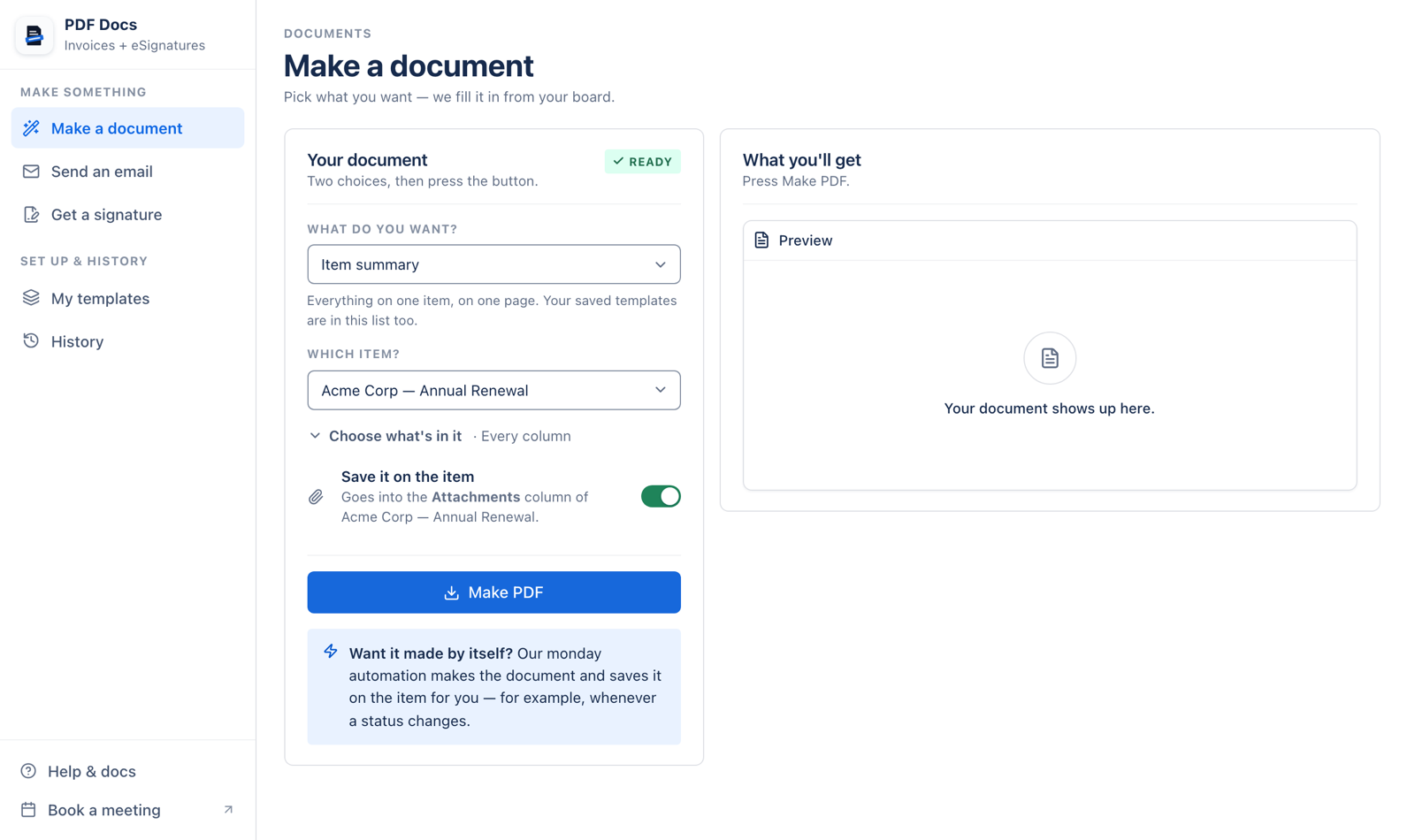
In Make a document, choose what you want under What do you want?, choose the item under Which item?, and press Make PDF. Leave Save it on the item on to put the PDF in the item's file column.
Steps
- 1Choose what you want. Ready-made documents come first, then your five most recent templates with a search box, then Start from your own file.
- 2Choose the item. A Board report uses every item on the board instead.
- 3Choose what is in it (optional). For an Item summary, press Choose what's in it to tick columns, add subitems or items from a Connect boards column. For a Board report, press Choose the columns.
- 4Check the fields. If some cannot be matched to a column, press Fill them in to choose one for each, or leave them off.
- 5Save it on the item (optional). With more than one file column, choose one under Save it in.
- 6Press Make PDF. The document appears under What you'll get.
What you can do with it
- Download the PDF.
- Email it from your Gmail with the PDF attached.
- Get the Word file (.docx) for documents that come as Word.
- Get the template behind a ready-made document to edit it in Word.
Note: The item list shows the first 100 items on the board. Changing the document or item clears the preview; press Make PDF again.
Related articles
Still stuck? Email support@fortimus.co or book a 15-minute call. Don’t have the app yet? Add PDF Docs to monday.com.