How to send a document for eSignature from monday.com
PDF Docs, Invoices + eSignatures · Updated
Short answer
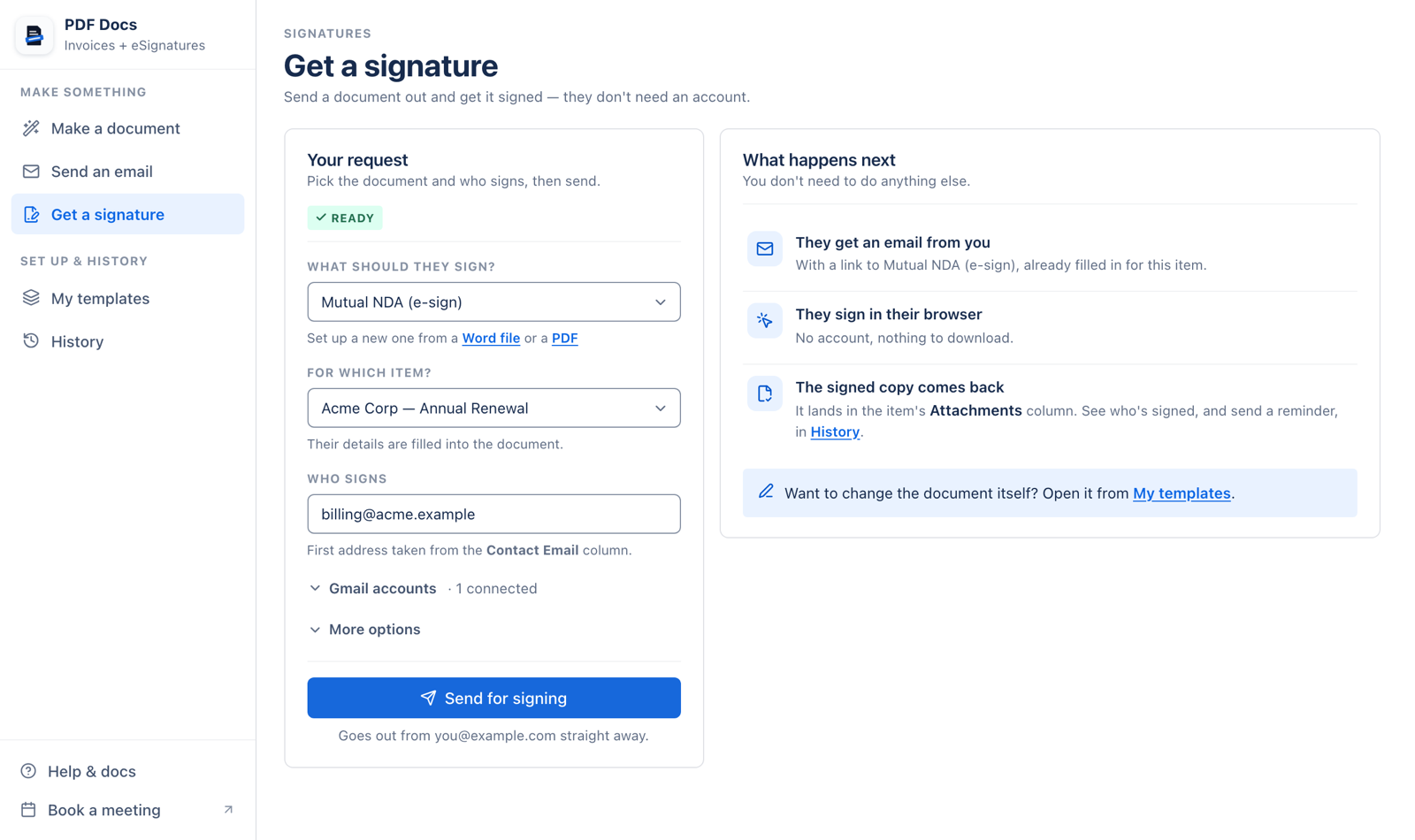
Set up a signature template once (a Word file with {{Signature}} and {{Date}}, or a PDF with up to 5 signature boxes). Then in Get a signature, pick the template, the item and the signers, and press Send for signing. Signers sign in the browser with no account.
Set up the signature template
- Word:
{{Signature}}and{{Date}}, or numbered{{Signature1}},{{Date1}},{{Signature2}},{{Date2}}for several people. - PDF: drag up to 5 Signature boxes onto the page.
- Keep signature fields in the main text, not a header or footer.
Send it
- 1Pick the template under What should they sign?
- 2Pick the item under For which item?
- 3Enter one email per signer under Who signs.
- 4Optionally set the email, the file column for the signed copy and the signing record under More options.
- 5Press Send for signing. Everyone gets their link at the same time.
After signing
- The signed PDF is saved on the item.
- A signing record shows who opened and signed, when and from which IP address.
- History shows progress; Remind emails the link again (at most once an hour).
- Links do not expire, and there is no decline button.
Full walkthrough: how to get documents signed in monday.com.
Related articles
Still stuck? Email support@fortimus.co or book a 15-minute call. Don’t have the app yet? Add PDF Docs to monday.com.