Mirror Item Multiple Boards
Columns, Updates, replies, files and subitems — perfectly in sync across classic and multi-level boards. This guide takes you from install to a fully synced workflow.
Choose how you want to get started
Watch a quick setup video or read the full step-by-step guide below.
Getting Started#
Learn how to mirror an item in under 2 minutes.
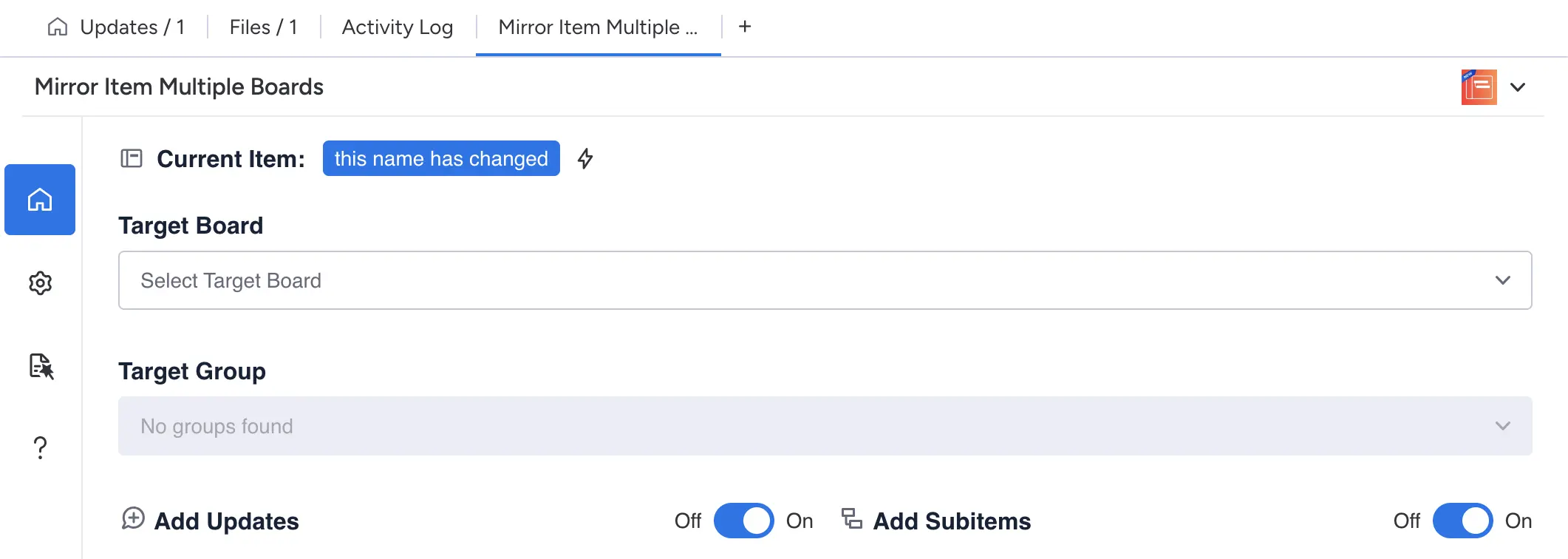
- 1Select a Target Board & Group: Choose the board you want to add the item to, then pick the specific group (edit permission required).
- 2Configure Sync Options: Add Updates copies existing updates and syncs new ones; Add Subitems duplicates subitems and keeps name + common column changes synced.
- 3Click Add Item: The item (and optional updates/subitems) is copied. Make sure that the columns exist on all boards where you want to add the items with the same name and type.
Tip: After duplication, edits to any common column (present on every linked board) stay in sync. First sync takes slightly longer as we are setting up board automations.
Understanding Sync Status#
The Sync Table summarizes current linkage and what is being synchronized.
After the item is added to another board, the Sync Table will load automatically—no manual refresh needed.
It shows: Item (current item), Linked Boards (where it lives), Common Columns (automatically synced fields). There are two rows: Main Item Sync and Subitem Sync (if enabled).

How Column Syncing Works#
Only columns with the exact same name across all linked boards become common columns and sync.
Example: Board A has Status, Priority, Owner; Board B has Status, Priority, Due Date → only Status & Priority sync.
Supported Column Types: Name, People/Person/Assignee, Status, Date, Numbers, Text, Long Text, Files, Dropdown, Link, Email.
Managing Column Sync#
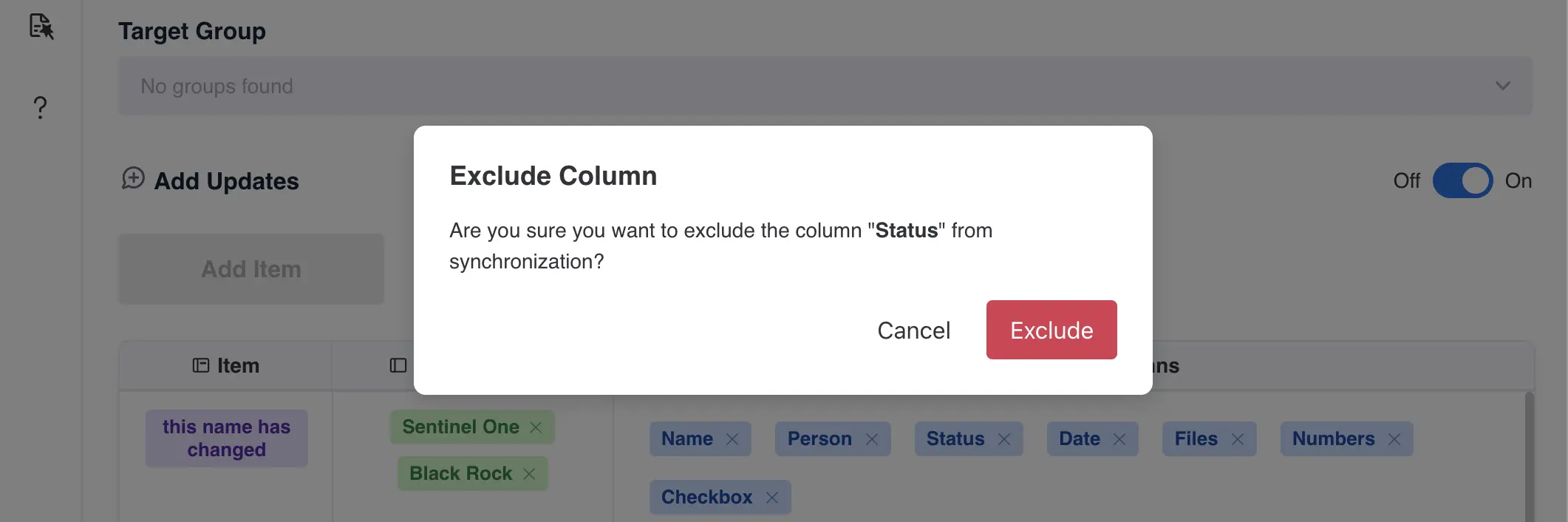
Exclude a column: In Common Columns hover the chip → click × → confirm. The chip grays out and stops syncing.
Re‑include: Click the ⚙️ icon (top-left of Common Columns) → pick the excluded column → it resumes syncing on next change.
Use 'Exclude Columns' to stop specific common columns from syncing when needed. For example, you can exclude the 'Status' column—every other common column keeps syncing normally.

Set up Automations#
You can automate mirroring across boards using monday.com automations. This is useful for automatically mirroring new items as they are created or when specific conditions are met.
Tip: For bulk syncing existing items, use the Multi-Item View instead (see section below).
- 1Open your board and click the Integrate button in the top right.
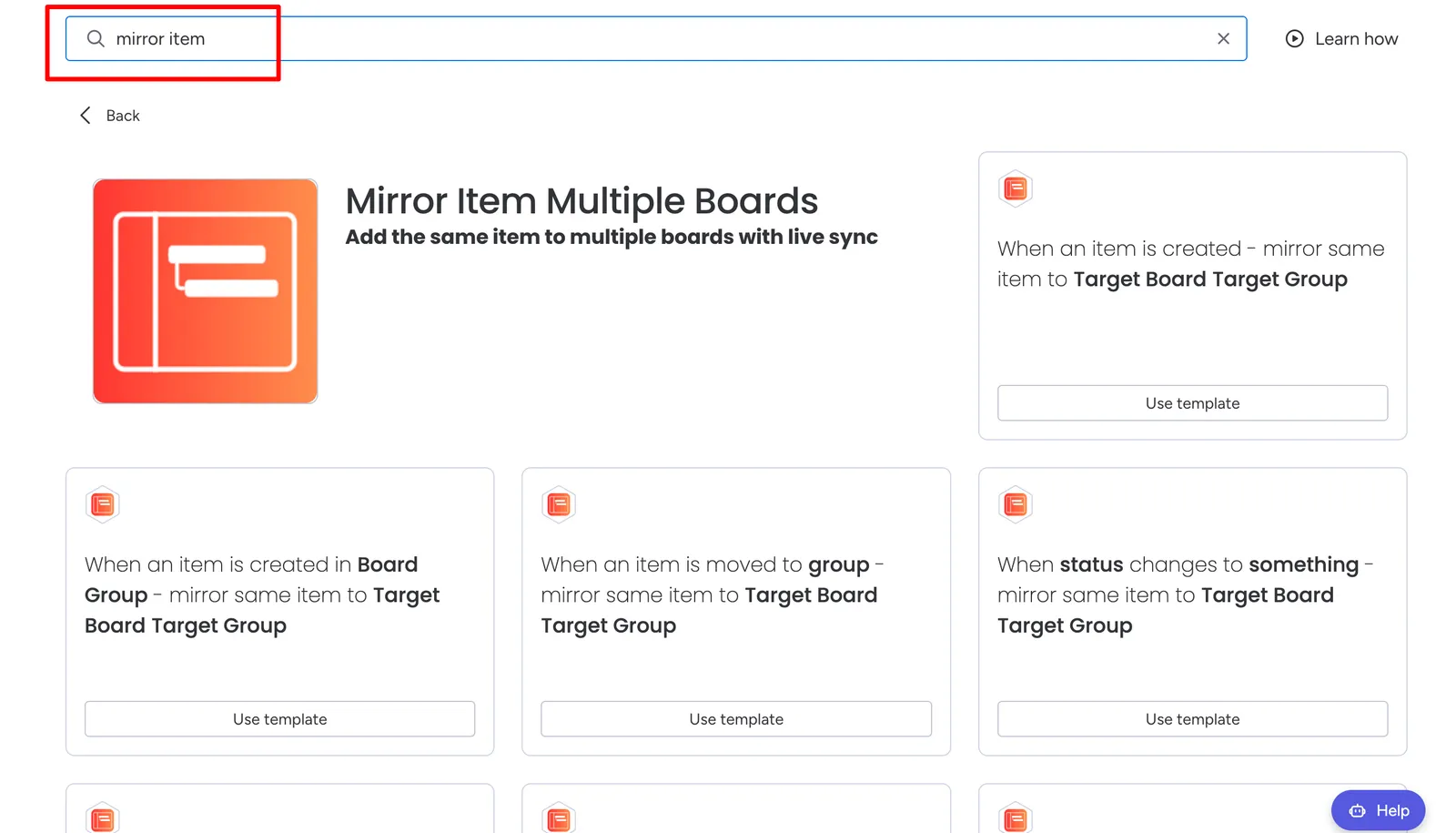
- 2Search for Mirror Item Multiple Boards and select it.
- 3Choose a recipe that fits your use case, e.g. When item is created, When status changes, or When person is assigned — mirror same item to Target Board/Group.
- 4Authorize the app if prompted, then configure the Target Board and Group in the recipe.
Sync Multiple Items to One Board#
The fastest way to bulk sync multiple items at once is using the Multi-Item App View. This allows you to select multiple items and mirror them all to a target board in one action.
Tip: Recommendation: For best performance, select a maximum of 20 items at once. For larger batches, process them in groups of 20.
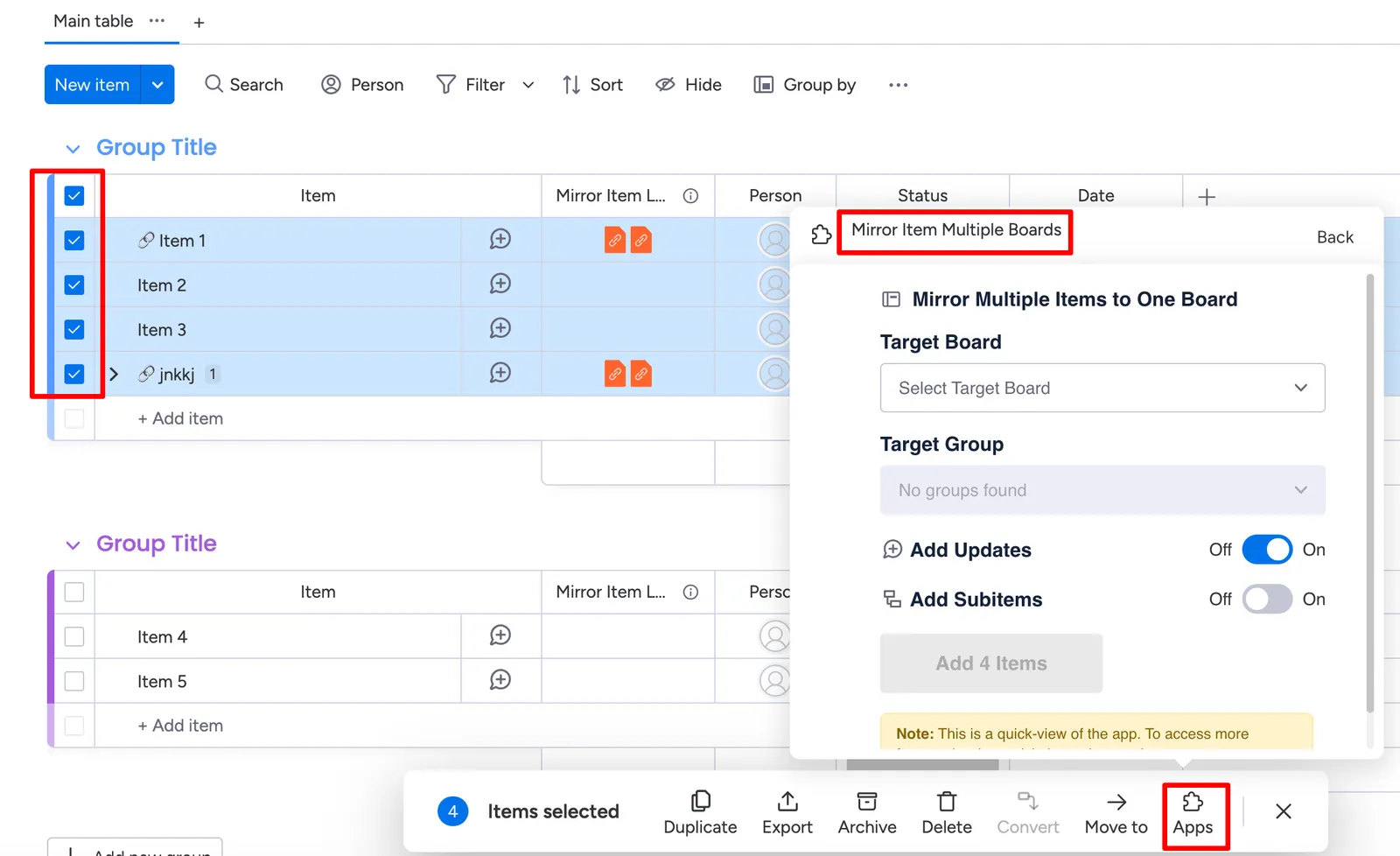
- 1Select one or multiple items on your board (click the checkbox on the left side of each item)
- 2A taskbar will appear at the bottom of the screen with options like Duplicate, Export, Archive, etc.
- 3Click on Apps in the taskbar
- 4Select Mirror Item Multiple Boards from the list
- 5Configure your sync settings (target board, include updates, include subitems, etc.)
- 6Click Add Items to mirror all selected items at once
Visual Emoji Indicator#
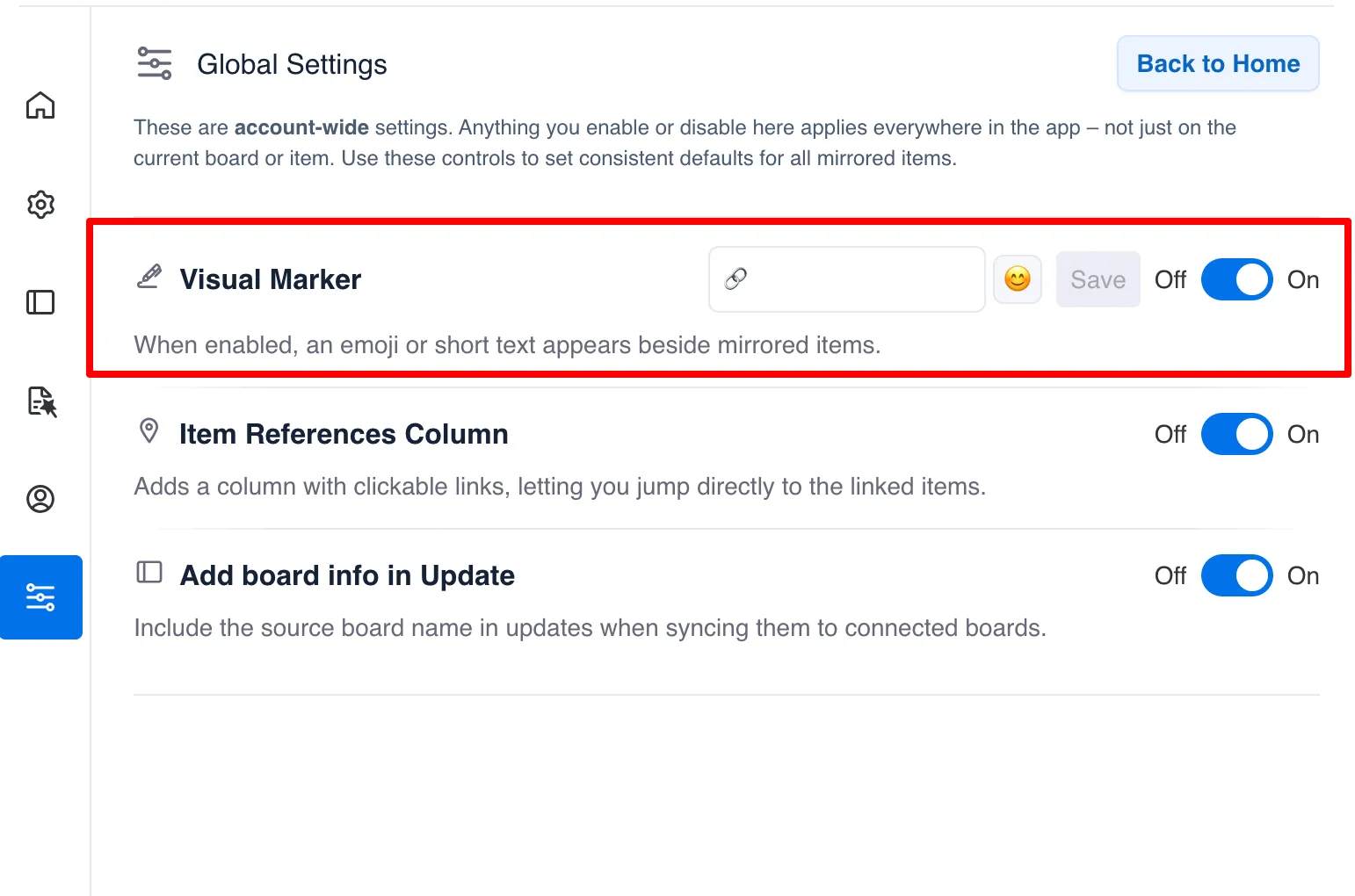
When enabled, a customizable emoji or short text (up to 2 characters) is automatically added to the beginning of mirrored item names. This helps you quickly identify which items are synced across boards.
You can find this setting in the 'Global Settings Tab' (last button in the navigation bar to the left).
Example: Original item: "Design Homepage" → Mirrored item: "🔗 Design Homepage"
Default: 🔗 (link emoji). You can change this to any emoji or short text like "M:" or "⭐".
How to create a Master Board with tasks from multiple boards?#
A Master Board is a central board that consolidates mirrored items from multiple team boards into one place — giving leadership or cross-functional teams a single view of everything, without disrupting how individual teams work.
Instead of jumping between boards, your Master Board becomes the single source of truth. Any updates made on the source boards sync automatically to the Master Board, and common column changes sync back.
Tip: Column names must match exactly across all boards for syncing to work. Start with 2–3 columns (e.g. Status, Owner) before expanding to avoid mismatches.
- 1Create a new board — this will be your Master Board. Add the same column names (Status, Owner, Priority, etc.) that exist on your source boards so they sync correctly.
- 2On each source board, select the items you want to consolidate and use Mirror Item to mirror them to the Master Board.
- 3Use automations to keep the Master Board up to date automatically — e.g. "When item is created on Source Board → mirror to Master Board".
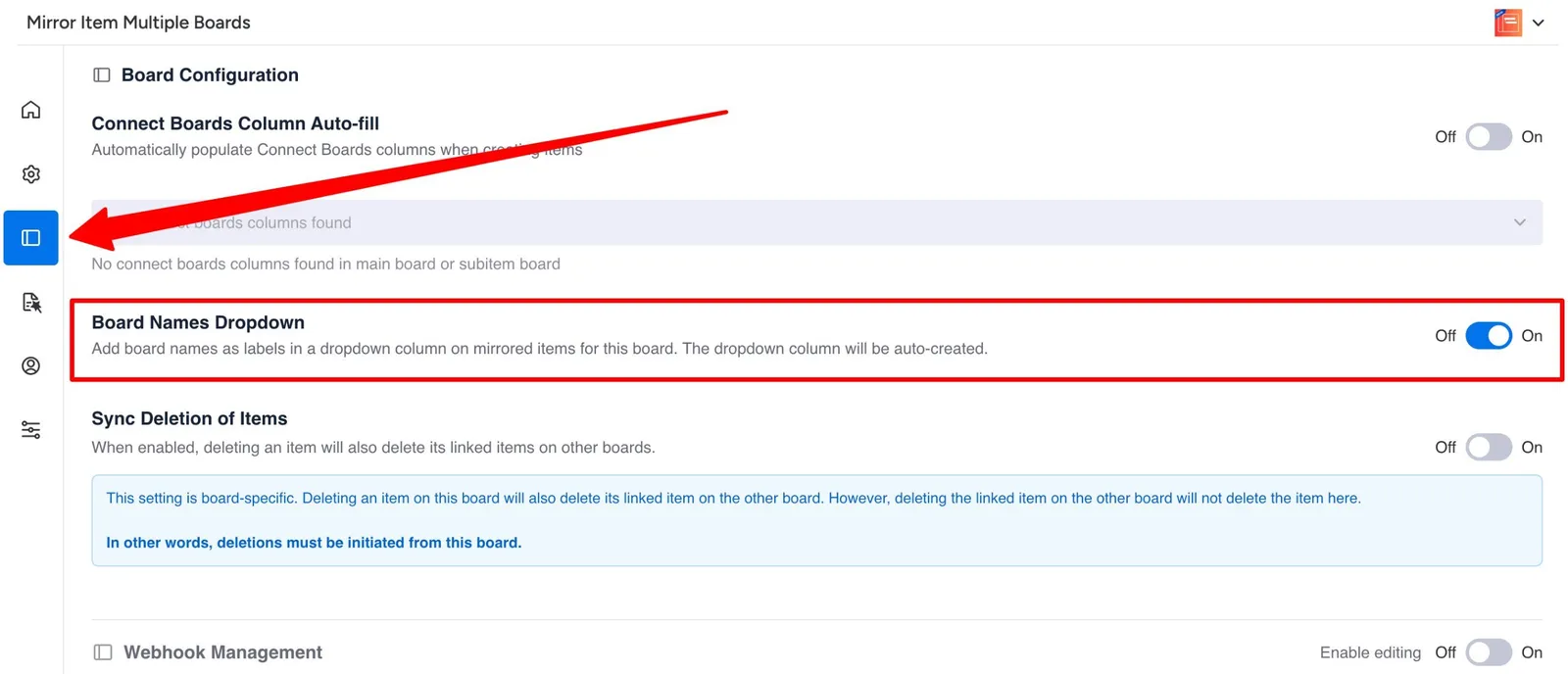
- 4On the Master Board, open Mirror Item → go to Board Configuration → enable the Board Names Dropdown toggle. This auto-creates a dropdown column that labels each mirrored item with the name of the board it came from — so you can always see which team or source board an item originated from.
- 5Check the Sync Table inside Mirror Item to confirm all items are linked and common columns are syncing.
Item References Column#
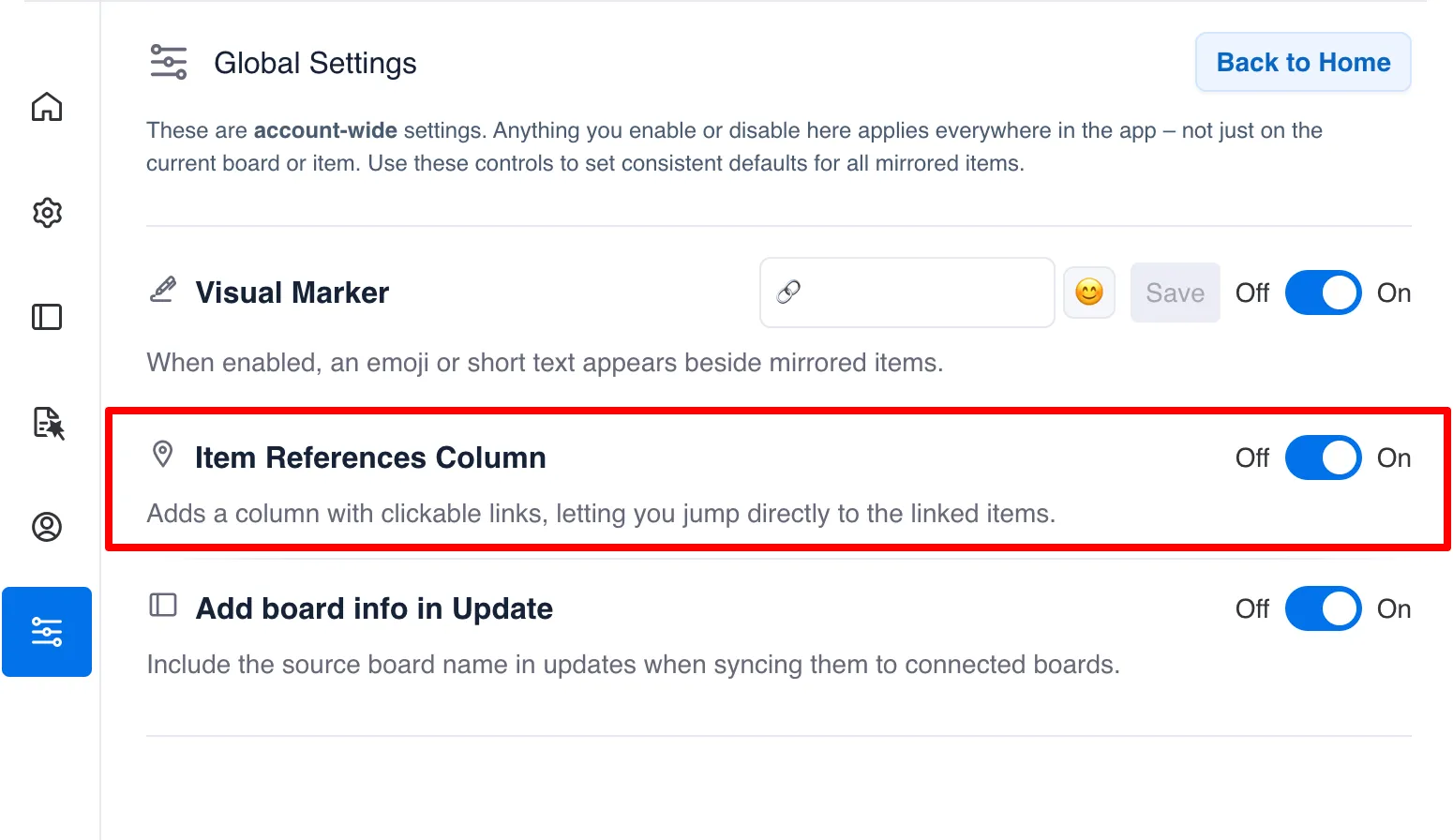
When enabled, the app automatically creates a "Mirror Item Location" column on your boards. This column contains clickable links that let you jump directly to the linked items on other boards.
You can find this setting in the 'Global Settings Tab' (last button in the navigation bar to the left).
Benefits:
- Quickly navigate between linked items across boards
- See at a glance which boards an item is mirrored to
- The column updates automatically as you add new mirrors
Add Board Info in Update#
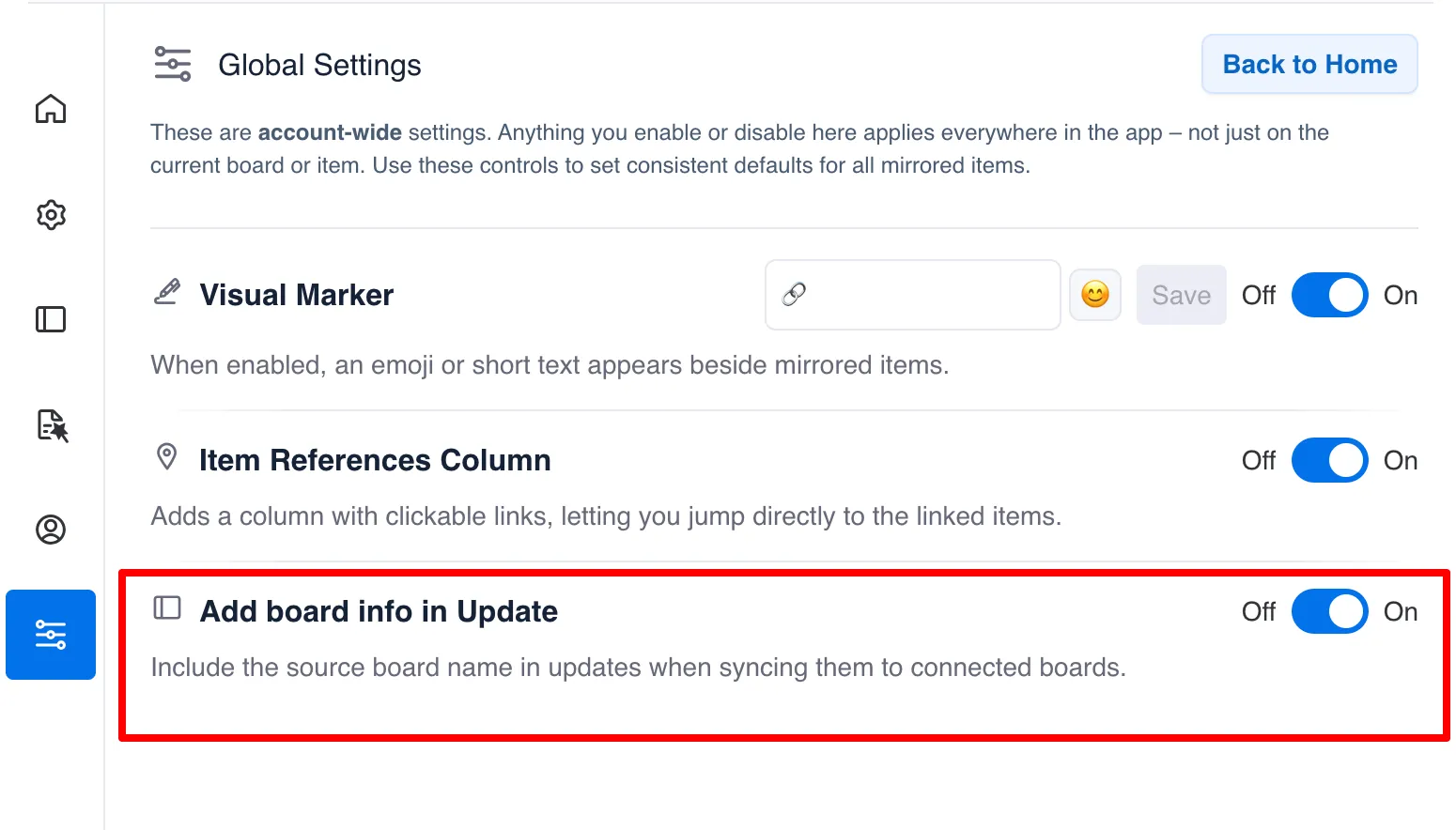
When enabled, synced updates (comments/replies) will include a note showing which board the update originated from. This helps team members understand the context of synced conversations.
You can find this setting in the 'Global Settings Tab' (last button in the navigation bar to the left).
Example: Update text will include: "[From: Marketing Board]" at the end, so you know where the comment came from.
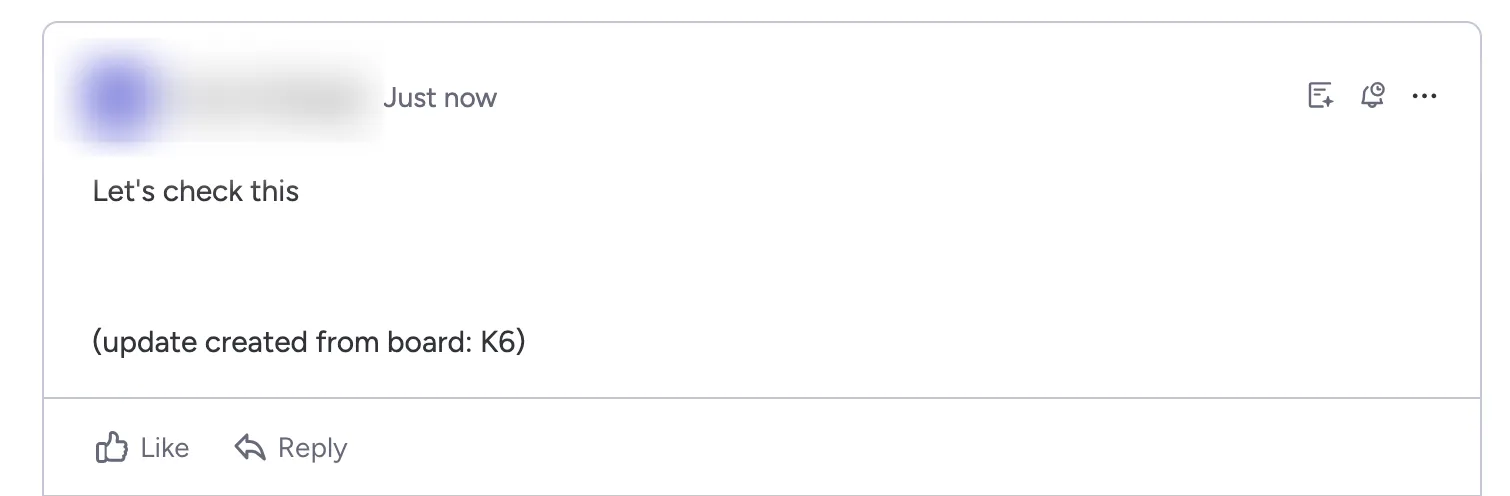
Tip: This is especially useful when an item is mirrored to multiple boards and you need to track where discussions started.
Webhook Management#
Understanding the Webhook Table
Webhooks are the backbone of the sync system. They notify our app when something changes on your board (like an item name, column value, or update). The webhook table in Board Configuration shows all webhooks for the current board and lets you control which sync operations are active.
| Webhook | Description |
|---|---|
| Item Name Changed | Syncs when an item's name is modified |
| Column Value Changed | Syncs when any column value changes |
| Item Moved to Group | Syncs when an item is moved between groups |
| Item Deleted | Handles item deletion events |
| Update Created/Edited/Deleted | Syncs comments and replies |
| Subitem webhooks | Handle subitem name, column, and update changes |
Using the Webhook Table
Table Controls
Toggle switch: Enable or disable individual webhooks
Status indicator: Green "Active" means the webhook is installed and working; Red "Inactive" means it's disabled
Enable All / Disable All: Bulk actions to quickly enable or disable all webhooks
Note: Subitem webhooks can only be created after subitems exist on the board. If you see them as inactive and can't enable them, create at least one subitem first.
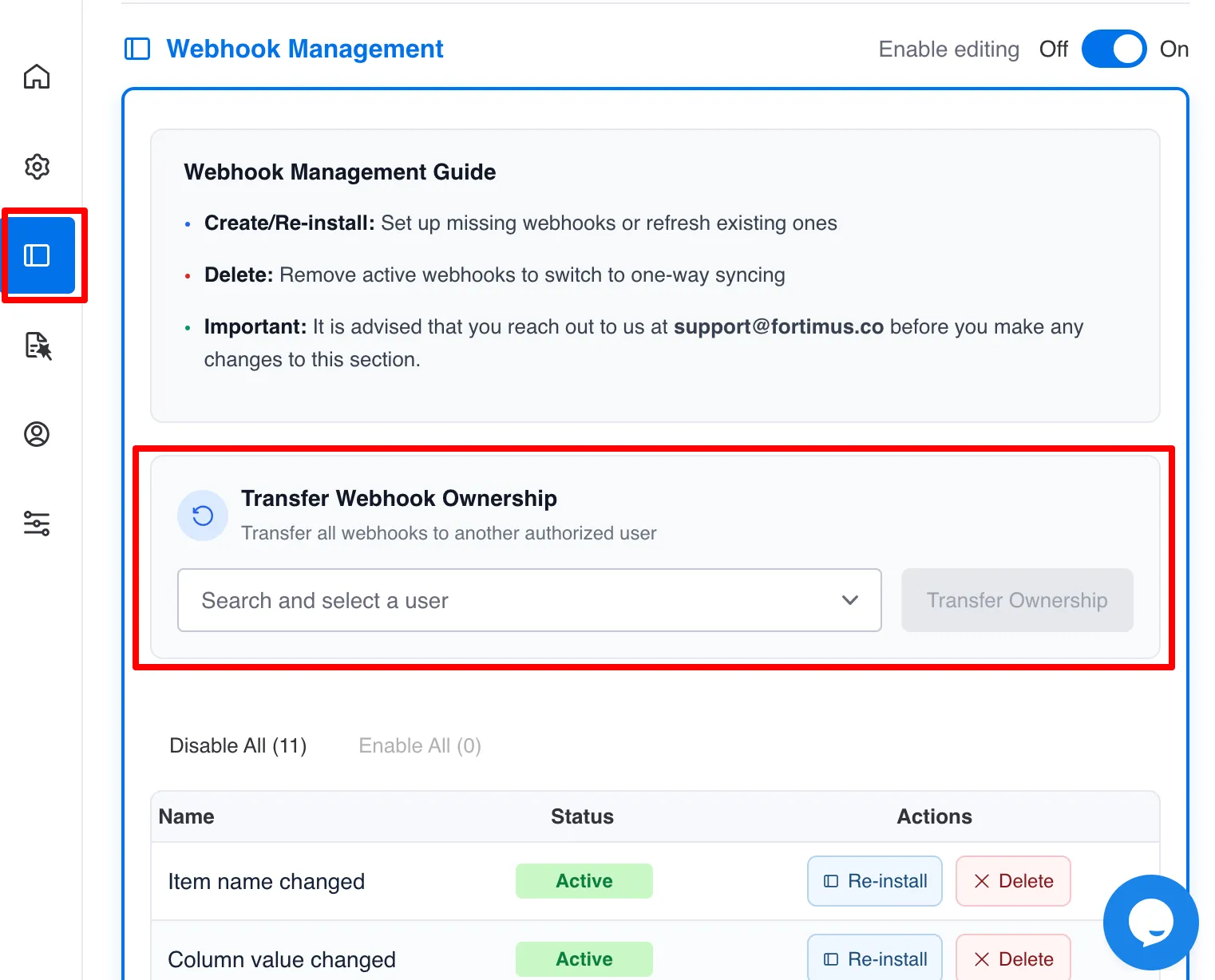
Transfer Webhook Ownership
Webhooks are owned by the user who installed them. If that user loses access to the board or leaves the organization, the webhooks may stop working. Use the Transfer Ownership feature to reassign webhooks to another authorized user.
When to transfer
- The current webhook owner is leaving the team
- The owner's permissions have changed
- You want to consolidate webhook ownership under one admin
Important: The new owner must be authorized with the app and subscribed to the board. Only users meeting both criteria will appear in the dropdown.
Shape the Roadmap#
Have a workflow edge case or scaling need? Email support@fortimus.co. High‑signal requests often ship in under a day.
Need More Help?#
Questions? Email support@fortimus.co or schedule a call.
Was this guide helpful?
Tell us what’s missing — doc fixes usually ship within a day.