How to copy or duplicate an item to multiple boards in monday.com
By Arnav Ghatage, founder of Fortimus · Updated
Short answer
monday.com duplicates an item on the same board; to get the copy onto other boards you move each duplicate, one board at a time, and every copy is independent from then on. If the copies should stay identical, use Mirror Item Multiple Boards by Fortimus instead: it adds a linked, editable copy of the item to each board you pick, one item or a whole selection at a time, and keeps shared columns, updates and subitems in sync. Need independent copies in bulk? Add them with Mirror Item, then click Unlink.
There are two different jobs behind "copy an item to multiple boards". Sometimes you want a starting point: a template item, a standard checklist or a recurring job that each board then changes on its own. Sometimes you want the same work on several boards: a request that both the intake team and the delivery team track.
The first job needs independent copies. The second needs linked copies, because independent ones drift apart after the first edit. This page covers both.
Independent copy or linked copy?
| Independent copy (native) | Linked copy (Mirror Item) | |
|---|---|---|
| After an edit on one board | The other copies do not change | Shared columns change on every board |
| Updates (comments) | Each copy collects its own | One conversation on every board, with Add Updates on |
| Subitems | Copied once, then separate | Kept in sync, with Add Subitems on |
| Several boards at once | One board per move | Pick each board, or send a selection of items in one go |
| Reports and dashboards | Each copy counts as separate work | Each board has its own linked item |
| Best for | Templates, checklists, a fresh start per board | Shared work several teams track |
Duplicate an item to other boards natively
- 1Open the item menu (the three dots on the item) and choose Duplicate. Decide whether the updates come along.
- 2Rename the duplicate if needed so the boards are easy to tell apart.
- 3Select the duplicate, click Move to in the bottom bar and choose Move to board.
- 4Pick the target board and group and match the columns.
- 5Repeat the whole sequence for every other board.
This is fine for a handful of template items. For anything that should stay the same on every board, it creates work: a status change on one copy never reaches the others, and someone has to reconcile them by hand.
monday.com's Automation Center can also create an item on another board when something happens on the first one. Those items are independent too: they are created once and do not sync afterwards.
Copy an item to several boards and keep the copies in sync
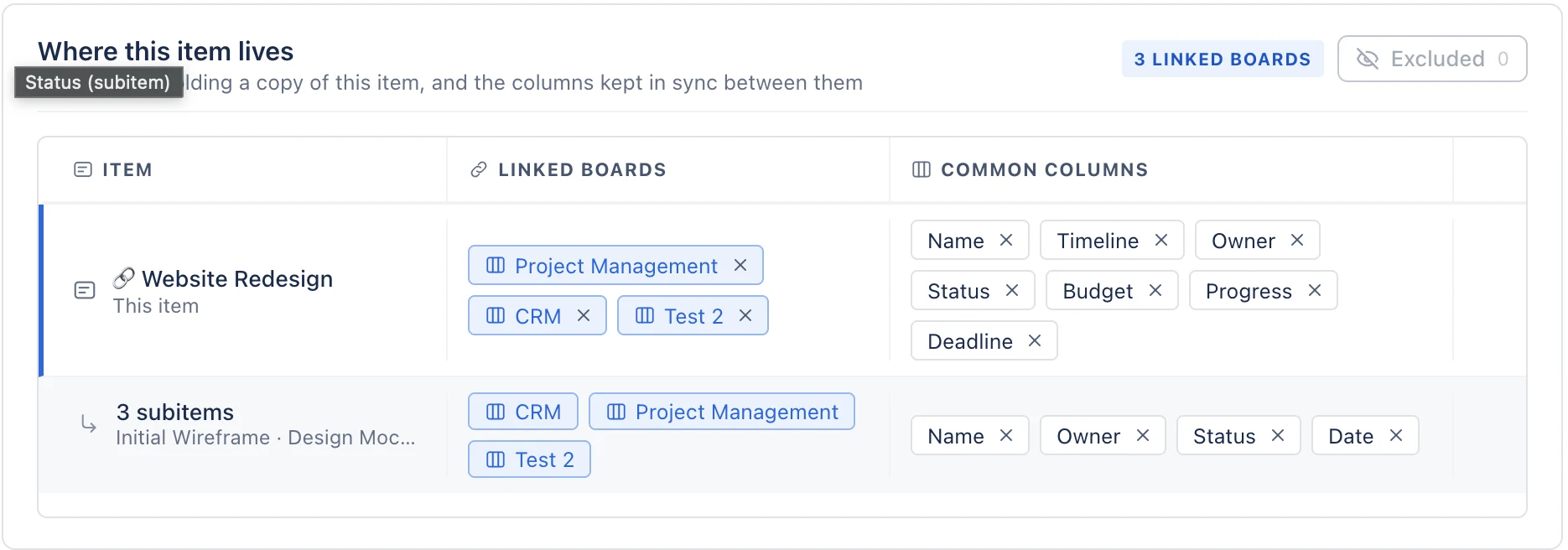
With Mirror Item each board gets a linked, editable item. Open the item, click the Mirror Item Multiple Boards tab, choose a target board and group and click Add Item. Repeat for the next board: the Where this item lives table grows with each one, and the item keeps the same name on every board because a rename syncs too.
New to Mirror Item? The full setup in five steps covers installing, matching columns and the item panel, and the Mirror Item app page covers plans and features.
Copy many items to another board at once
- 1Tick the checkbox on each item you want.
- 2Click Apps in the bar at the bottom of the board.
- 3Choose Mirror Item Multiple Boards.
- 4Pick the target board and group, choose whether updates and subitems come along, and click Add Items.
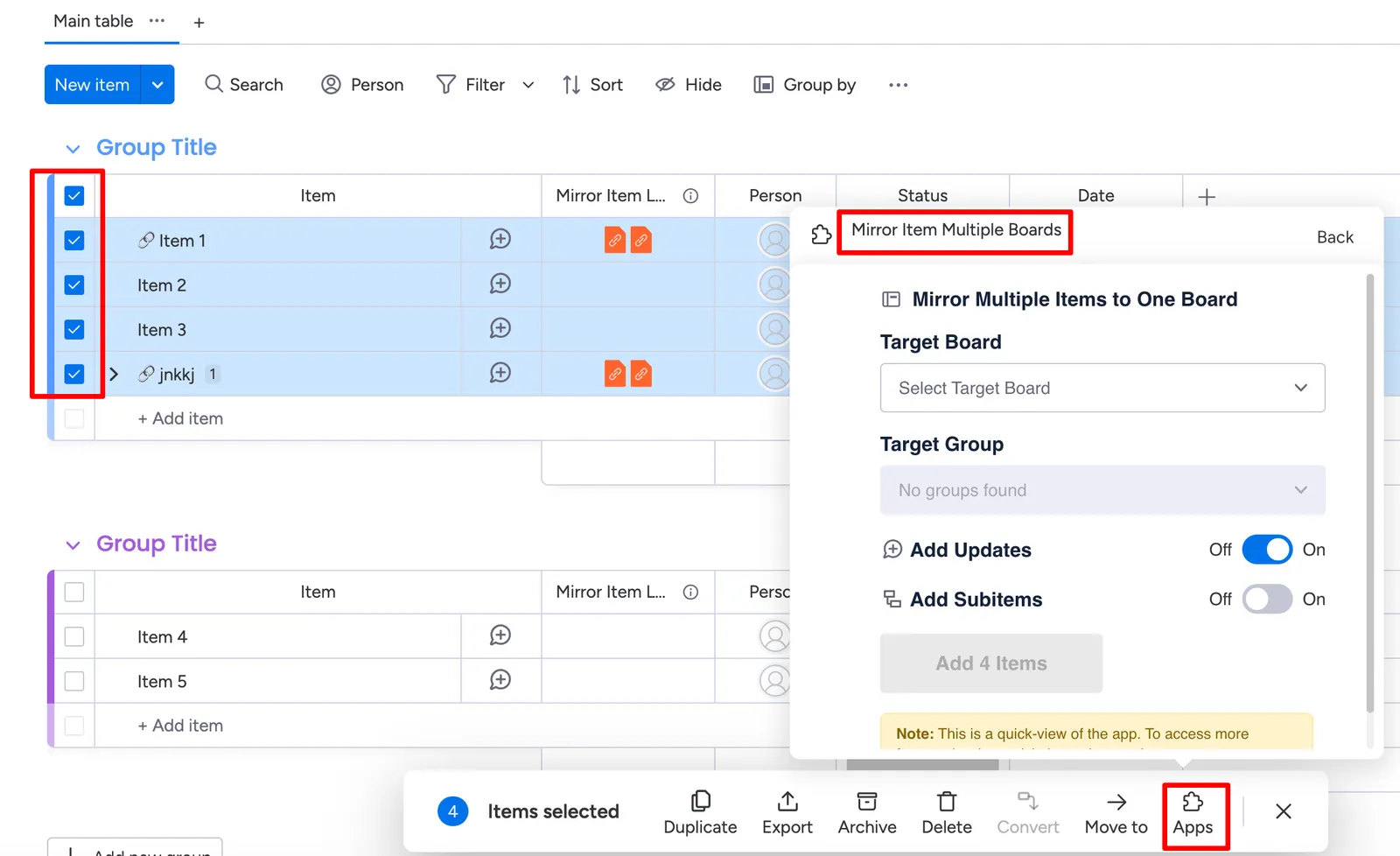
Tip: Batches of about 20 items work best. For a whole board, repeat the selection a few times.
Make independent copies in bulk
Need a copy on five boards that each team then changes on its own, such as a standard onboarding checklist? Add the item to each board with Mirror Item, then open the Where this item lives table and click Unlink for each board. The items stay where they are, keep their values and subitems, and stop syncing. You get five independent copies without five rounds of duplicate and move.
Note: Unlinked items no longer count against your Mirror Item plan, because the plan counts items you are actively keeping in sync.
Copy every new item to other boards automatically
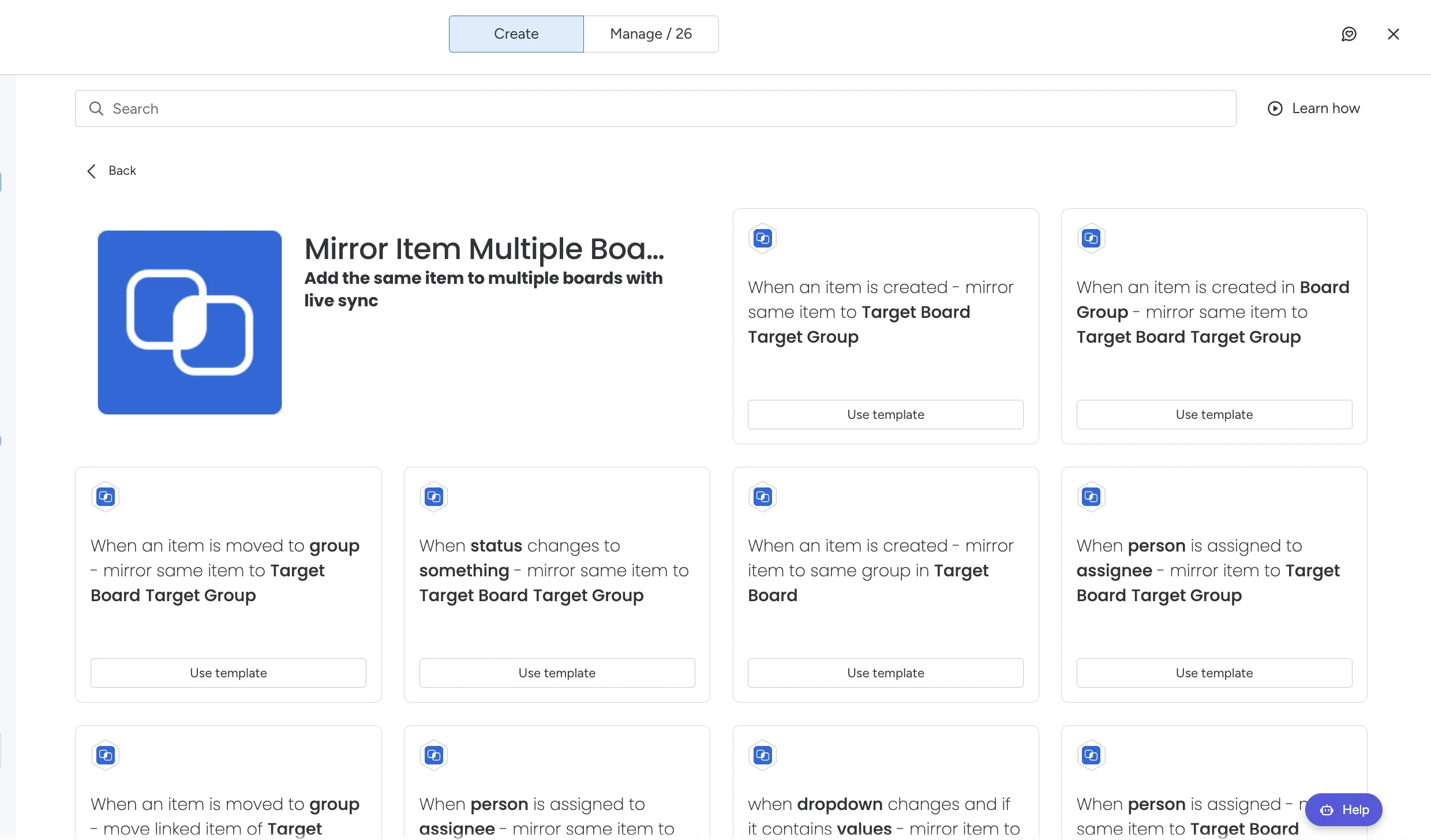
Add a Mirror Item recipe such as When an item is created, mirror same item to Target Board Target Group on the source board, one recipe per destination board. Each new item then lands on every board you chose, linked. See automation recipes.
Copy items to every board they belong on, kept in sync. Free plan, no credit card.
Get Mirror Item freeFrequently asked questions
How do I duplicate an item to multiple boards in monday.com?
Natively, duplicate the item and move each duplicate to one board at a time; the copies are independent. With Mirror Item Multiple Boards by Fortimus, add a linked copy to each board from the Mirror Item tab, or select many items and add them from the Apps bar, and the copies stay in sync.
Can I duplicate an item with its updates and subitems?
Natively, the Duplicate option lets you choose whether the updates come along, and the duplicate is independent from then on. With Mirror Item, switch on Add Updates and Add Subitems and both keep syncing afterwards.
Is a copy made with Mirror Item linked to the original?
Yes. Each board gets its own editable item, linked by the app. Shared columns (same name and type), updates and subitems sync between them until you click Unlink.
How do I copy a template item to every board?
Add the template item to each board with Mirror Item, then Unlink each board in the Where this item lives table. Every board gets an independent copy it can change freely.