How to share an item to other boards in monday.com
By Arnav Ghatage, founder of Fortimus · Updated
Short answer
monday.com cannot share one item to a second board on its own: moving takes it off the first board and duplicating makes a copy that drifts. To share the same item to other boards, install Mirror Item Multiple Boards by Fortimus, open the item, click the Mirror Item tab, choose the target board and group and click Add Item. The item then lives on both boards, and columns, updates and subitems stay in sync both ways.
Sharing an item to another board is one of the most asked questions in the monday.com community. A project item needs to be on the delivery board and the client board. A request needs to be on the intake board and the team board that does the work. A deal needs to be in sales and in onboarding.
This guide shows why the built-in options do not really share the item, then how to share it properly with Mirror Item.
Can monday.com share an item to another board?
Not as the same item. Each built-in option either moves the item, copies it, or shows a few of its values somewhere else:
| Option | What actually happens | Is it the same item on both boards? |
|---|---|---|
| Move to board | The item leaves the first board and goes to the second | No. It is only ever on one board |
| Duplicate, then move | A second, separate item is created | No. Edits on one copy never reach the other |
| Connect Boards + Mirror column | Selected values from the item are displayed on another board | No. The item, its updates and subitems stay on the first board |
| Mirror Item by Fortimus | The same item lives on both boards | Yes. Columns, updates and subitems sync both ways |
For a closer look at the mirror column route, see mirror column alternative.
Share an item to another board, step by step
- 1Install Mirror Item Multiple Boards from the monday.com marketplace. It is built by Fortimus and has a free plan. If your boards are in different workspaces, choose All Workspaces when monday asks.
- 2Match the columns. Columns sync when they have the same name and type on both boards, so add Status, Owner, Date or whatever you want shared to the second board. There is no field mapping.
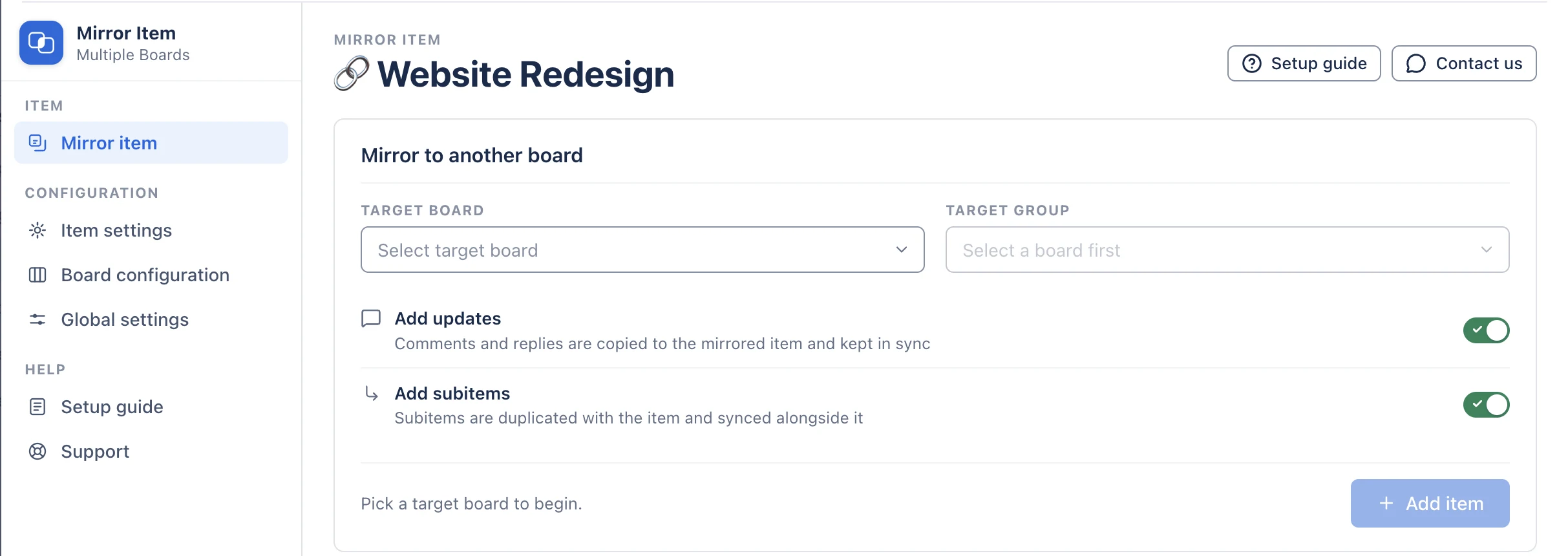
- 3Open the item and click the Mirror Item Multiple Boards tab next to Updates, Files and Activity Log. If you do not see it, click + and add it from your installed apps.
- 4Choose the Target Board and Target Group. Switch on Add Updates to bring the conversation and Add Subitems to bring the subitems.
- 5Click Add Item. The item now lives on both boards, and an edit to a shared column on either board reaches the other.
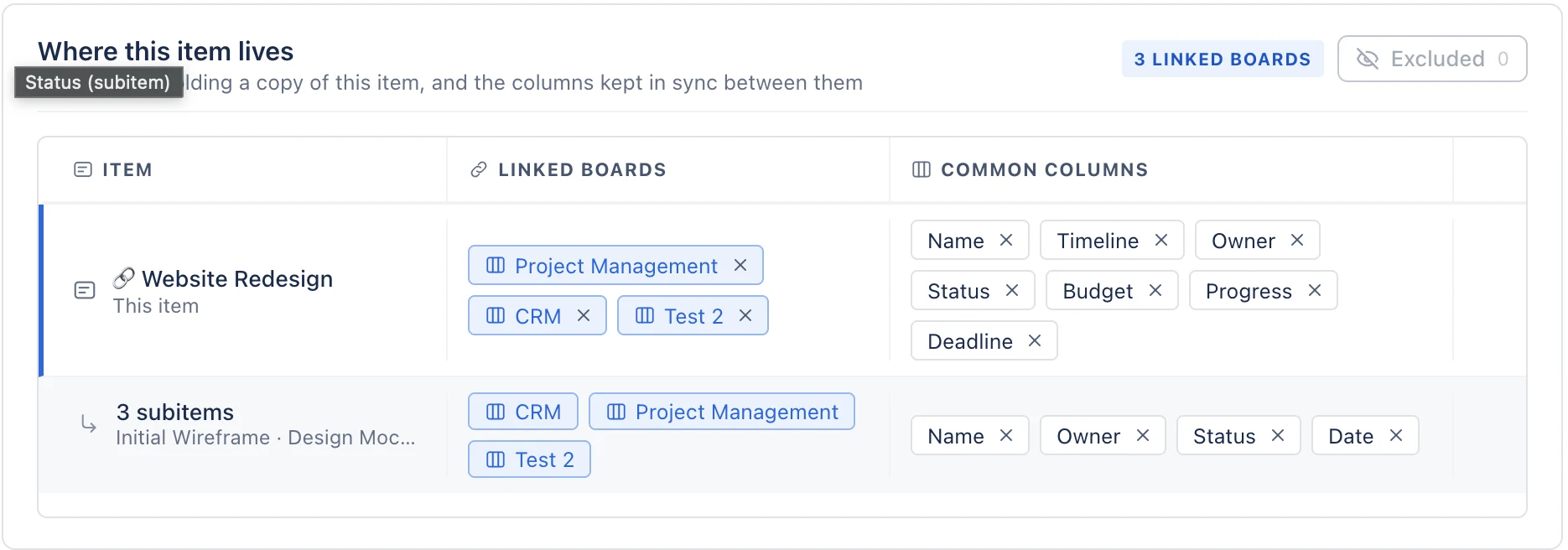
Tip: Repeat steps 4 and 5 to share the same item to a third or fourth board. It still counts as one item on your plan.
Share your first item in under two minutes. Free plan, no credit card.
Get Mirror Item freeShare many items at once
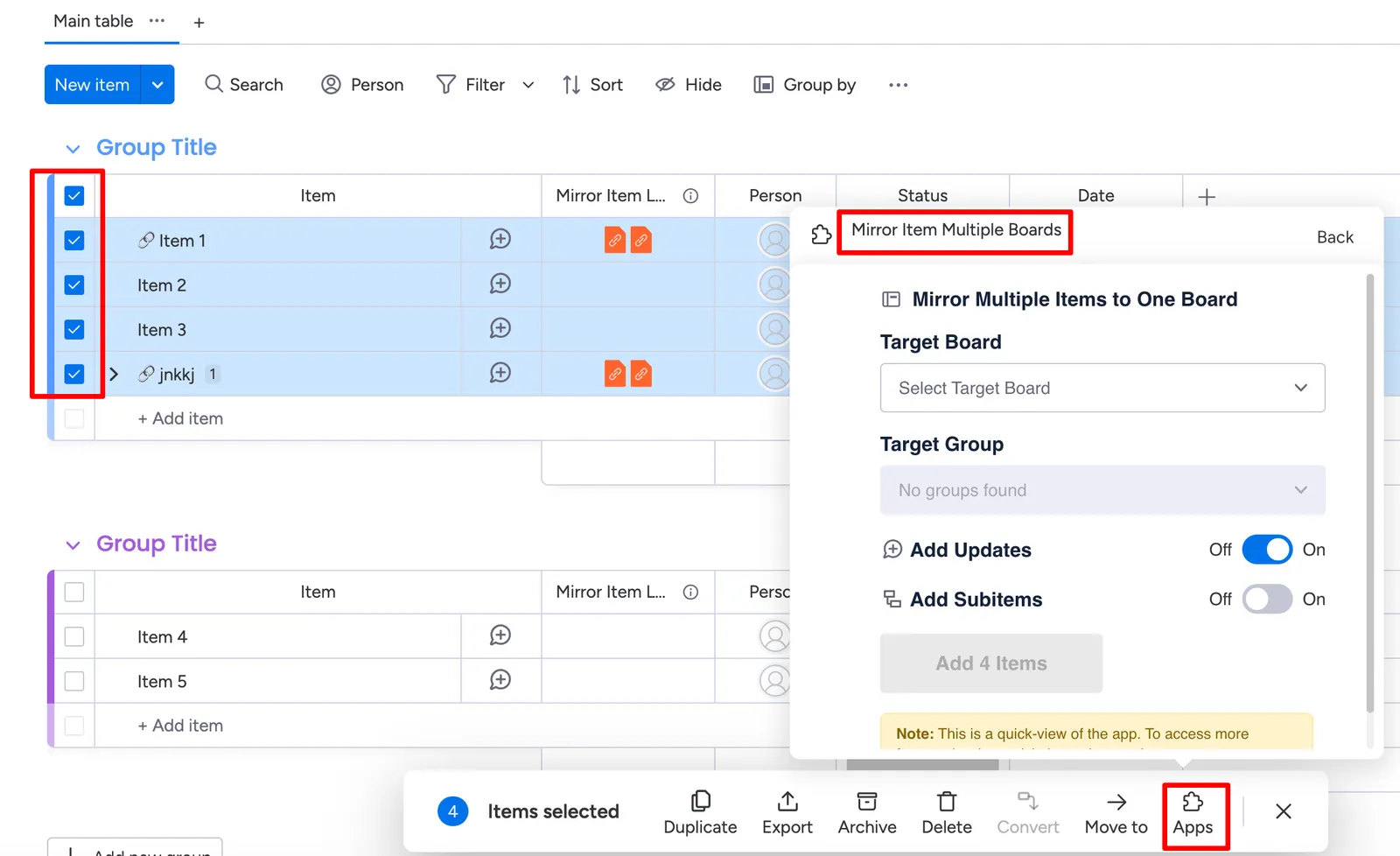
Tick the items on the board, click Apps in the bar at the bottom and choose Mirror Item Multiple Boards. Pick the target board and group and every selected item is shared in one go. About 20 at a time works best.
Share new items automatically
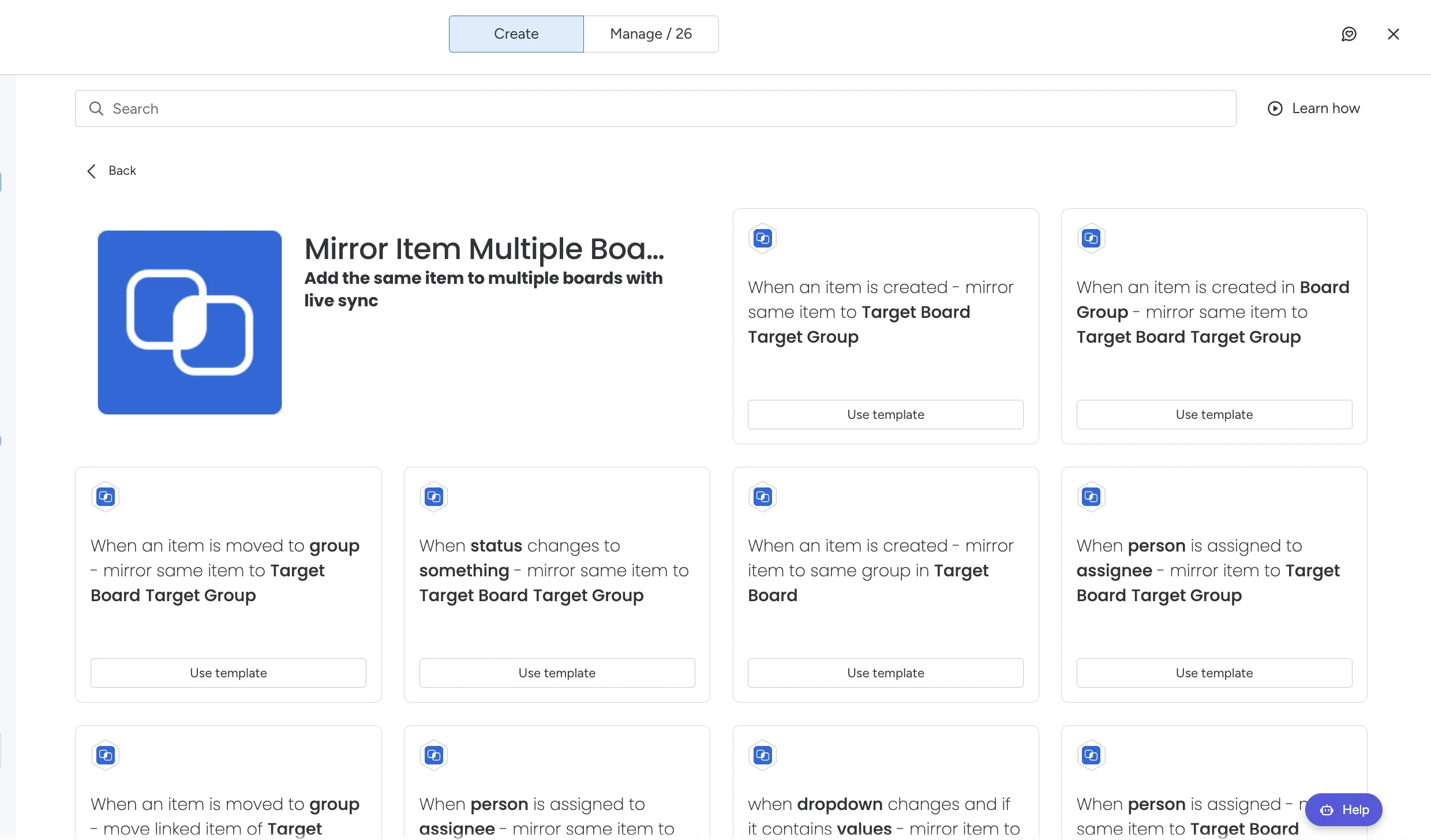
Open the Automation Center on the board, search for mirror item and pick a recipe, for example When an item is created, mirror same item to Target Board Target Group, or When status changes to something, mirror the item. New items then appear on the other board without anyone doing it by hand.
Control what is shared
- Keep a column private: give it a different name on one board and it never syncs.
- Stop one column for one item: click the x on it in the item's sync table.
- One-way sharing: sync is two-way by default. Turn off the webhooks on the receiving board and changes only flow from the source. See one-way sync.
Frequently asked questions
How do I share an item to other boards in monday.com?
Install Mirror Item Multiple Boards by Fortimus, open the item, open the Mirror Item tab, choose the target board and group and click Add Item. The same item then lives on both boards and stays in sync.
Can one item be on two boards in monday.com?
Not natively. Natively an item belongs to one board. With Mirror Item the same item lives on two or more boards and edits on either board reach the others.
Will updates and comments be shared too?
Yes, if you switch on Add Updates. The existing conversation comes along and new updates and replies sync on every board. Each person posting authorizes the app once.
Can I share an item to a board in another workspace?
Yes, within the same monday.com account. Set Mirror Item to All Workspaces in your installed apps and make sure you have access to the target board.
Does an item shared to several boards count several times?
No. In Mirror Item, an item counts once on your plan however many boards it is shared to, and subitems do not count at all. The free plan covers 5 items; paid plans start at $37 a month for the whole account.
Who makes Mirror Item?
Mirror Item Multiple Boards is built, sold and supported by Fortimus (fortimus.co). It is listed on the monday.com marketplace under the developer name Fortimus, is a monday Editor's Choice app, runs on monday code and is not affiliated with any other item sync app.