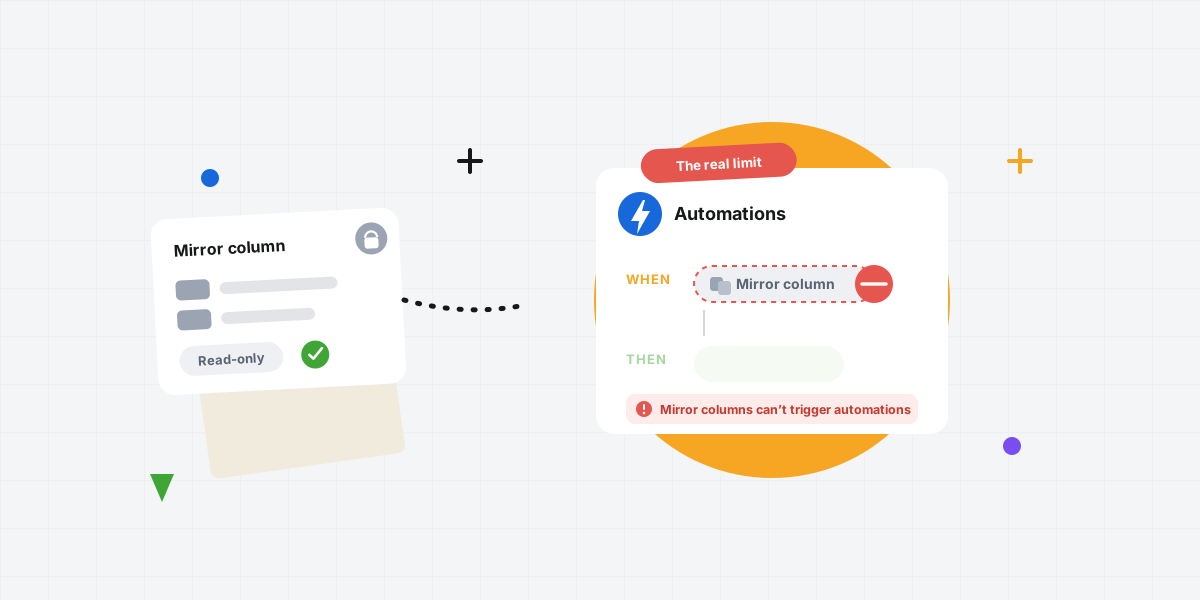
If you have tried to show the same task on two monday.com boards, you have met the Mirror column. It is the built-in way to reflect data from one board onto another. It is useful — and it also frustrates a lot of teams the moment they push on it, usually with the same complaint: the mirror column is read-only.
Here is the honest difference between mirroring a column and mirroring the whole item, why mirror columns behave the way they do, and how to pick the right one before you build your entire setup around it.
What a mirror column actually is
A mirror column works in a pair. First you link two items with a Connect Boards column. Then you add a Mirror column that reflects a value — like status or date — from the linked item on the other board.
It is good for a quick read-only view. A manager can glance at one board and see the status of work that lives on other teams' boards, without opening each one. Think of it as a window into the other board, not a door.
Can you actually edit a mirror column? (mostly yes)
This is where the "read-only" reputation is half right. A mirror column is not a copy of the data — it is a live reflection of a value that lives on the source item. But "reflection" does not mean "look, do not touch." For most column types you can edit the mirror right where you see it, and monday writes that change straight back to the source item in real time. The old belief that you must hop to the source board to change anything is, for everyday editing, mostly outdated.
Where the read-only label still bites: a mirror is computed, not stored. You cannot write to it through the API, a few column types are not editable this way, and — the one that actually hurts — it cannot drive automations. So it edits like a normal column in the interface, but it does not behave like one everywhere, and that gap is the real reason teams go looking for an alternative.
Why automations can't trigger off a mirror column
This is the big one. You generally cannot trigger an automation off a mirror column, and it often will not even appear in the trigger dropdown. So "when status changes to Done, notify the owner" quietly does nothing when that status is mirrored from another board.
Teams discover this the hard way: the automation looks set up correctly, but it never fires, because the change it is watching for is happening on the source item, not on the mirror. The mirror only updates afterward, and that update is not a trigger monday will act on.
Formulas, dashboards, and the clutter problem
Because a mirror is a reflection rather than stored data, the limits ripple outward. Mirrored values can misbehave in formula columns, and they do not always report cleanly in dashboards and widgets. Handy to look at, but in practice they are second-class columns.
And they pile up. Each value you want to see needs its own mirror column. Want status, owner, date, and priority from another board? That is four mirror columns. Do it across several boards and your view becomes a wall of columns nobody set up on purpose.
A mirror column lets you look at the work. It doesn't let you do the work.
The fix: mirror the whole item, not just a column
There is another approach: instead of reflecting a few columns, you put the actual item on both boards. Mirror Item Multiple Boards does this. The same item lives on each board, fully editable, with status, updates, replies, and subitems kept in sync both ways.
Because each board has the real item, you edit it from anywhere and automations run normally — no more silent triggers. You are not stacking reflected columns, you are just working with the task where you already are. We go deeper on this in the mirror column alternative guide if you want the step-by-step.
Which one should you use?
A simple rule of thumb:
- If you just need to glance at another board's data, the native mirror column is fine, and free.
- If you need automations to fire on it, formulas to use it, or the whole item — updates, replies, subitems — on each board, mirror the item instead.
- If your mirror columns are multiplying and your automations keep breaking, that is the sign you have outgrown columns.
And if you are weighing specific apps, here is an honest comparison of the main options.
Frequently asked questions
Can you edit a mirror column in monday.com?
For most column types, yes — you can edit a mirror column directly from the connected board, and monday writes the change back to the source item in real time. The catches: it is a computed reflection, so you cannot write to it via the API, a few column types are not editable this way, and it cannot trigger automations. If you need the value to behave like a real column everywhere — automations, formulas, the full item — mirror the item instead of the column.
Can a mirror column trigger an automation?
Generally no. Mirror columns are not reliable automation triggers and often do not show up as a trigger option, so automations built on them never fire. Use a real column on the item — which is exactly what mirroring the item gives you.
Why is my mirror column blank or not updating?
A blank or stale mirror usually means the Connect Boards link is missing or pointing at the wrong item, or the source column was changed. The mirror only shows what the linked item holds, so check the connection on the source board first.
How do I add the same item to multiple boards?
Use an app that surfaces the real item on each board rather than a mirrored copy — see syncing items across boards. Mirror columns are great for a quick look; when the work itself needs to move with the item, mirror the item.