How to share an item across workspaces in monday.com
By Arnav Ghatage, founder of Fortimus · Updated
Short answer
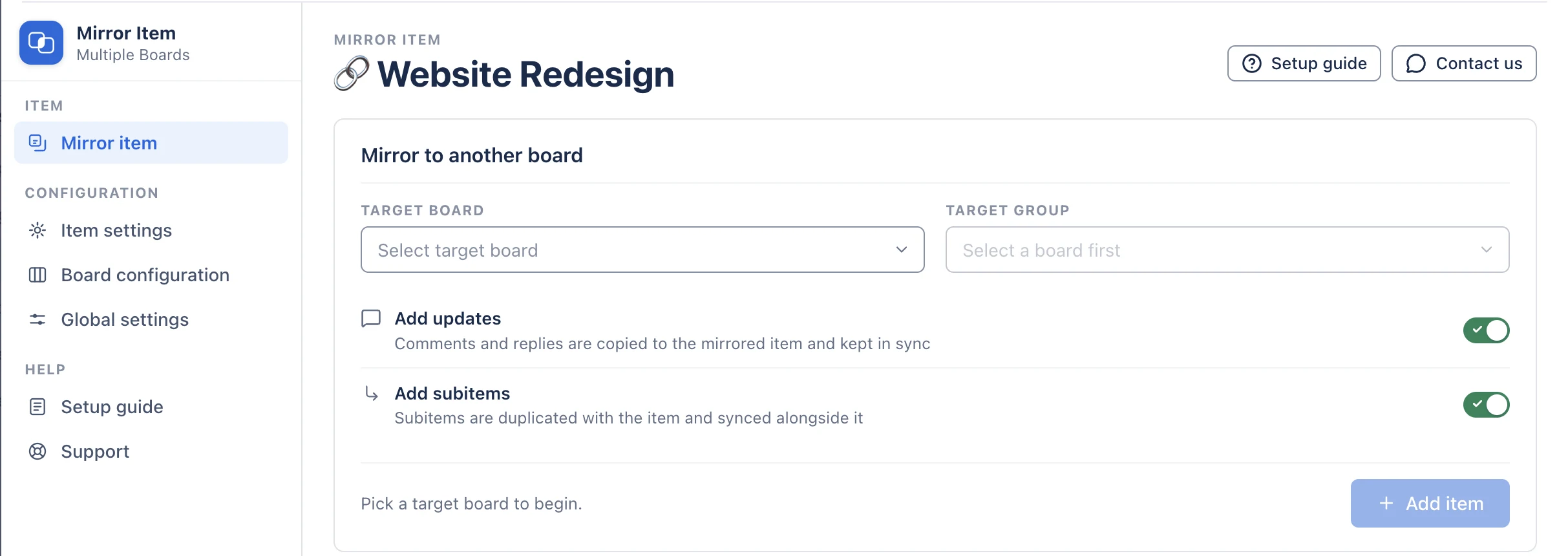
monday.com cannot put one item on boards in two workspaces. With Mirror Item Multiple Boards by Fortimus set to All Workspaces, open the item, choose the board in the other workspace in the Mirror Item tab and click Add Item. Each workspace then has a linked, editable item kept in sync, as long as both boards are in the same monday.com account.
Workspaces usually follow departments: Sales, Operations, Finance, Client Services. Work does not. A customer project starts in Sales, gets delivered in Operations and billed in Finance, and each department wants it on its own board.
The setup is the same as for two boards in one workspace (see the same item on multiple boards guide), with two extra checks: the app's workspace scope and board permissions.
Step 1: let the app see every workspace
When you install Mirror Item Multiple Boards, monday asks which workspaces it can use. Choose All Workspaces. If it was installed for one workspace only, an admin can change this in Administration > Apps: click the three dots next to the app and set it to All Workspaces. If the other board is missing from the Target Board list, this is almost always why. See target board not showing.
Step 2: add the item to the board in the other workspace
- 1On the board in the other workspace, add the columns that should be shared, with the same names and types.
- 2Open the item and click the Mirror Item Multiple Boards tab.
- 3Pick the board from the other workspace in Target Board, then the group, and click Add Item.
New to Mirror Item? The full setup in five steps covers installing, matching columns and the item panel, and the Mirror Item app page covers plans and features.
Permissions to check
- You need access to the target board. A private board still needs you to be a member.
- Column and item changes sync under the account of whoever set up the sync, so changes reach the other workspace even if the person editing cannot open that board. Choose who sets up shared items with that in mind.
- Sharing works inside one monday.com account. It does not connect two different companies' accounts.
- Guests only see the boards they are invited to. Add them to the board in their workspace rather than giving them access to the source board.
Cross-workspace setups that work well
| Setup | How to build it |
|---|---|
| Sales workspace to Delivery workspace | A recipe on the deals board sends won deals to the delivery board; status flows back to Sales |
| Every department to a leadership workspace | One recipe per department board pointing at a single master board |
| Internal workspace to client-facing workspace | Share only client-safe columns by matching names, and keep internal notes in columns with different names |
Share items across every workspace. Free plan, no credit card.
Get Mirror Item freeFrequently asked questions
Who can see the linked item in the other workspace?
Anyone who can open that board. The linked item follows the permissions of the board it sits on, so people in the other workspace see it only if they have access to their board, and never gain access to yours.
Why is the board from the other workspace not in the list?
The app is probably installed for one workspace only. Change it to All Workspaces in Administration > Apps, and check you have access to the board.
Can I share an item with another company's monday.com account?
No. Linking works between boards inside one monday.com account.