How to move a subitem to another board in monday.com
By Arnav Ghatage, founder of Fortimus · Updated
Short answer
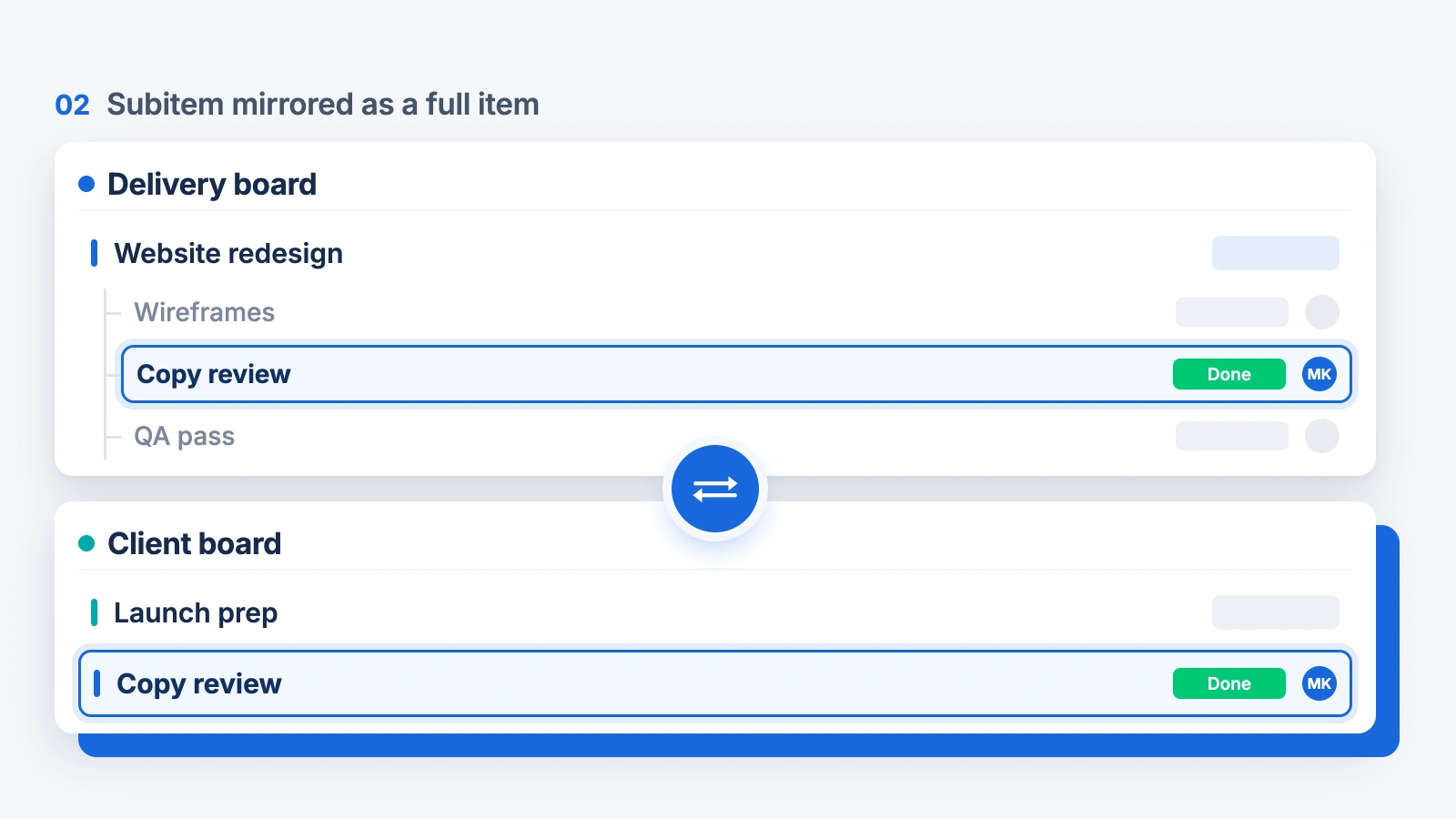
monday.com can move a subitem to a different parent item, but not put it on another board while it stays where it is. With Mirror Item Multiple Boards by Fortimus you open the subitem, click the Mirror Item tab, pick the target board and group and add it. It appears on the other board as a full item (or under a parent there) and stays in sync with the original both ways.
Subitems are where the actual tasks live, and they are the hardest thing to get onto another board. A manager wants every task as a row on a master board. Another team needs one subitem on their board. One task belongs to two projects.
This page covers the subitem cases only. For whole items, see the same item on multiple boards guide.
Every way a subitem can go to another board
| You want | Mirror Item | monday.com natively |
|---|---|---|
| Subitem as a full item on another board | Yes, stays in sync | No |
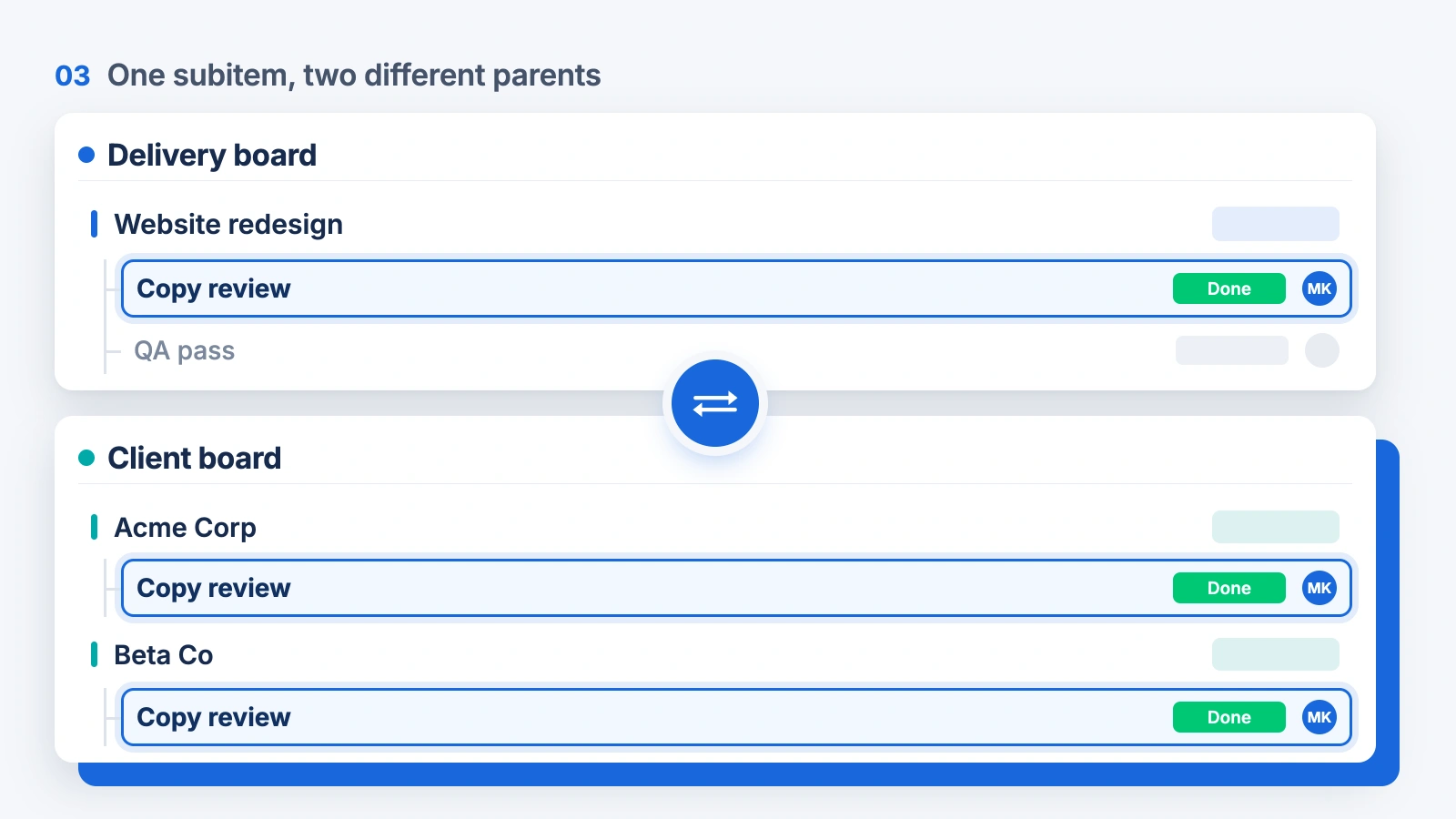
| Subitem under a parent on another board | Yes, stays in sync | No |
| One subitem under two different parents | Yes | No |
| Item with all its subitems on another board | Yes, with Add Subitems | Only by moving the parent off the first board |
| Subitem to another parent on the same board | Not needed | Yes, drag it or use Move to |
Put a subitem on another board as an item
- 1Make sure the subitem columns you want shared exist on the target board, with the same name and type, as item columns.
- 2Open the subitem and click the Mirror Item Multiple Boards tab.
- 3Choose the Target Board and Target Group.
- 4Click Add Item. The subitem appears as a top-level item on that board and stays in sync with the original.
New to Mirror Item? The full setup in five steps covers installing, matching columns and the item panel, and the Mirror Item app page covers plans and features.
Put an item under a parent on another board
Add the item to the other board first, then select it there and convert it to a subitem under the parent you want. It stays linked to the original.
Send every new subitem to a master board
In the Automation Center, search for mirror item and pick one of the subitem recipes that mirror a subitem to another board as an item. Every new task then shows up on the master board automatically. See build a master board.
Get your subitems onto any board. Free plan, no credit card.
Get Mirror Item freeTip: Subitems do not count toward your Mirror Item plan. A parent and all its subitems count as one item.
Frequently asked questions
Can I move a subitem to another board in monday.com?
Not natively. You can move a subitem to another parent item. With Mirror Item Multiple Boards by Fortimus you can put it on another board as an item or a subitem and keep it in sync.
Can I convert a subitem to an item on another board?
Yes. Open the subitem, use the Mirror Item tab to add it to the other board, and it appears there as a full item linked to the original subitem.
Can one subitem be under two parent items?
Yes, with Mirror Item. The same task can sit under a parent on Board A and a different parent on Board B and stay in sync.
Do subitem columns need to match item columns?
Yes. When a subitem becomes an item on another board, columns sync where the subitem column and the item column on the target board have the same name and type.