 Mirror Item
 Google Drive Integration
 PDF Docs + eSignatures
 MasterForms
 Time Tracker
 Diagrams for Jira
 Smart PDF Exporter
How to turn a monday.com form into a PDF with an e-signature
By Arnav Ghatage, founder of Fortimus · Updated
Short answer
monday.com WorkForms lets the person who sent a response export a read-only copy of it to PDF, if Response viewing is on. It doesn't save a PDF to the item or fill your own document. With MasterForms by Fortimus, add a Signature box to the form, open PDF template, upload your PDF (a contract, work order or application) and drag each answer and the signature onto the page. Choose the file column under Attach it to the item and press Save template. Every new response then gets a filled, signed PDF on its item.
Many forms end in a document: a signed agreement, a work order, a job application, an expense claim. You want that document made for you, signed and filed on the item, without retyping anything.
What WorkForms does
- A Signature question lets people sign. The drawing is saved in a Files column.
- With Response viewing on, the person who submitted can open a read-only view of their answers and export it to PDF from its menu.
- WorkForms' settings don't include saving a PDF of each response to the item, or printing answers onto your own document.
Make a filled, signed PDF for every response
- 1Install MasterForms from the monday.com marketplace, where it is listed as MasterForms AI: Advanced Forms. On your board, click + next to the views, choose Apps, then MasterForms, and press Connect to monday once.
- 2Add a signature box: under the form, in Add to this page, press Signature. It is saved to a File column; if there is none, MasterForms adds a Signature column to the board.
- 3Upload your PDF: open PDF template and drop in your document. It doesn't need fillable fields. If it has them, MasterForms matches each one to a question by name.
- 4Place the answers: drag each question onto the page where its answer should print. The signature is a dashed box: drag it to the signing line and make it smaller or larger.
- 5Attach it to the item: choose the file column the PDF goes into and press Save template. It applies to new responses straight away.
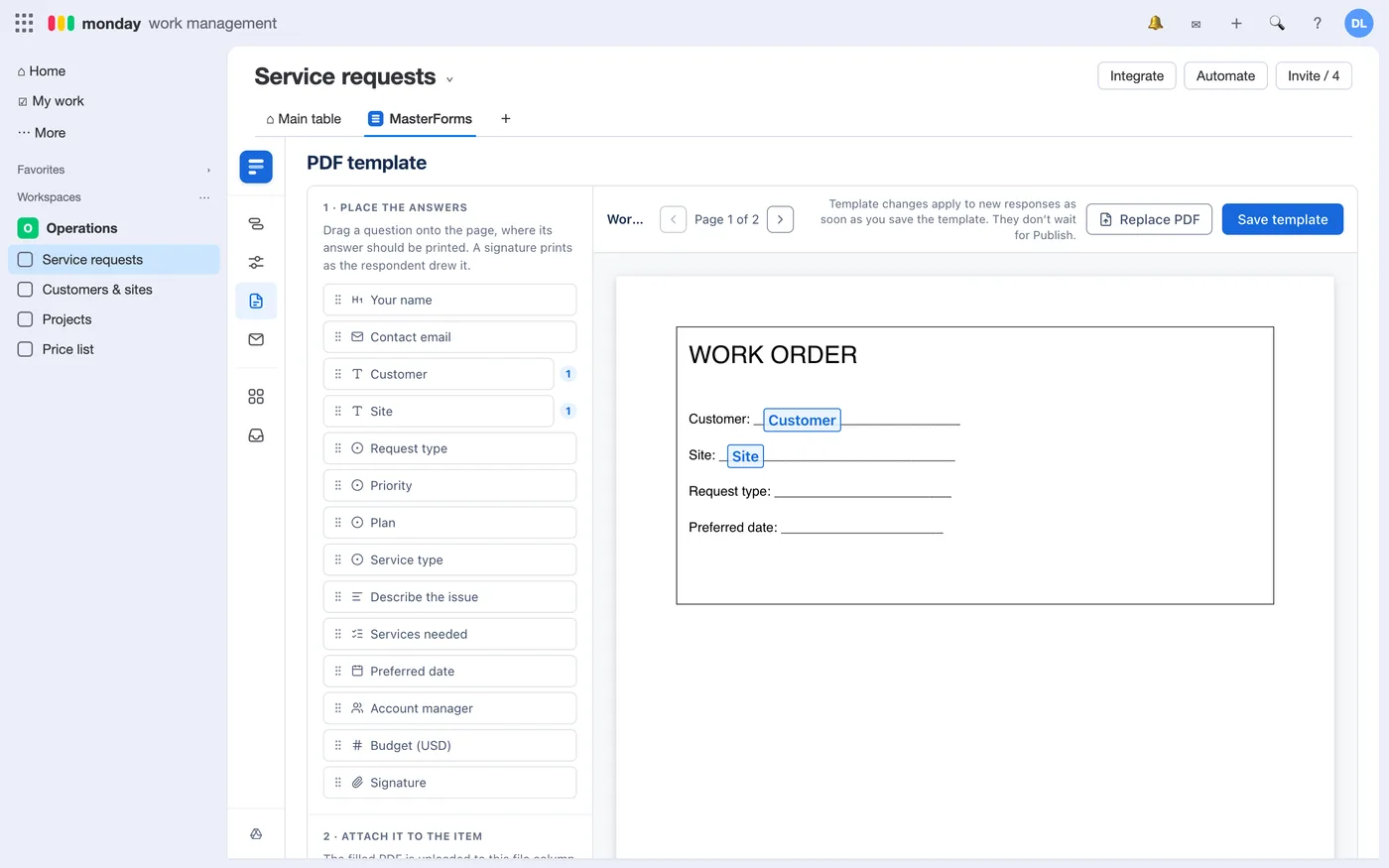
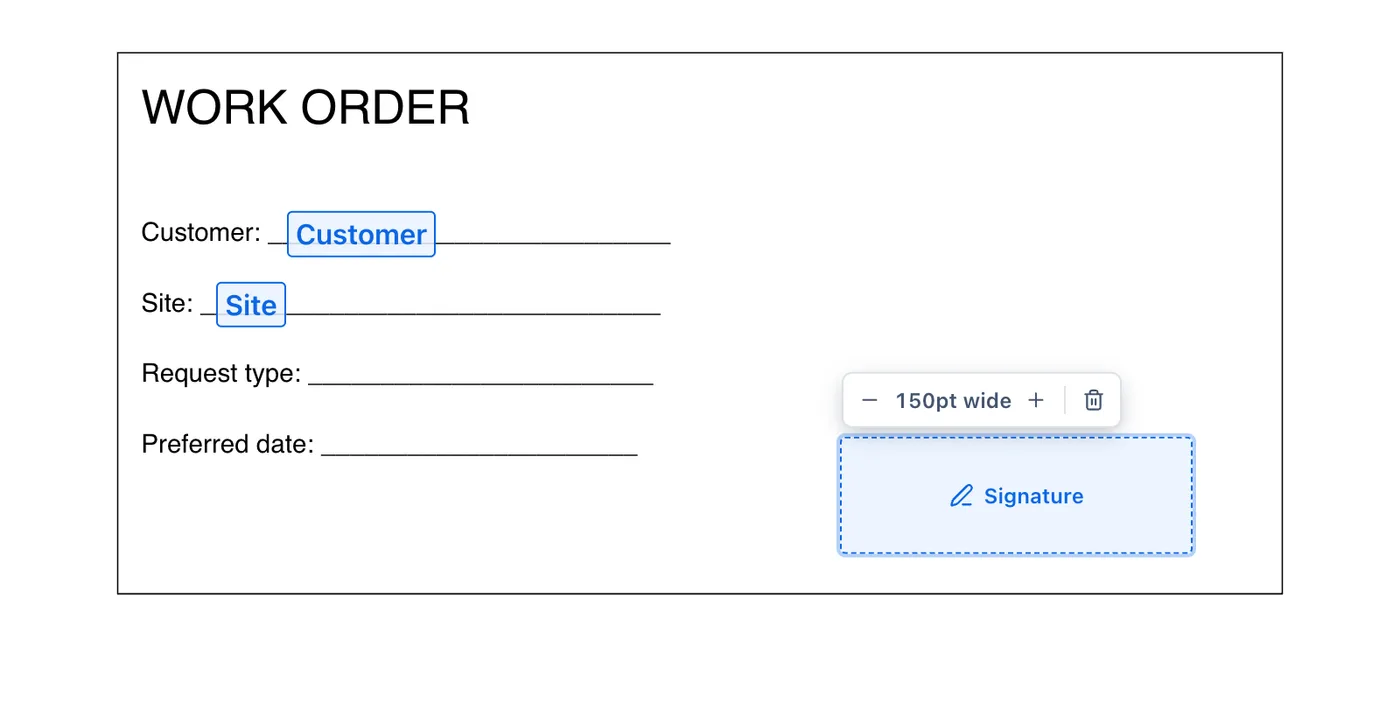
No document of your own? Choose Make a PDF from the answers for a clean PDF with your logo, every answer, the subitems and the signature, with nothing to place.
What happens with each response
- A PDF is made for every new response and named after the item.
- It is made again when the response is edited, so it always matches. If someone edits without signing again, the newest signature on the item is used.
- Turn on Let people download a PDF of their answers to show a Download PDF button after sending. The confirmation email can include the PDF too.
- Answers in Latin, Greek, Cyrillic, Hebrew and Arabic print correctly, right-to-left text included.
- File uploads, updates and subitems can't be placed on your own PDF. Files stay in their own columns.
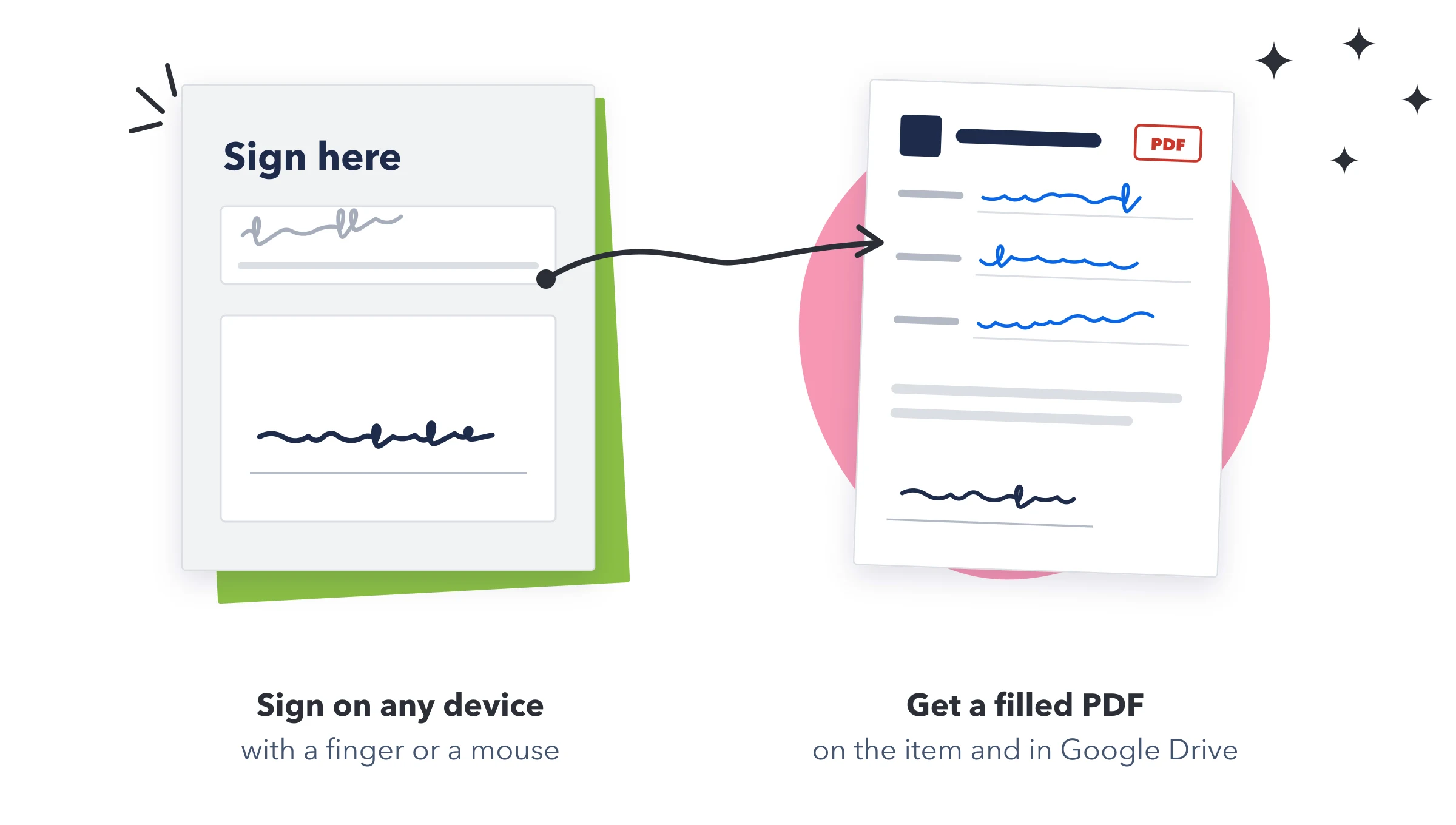
Signed reports filled in on the job
For visit reports and inspections, make it a team form: set Who fills it in to Your team, in the item card. The technician opens the job's item in monday.com, fills in the report and has the customer sign on a tablet. Saving puts the answers on the item and, with a PDF template, attaches the signed report. See Forms for your team.
Get a filled, signed PDF on every item.
Get MasterForms on monday.comWhich to use
| MasterForms | WorkForms | |
|---|---|---|
| Signature question | Yes | Yes |
| The person who sent it can save a PDF of their answersWorkForms: with Response viewing on | Yes | Yes |
| A filled PDF saved on the item | Yes | No |
| Answers printed onto your own PDF | Yes | No |
| Signature placed on your document | Yes | No |
Every setting is in PDFs in the MasterForms help center. Need documents from items that didn't come from a form, such as quotes and invoices? Fortimus also makes PDF Docs.
Frequently asked questions
Can I export a monday.com form response to PDF?
Partly. With WorkForms' Response viewing on, the person who submitted can export a read-only view of their own response to PDF. To get a PDF saved on the item for every response, use MasterForms by Fortimus.
How do I add an e-signature to a monday.com form?
WorkForms has a Signature question. In MasterForms, press Signature under Add to this page, then place the signature on your PDF template so it prints on the document.
Can a monday.com form fill in my own PDF?
With MasterForms, yes. Upload the PDF under PDF template and drag each answer onto the page. It doesn't need fillable fields; if it has them, they are matched to questions by name.
Where is the signed PDF saved?
In the file column you choose under Attach it to the item, on the item the response made.
Is the PDF updated when someone edits their response?
Yes. MasterForms makes the PDF again on every edit, so it always matches the item.
Do people need a monday.com account to fill in a MasterForms form?
No. Anyone with the link can fill it in, unless you add a password. Only team forms, which open inside an item in monday.com, need a monday.com account.
Who makes MasterForms?
MasterForms is built, sold and supported by Fortimus (fortimus.co). It is listed on the monday.com marketplace as MasterForms AI: Advanced Forms. Its optional AI features, such as building a form from a description, translating it and sorting responses, use Claude Haiku by Anthropic.