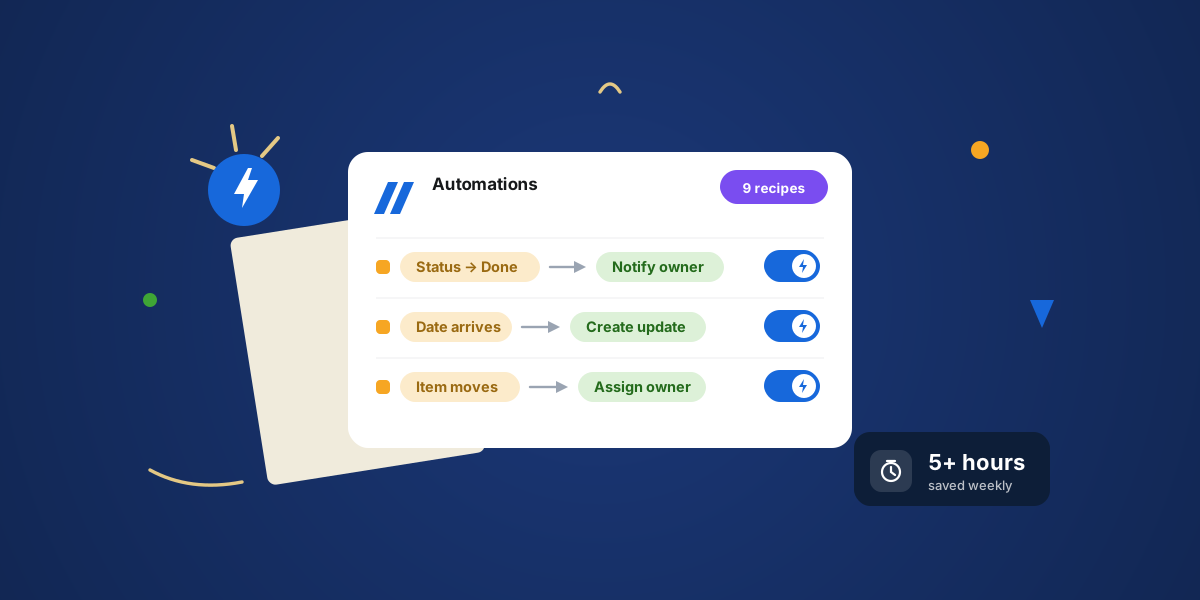
Most teams use a fraction of what monday.com automations can do. They set up one or two, then forget the feature exists. That is a shame, because the boring, repetitive parts of your week are exactly what these are built to remove.
Here are nine monday.com automation recipes — with the actual trigger-and-action wording — that pay for themselves fast. None take more than a couple of minutes to set up, and you do not need to be technical.
How a monday.com automation recipe works, in one minute
Every automation recipe is a sentence with three parts: a trigger (something happens), an optional condition (only if this is true), and an action (do this). "When status changes to Done, notify the owner." That is it. Once you see the pattern, you will spot dozens of places to use it.
9 automation recipes worth setting up
1. Remind people before a due date
When a due date is today (or two days away), notify the item's owner. People forget. A quiet, scheduled nudge means nothing slips just because someone did not check the board that morning.
2. Alert the team when a task is overdue and not done
Every day, if the due date has passed and the status is not Done, notify the owner and bump the priority. This is the recipe people search for most — it drags forgotten work back into the light before it becomes a fire, instead of letting overdue items sit silently.
3. Hand off a task automatically when status changes
When status changes to Ready for Review, assign the reviewer and notify them. Handoffs are where things fall through the cracks. Make the handoff automatic and the cracks close.
4. Move done items to a group — or another board
When status changes to Done, move the item to a Done group, or to an archive board. Your active board stays clean and you can see real progress at a glance instead of scrolling past finished work.
5. Set default values on every new item
When an item is created, set the owner to the creator and a due date a week out. Small, but it saves everyone the tiny tax of filling in the same fields every single time.
6. Push dependent dates when a timeline shifts
When a date moves, push dependent items so they cannot start before the thing they depend on. Your timeline stays realistic instead of quietly lying to you.
7. Create recurring tasks on a schedule
Every Monday, create the week's recurring items — the standing report, the weekly review, the invoice run. Anything that happens on a rhythm should appear on its own, not depend on someone remembering to add it.
8. Mirror an item to another team's board
When an item is created in this group, put it on the team board that needs it too. With Mirror Item you can do this as a real, editable item, so both teams work the same task instead of two copies that drift out of sync.
9. Auto-file documents to Google Drive
When an item is created, make a Google Drive folder for it and save the link on the item. With Google Drive Integration every project gets a tidy, predictable home for its files, with no manual uploads.
A good automation is one you forget you set up. It just quietly does its job every day.
Why your monday.com automation is not firing
Set one up that never runs? It is almost always one of these:
- The trigger never actually changed. Edits from forms, imports, or the API sometimes don't fire a "when status changes" trigger the way a manual edit does.
- A status label was renamed or deleted, so the automation is watching for a label that no longer exists. Re-pick the label in the recipe.
- You hit a monthly automation action limit on your plan, and actions silently stopped running until the next cycle.
- You're triggering off a mirror column. Automations don't reliably fire on mirrored values — put the real column on the item instead.
A classic version of this: a task is marked Done but still shows as overdue, because the "notify when overdue" automation has no condition checking that status is not Done. Add the condition and the false alarms stop.
A few tips before you go wild
- Add one automation at a time and watch it for a day. It is easier to trust, and easier to fix if it misfires.
- Use conditions to keep them quiet. "Only if priority is High" stops a useful nudge from becoming spam.
- Name things clearly. Future-you will thank present-you when you are trying to remember why a task moved.
- Do not automate a broken process. Fix the workflow first, then automate the good version.
You do not need fifty automations. Five or six good ones, running every day, will hand you back a surprising chunk of your week.