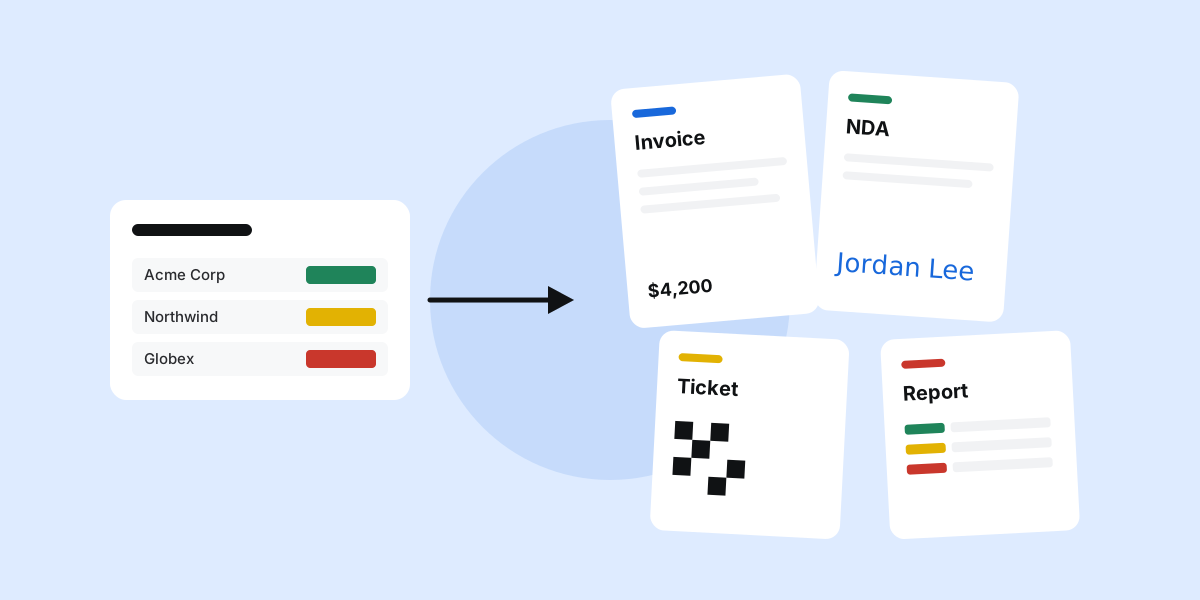
Look at any busy monday.com board and you will find a document hiding in every item. The deal item has everything a quote needs. The job item has everything a work order needs. The project item has everything the client update needs. And yet, most teams still copy those details into Word, one field at a time.
Here are seven documents teams generate straight from their boards, what the board needs for each one, and the one setup habit that makes them all work.
Why generate documents from the board at all
Three reasons. Accuracy: the client name, the price and the date come from the same place everyone already updates, so the document cannot disagree with the board. Speed: two choices and a button instead of ten minutes of copying. And a paper trail: the finished PDF is saved back on the item, so the next person who opens it can see exactly what was sent.
1. Quotes from the deal
Keep one item per deal and one subitem per line: product, quantity, unit price, subtotal. A quote template turns each subitem into a line and pulls the customer details from the item. Use Formula columns for the totals so the maths is always right.
Full setup: create invoices and quotes in monday.com.
2. Invoices when the work is done
The same board, a different moment. When the status moves to Invoice, an automation can make the invoice and email it to the address in the item's Email column, from your own Gmail. Nobody has to remember to send it.
3. NDAs and contracts
Contracts are where copy and paste really hurts. Put the other party's name, address and the purpose of the agreement in columns, generate the NDA from the item, and send it for signature from the same screen. The signed PDF comes back to the item with a record of who signed and when. More in contracts and NDAs in monday.com.
4. Work orders and job sheets
Field teams still like paper, or at least a PDF on a phone. A work order template can list the job address, the assigned technician, the parts (as subitems) and a QR code that opens the item, so the technician can update the job when they are done.
5. Event tickets with QR codes
Running registrations on a board? Each attendee is an item. An event ticket template prints the name, date and a QR code from a Link column, ready to email to every guest.
6. Certificates, offer letters and other letters
Training certificates, offer letters, welcome letters: anything with the same wording and different names. Write it once in Word, put a field like {{Item.Name}} where each detail goes, and generate one per item. See how Word templates work.
7. Client and status reports
Clients rarely have monday.com seats. A board report puts every item on one PDF, grouped like your board and coloured by status, which is often exactly what the weekly update needs. See how to export a monday.com board to PDF.
If the details already live on the board, the board should write the document.
Where to start
- Pick the document you send most often. For most teams that is the quote.
- Name your columns clearly. Templates find values by column name, so "Customer Email" beats "Email 2".
- Put repeating lines in subitems, and totals in Formula columns.
- Start with a ready-made document, then make it yours in Word once it works.
We build PDF Docs, Invoices + eSignatures for exactly this: make the document from the item, email it from your Gmail and get it signed, without leaving monday.com.
FAQ
Can monday.com generate documents natively?
monday.com can export a board to Excel, but it does not fill a designed document from an item's columns. For that you need a document app from the monday.com marketplace.
Can I use my existing Word documents?
Yes. Add fields such as {{Item.Client}} where the details go and upload the file as a template. The rest of your wording stays exactly as it is.
Do clients need a monday.com account to sign?
No. They sign from an email link in their browser.