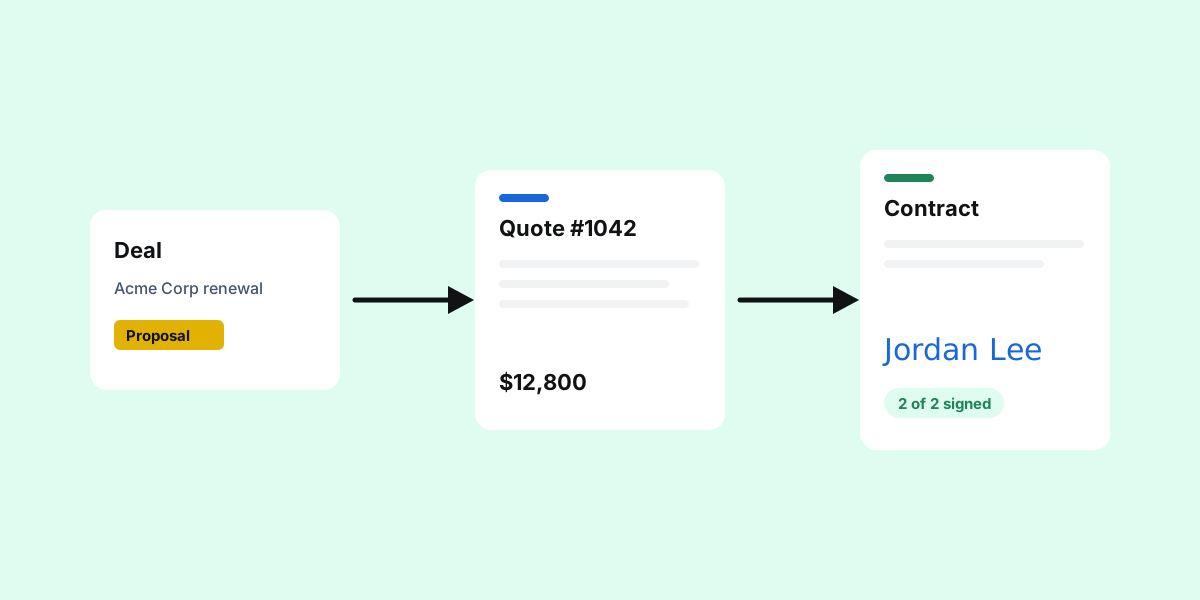
Most sales teams on monday.com have a lovely pipeline board and a messy last mile. The deal says Proposal, but the proposal itself is a Word file on someone's laptop. The deal says Won, but nobody is quite sure whether the contract went out, or whether it came back signed.
This post walks through a quote-to-sign workflow that keeps everything on the deal item: the quote, the email, the contract and the signature.
Where deals stall between "proposal" and "signed"
- The quote is retyped from the board, so prices and names drift.
- It goes out from a personal inbox, and nobody else can see it was sent.
- The contract waits for someone to remember it.
- The signed copy sits in an email thread instead of on the deal.
Step 1: Set up the deal board
One item per deal. Columns for the customer: name, street, zip code, city, country, contact, email. A Quote ID. And a Stage status with Proposal, Negotiation, Won and Lost. Put each product or service line in a subitem with Product, Qty, Unit, Unit Price and a Subtotal formula. Add Total net and Total amount formulas on the item.
If you name the columns like this, a ready-made quote template fills itself in with no mapping at all.
Step 2: Generate the quote from the deal
Open the document app on the board, choose Invoice or quote and the deal, and press Make PDF. Every subitem becomes a line, the customer block comes from the item, and the PDF is saved on the deal. Want your logo? Download the template behind it, brand it in Word and upload it back. Full steps in create invoices and quotes in monday.com.
Step 3: Send it from your own Gmail
Press Email it. The email opens with the quote attached and the client's address from the item. Save the wording as a template once, with fields like the client's name, and from then on it fills itself in. Because it goes from your Gmail, replies land in your inbox as usual.
Step 4: Send the contract for signature
Turn your standard agreement into a Word template with fields for the client details and two numbered signature fields: one for the client, one for you. Send it from the deal, and each signer gets a Review and Sign link. They sign in the browser with no account. When both have signed, the signed PDF and a signing record land on the deal. Details in how to get documents signed in monday.com.
The deal item should tell the whole story: what was quoted, what was sent, and what was signed.
Step 5: Automate the hand-offs
- When Stage changes to Proposal: create the quote PDF and email it to the client's Email column.
- When Stage changes to Won: send the contract for signature to the client and your signer.
- Optionally, save every document to the client's Google Drive folder as well.
Test each automation on one deal first. The signature automation needs one Email column per signer, in the same order as the numbered signature fields.
What to watch once it is running
- Time from Proposal to Won. It usually shrinks when the quote goes out the same day.
- Contracts waiting on a signature. The history view shows who still has to sign; send a reminder from there.
- Quotes that never got a reply. Add a follow-up date column and a monday.com reminder automation.
This workflow is built with PDF Docs, Invoices + eSignatures, which Fortimus makes. If you are comparing tools, we have honest write-ups of PDF Docs vs GetSign and PDF Docs vs DocExport.
FAQ
Can monday CRM send quotes?
monday CRM tracks deals but does not generate a quote PDF from deal data on its own. A document app adds that, and can email the quote and collect signatures from the deal item.
Can both parties sign the same contract?
Yes. Use numbered signature fields in the template, one per signer. Each person gets their own link at the same time.
Where does the signed contract end up?
On the deal item, in the file column you choose, together with a signing record of who signed and when.